
A print, PDF, and email button your readers will actually use.
Customize it, paste the snippet into your site, done.
Your Website
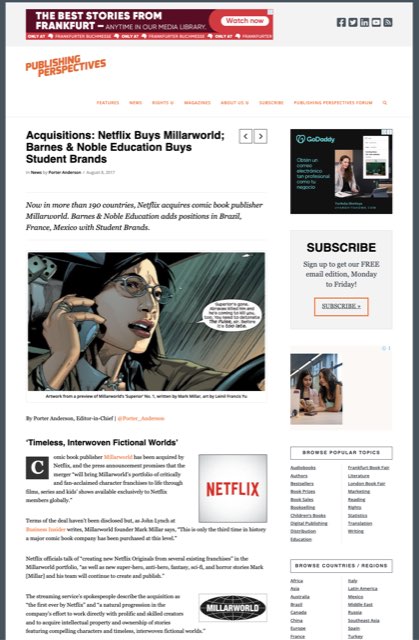
How your page looks today.

With Print Button
The PrintFriendly button is added to your site.

Printer-Friendly Page
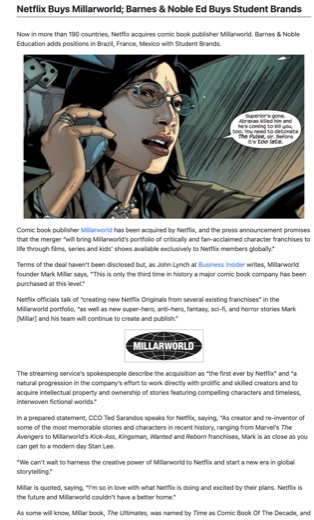
What users see after clicking the button.
Try Pro free for 30 days.
Both plans include the button and unlimited use. Pro keeps readers on your site and removes every ad. Cancel anytime.
Print Button Free
Essential tools for clutter-free printing and saving as PDF.
Free
No card needed.
Includes:
- Print, PDF and email button
- Give your users printer-friendly versions of your pages
- Preview opens on printfriendly.com
- Supported by ads
Most popular
Print Button Pro
Powerful features for organizations and commercial publishers.
$8.25/month
Billed yearly at $99.00
Includes everything in Free, plus:
- Print preview shown directly on your website
- Print Button works behind paywalls
- No ads displayed to your users
- Works across three subdomains
- Add a staging domain for free
Using WordPress? Install the plugin and start from your dashboard instead.
Questions before you start? The Help Center covers setup, custom styling and what to do when something looks wrong.