
Print and save any web page on your Android phone.
Chrome on Android has no extensions, so PrintFriendly is an app. Browse in the app, or share a page to it from Chrome, and it opens without ads or clutter, ready to print or save as a PDF.

Free. For Android 8.0 or later.
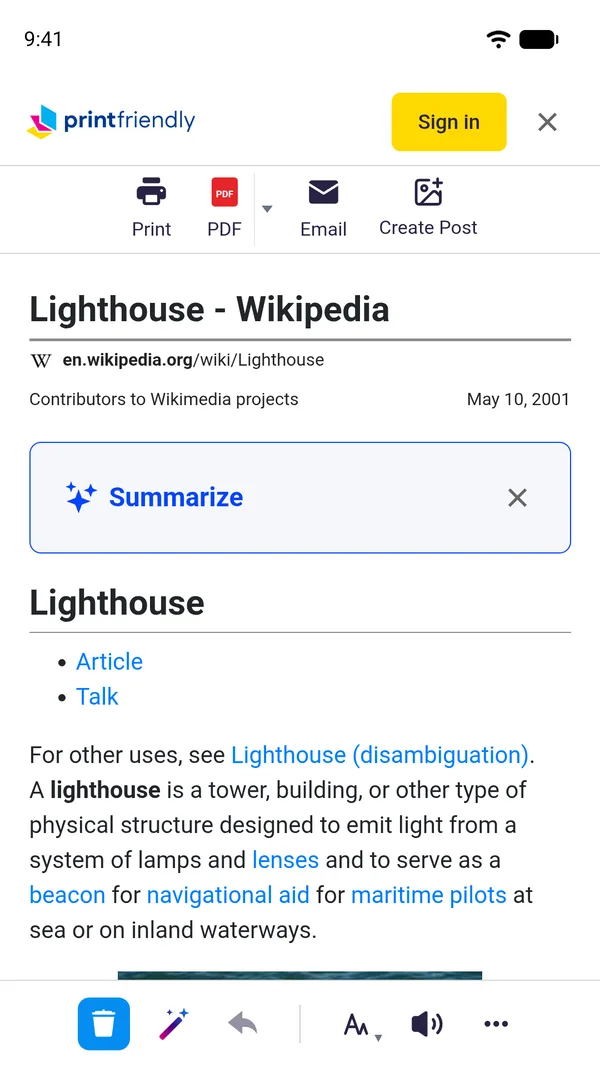
Three ways to use it
In the app
Search the web or paste a link, then tap the round PrintFriendly button at the bottom of the page.
From Chrome
Reading something in Chrome? Tap Share in Chrome's menu and choose PrintFriendly. There's nothing to set up.
From a copied link
Copied a link somewhere else? Open the app, and it offers to open the page for you.
Then print it, save a PDF, or delete anything you don't want first.
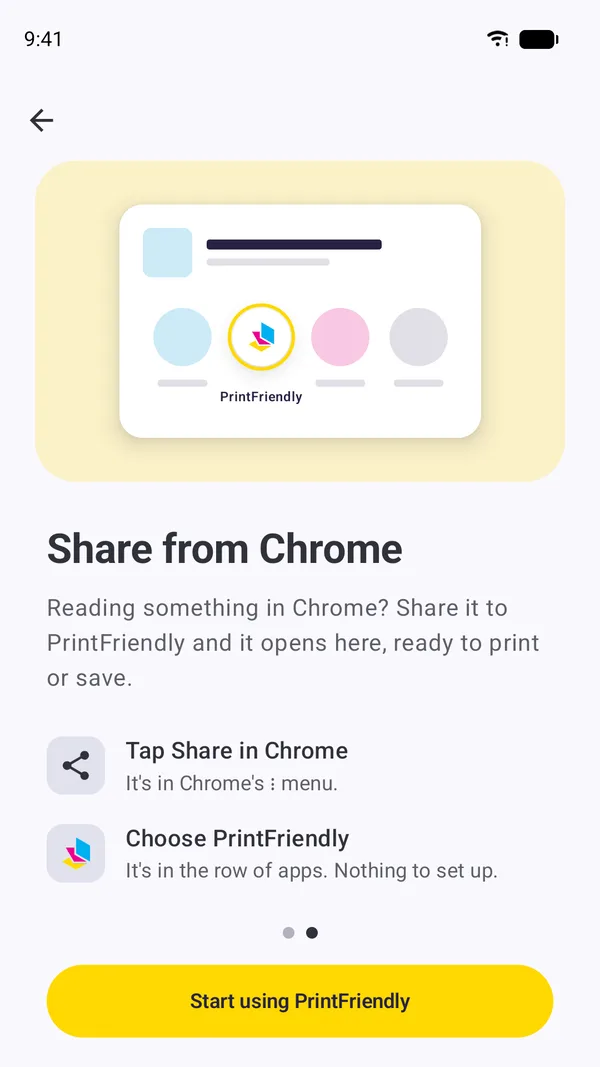
Made for Chrome on Android
Chrome on Android doesn't run extensions, so PrintFriendly is in its Share menu instead. Tap Share, choose PrintFriendly in the row of apps, and the page opens in the app, cleaned up. It works the same from any other app that shares links.
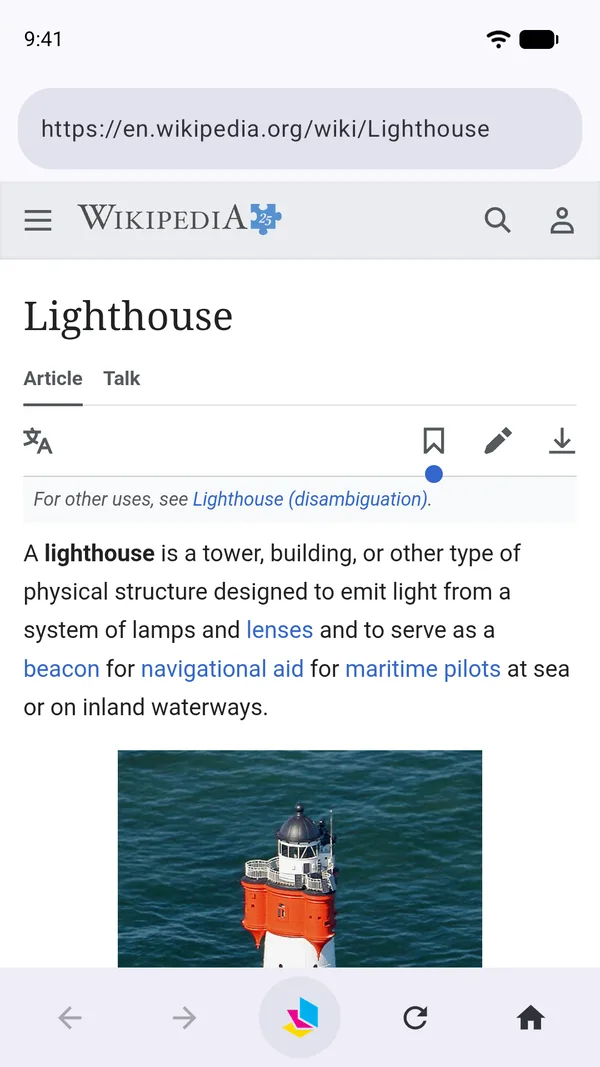
A browser that cleans up the page
Open any site in the app and tap the PrintFriendly button. Ads, menus, and pop-ups drop away. Tap anything else you don't want, a photo, a caption, a whole section, and it's gone, with Undo to bring it back. You can make the text bigger or smaller too.
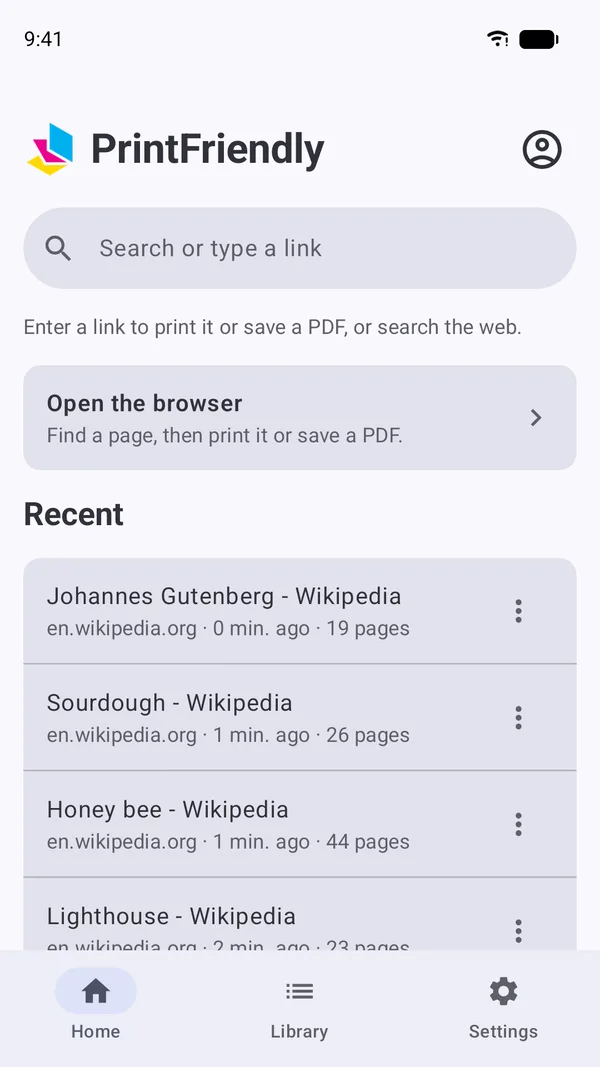
Every PDF you save, in one place
Saved PDFs go to your Library, where you can search, rename, print, or share them, and your latest ones are right on Home. Other apps can reach them too: when Gmail or another app asks you to pick a file, they're under PrintFriendly.
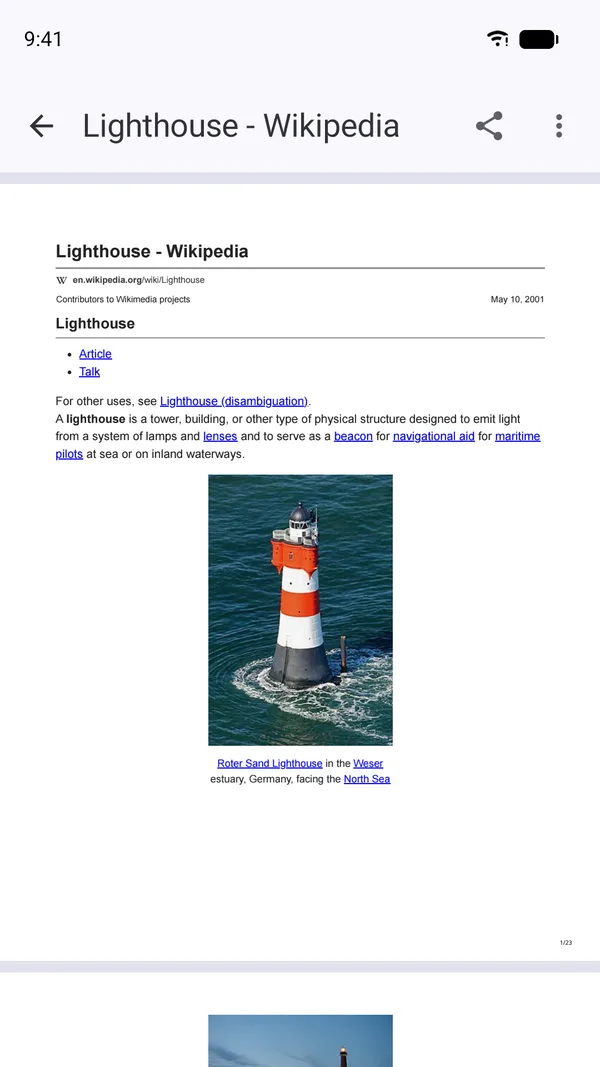
Read, mark up, and print your PDFs
Open a saved PDF to find a word in it, or draw, highlight, and type on it. Print uses Android's own print dialog, so it reaches any printer your phone can.
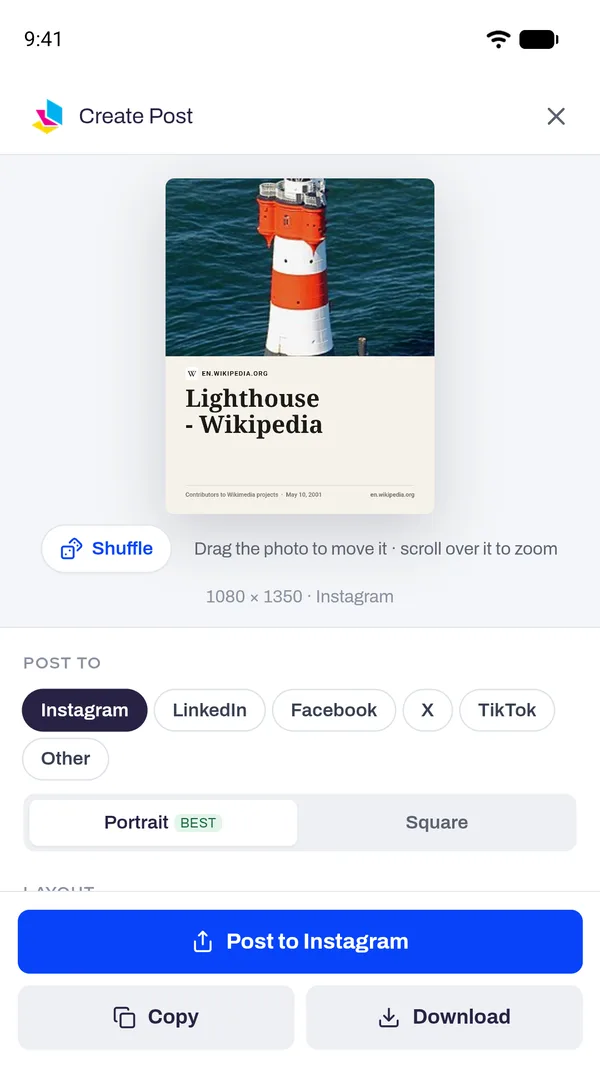
Share an article as a post
Create Post turns an article into an image with its photo, title, and source, sized for Instagram, LinkedIn, Facebook, X, or TikTok.
Frequently asked questions
Is the PrintFriendly app free?
Yes. Printing, PDFs, the Library, and Create Post work without an account. Sign in with a free PrintFriendly account to email pages, use Clean Up and Summarize, and save to Google Drive, Dropbox, OneDrive, or Notion.
Is there a PrintFriendly extension for Chrome on Android?
No. Chrome on Android doesn't run extensions, which is why PrintFriendly is an app there. In Chrome, tap Share in the menu and choose PrintFriendly. The page opens clean in the app, ready to print or save.
Which phones does it work on?
Phones and tablets with Android 8.0 or later.
Where do my PDFs go?
To the Library in the app, and the latest ones show on Home. When another app asks you to pick a file, like Gmail when you attach one, you'll find them under PrintFriendly.
Can I save more than PDFs?
Yes. You can also save a page as a Word document, an EPUB, or Markdown, and they go to the Library with your PDFs.
Can I use PrintFriendly on my computer too?
Yes. On a computer, PrintFriendly is an extension for Chrome, Edge, Firefox, and Safari. Sign in with the same account to use it in both places.