
PNG to PDF Converter
Convert a PNG image to a PDF in your browser. Screenshots, charts and graphics open in the PrintFriendly PDF editor, ready to download as a PDF.
- Convert screenshots, diagrams and other PNG images to PDF.
- The image opens in our PDF editor, where you can add text, highlights or a signature first.
- Upload and convert for free. Download the PDF with a free account.
Upload a file
PNG to PDF in Three Steps
Upload a PNG image, check it in the editor and download it as a PDF.
Screenshots and Graphics, Ready to Share
PNG is the usual format for screenshots, charts and graphics with sharp text. Turn one into a PDF when a form, a teacher or a client asks for a PDF instead of an image.
Your PNG opens straight in the PrintFriendly PDF editor in your browser, with no software to install. Mark it up if you need to, then download it as a PDF.
One Image at a Time, Then Merge
Each conversion takes one image. To put several images in one PDF, convert each one, then join the PDFs with our Merge PDF tool.
Files can be up to 100 MB. Files you upload, and the PDFs made from them, are deleted from our servers within 48 hours, whether or not you download them.
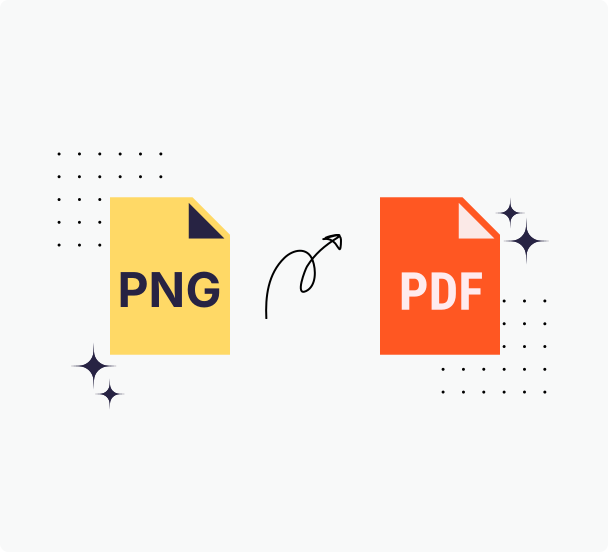
How to Convert PNG to PDF
Step 1: Choose your PNG file
Drag a .png file onto the upload box above, or click the box to choose one.
Step 2: Check it in the PDF editor
The image opens in the PrintFriendly PDF editor. Add text, highlights or a signature if you need to, or leave it as it is.
Step 3: Download your PDF
Click Download and choose PDF. Downloading needs a free PrintFriendly account, and you are asked to sign in or create one at that point.
Why Convert PNG to PDF with PrintFriendly
A quick way to turn an image into a document: open the PNG, mark it up if you like, and download a PDF.
Sharp Screenshots and Text
Screenshots, diagrams and scanned notes go onto the PDF page as they are, ready to print or attach to an email.
Opens Right Away
PNG files open straight in the PDF editor in your browser, with nothing to install.
Deleted Within 48 Hours
Files you upload, and the PDFs made from them, are deleted from our servers within 48 hours, whether or not you download them.
Free to Use
Converting is free. Downloading the PDF needs a free account, and no paid plan is needed.
Frequently Asked Questions
Check out these commonly asked questions and answers about our service. Please feel free to contact us if you have any additional questions.
How do I convert a PNG to PDF?
Drag the PNG file onto the upload box on this page, or click the box to choose it. The image opens in the PDF editor. Click Download and choose PDF. Downloading needs a free account.Can I combine several PNG images into one PDF?
Not in one step. The converter takes one image at a time, so convert each image to PDF and then join the PDFs with Merge PDF.Do I need an account to convert PNG to PDF?
You can upload and convert without one. Downloading the PDF needs a free account, and you are asked to sign in or create one at that point. No paid plan is needed.Can I edit the image before I save it as a PDF?
Yes. The image opens in the PrintFriendly PDF editor, where you can add text, highlights, shapes or a signature before you download the PDF.Which other image formats can I convert to PDF?
JPG, PNG, GIF, BMP, WebP, TIFF, HEIC and HEIF all convert in the same upload box. Camera RAW files (such as CR2, NEF and ARW), Photoshop (PSD) files and DWG drawings do not convert.Is there a file size limit?
Yes. Each file can be up to 100 MB.What happens to my files after I convert them?
Files you upload, and the PDFs made from them, are deleted from our servers within 48 hours, whether or not you download them.
Related Tools
JPG to PDF
Turn a JPG image into a clean PDF, ideal for scans, receipts, and photos.
HEIC to PDF
Convert an iPhone HEIC or HEIF photo to PDF, even in a browser that cannot open HEIC files.
WebP to PDF
Convert a WebP image saved from the web into a PDF you can print or attach.
Merge PDF
Combine multiple PDF files into one organized document in seconds.