Read articles aloud in your browser, minus the ads and menus
Long article, busy hands? Click Listen in PrintFriendly View and your browser reads you the article, not the menus and ads around it.

Some articles are worth your time but not your eyes. The long read you'd finish if you could be chopping onions or walking the dog at the same time. PrintFriendly can read articles aloud to you instead: open the article in PrintFriendly View and click Listen. You hear the article itself, not the menus, ads and share buttons around it, and each sentence lights up as it's read.
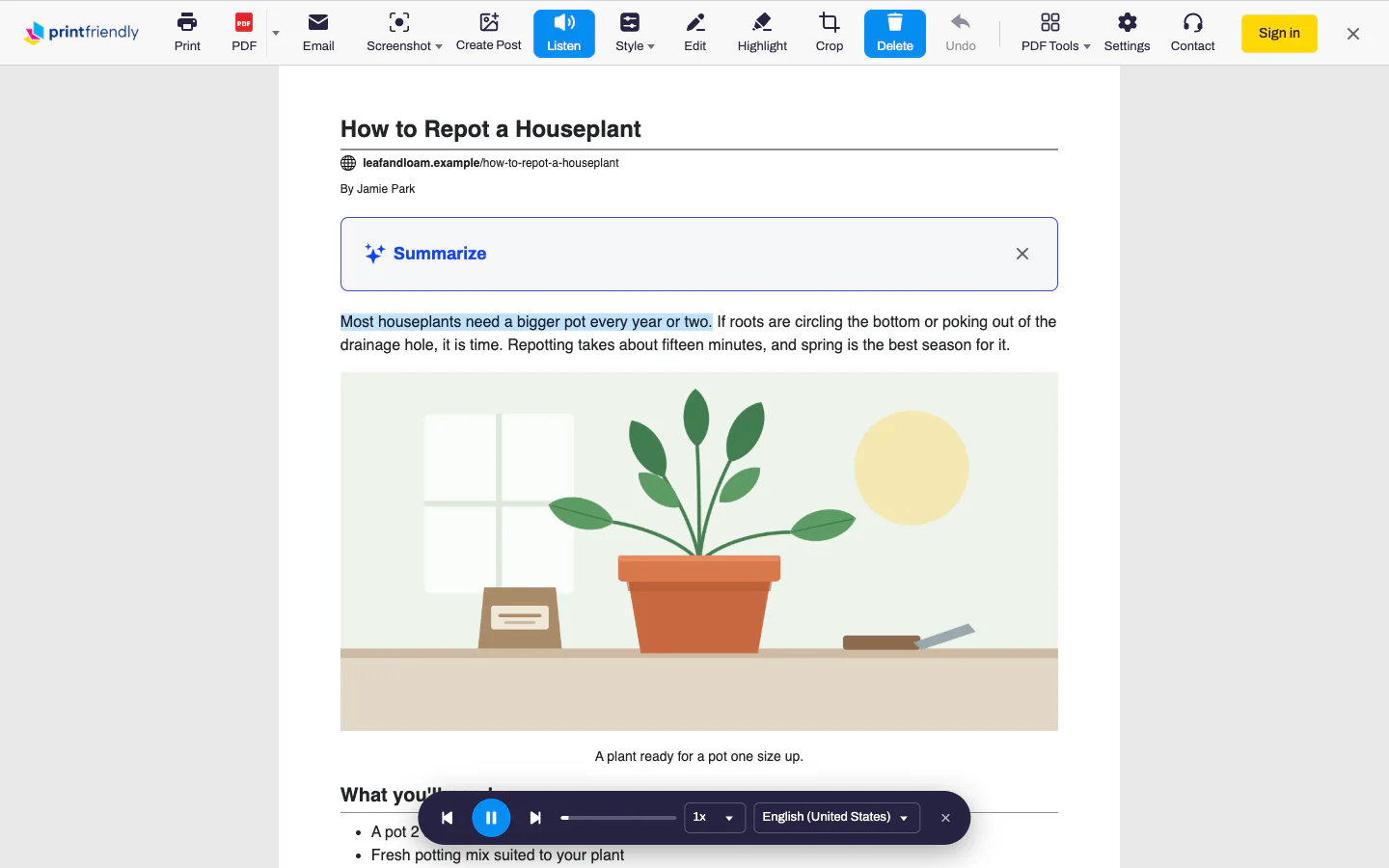
Read just the article with PrintFriendly's Listen button
- Add the PrintFriendly extension for Chrome, Edge, Firefox or Safari.
- Open the article, click the PrintFriendly button in your browser and choose PrintFriendly View.
- Click Listen in the toolbar.
A small player slides up at the bottom of the window and your browser starts reading from the top. The sentence being read is highlighted, and the page scrolls along so it stays in view.
What makes this different from reading the page as it is: Listen reads what PrintFriendly View shows, which is the title and the article. The navigation, the ads, the "share this" row and the newsletter box are already gone before it says a word. It also tidies up the parts that sound terrible read out loud:
- It skips code blocks.
- It keeps quiet about citation marks like [1].
- It tells you there's a table, and how many rows it has, instead of reading every cell.
Cut what you don't want to hear first
Most articles still have a bit you'd rather skip: a long author bio, a photo caption, a "related stories" list that slipped through. PrintFriendly View opens with Delete switched on, so hover over the part you don't want and click it. One click removes one block, like a paragraph, an image or a list item, so a long section can take a few clicks. Undo brings back anything you didn't mean to remove.
Do your trimming before you press Listen, and whatever you deleted stays out of the reading.
The controls
The round button in the middle of the player plays and pauses, and the arrows on either side of it skip back or ahead one sentence at a time, which is handy when a dog barks over the one line that mattered. Drag the progress bar to jump anywhere in the article. The speed menu runs from 0.7x to 2x, so you can slow down a dense explainer or speed through a news piece.
If you stop halfway and come back to the same article later, Listen picks up at the sentence where you left off. It remembers this for the last article you listened to. Want to hear it from the top instead? Drag the progress bar back to the start. When you're done, the X at the right end of the player closes it, and closing PrintFriendly View stops the voice too.
Picking a better voice
Your browser does the talking, so the voices depend on which one you use. Edge has Microsoft's natural-sounding online voices, Chrome has Google's online voices, and Safari and Firefox use the voices installed on your computer, phone or tablet. Online voices need an internet connection.
Listen picks a voice for the article's language on its own. To change it, open the voice menu on the player. Voices are listed by language and accent, like English (United Kingdom), and voices in other languages sit under Other languages at the top of the menu. Pick one and Listen remembers it for that language. It remembers your speed too.
Reading in more than one language? Listen goes by the article's language, not your browser's. If your device has no voice for that language, it offers voices in your browser's language instead.
If the voice sounds like a robot, you've got two easy fixes:
- Try another voice from the menu. They vary a lot.
- Add a better voice to your device. In Safari and Firefox, adding a higher-quality voice in your computer's or phone's speech settings gives Listen a better one to choose from. Edge is the browser with the most natural-sounding voices, if you have it handy.
On your iPhone or iPad
Listen works in Safari on iPhone and iPad, not just on a computer. Add the Safari extension, open the article in PrintFriendly View and tap Listen. It uses the voices on your device, the same as Safari on a Mac. On a phone the progress bar gets a row of its own.
When Listen is greyed out
Hover over the button to see why. Either your browser can't read pages aloud, or your device has no speech voices installed. The second one is the common case, and adding a voice in your system's speech settings fixes it.
Listen, then keep it
The article you just listened to is the same cleaned-up page PrintFriendly View always gives you. If it's one you want to come back to, click Print or PDF in the same toolbar and you've got a copy without the ads, minus anything you deleted.
Listen is free and doesn't need any extra permissions. The Help Center's Listen page covers the rest, like an accent you didn't expect or a reading that starts in the middle.
Frequently Asked Questions
How do I turn an article into audio?
Open the article, click the PrintFriendly button, choose PrintFriendly View and click Listen. Your browser reads it out loud right there, sentence by sentence. It plays in the browser rather than saving an audio file.
How do I get Google Chrome to read an article out loud?
Add the PrintFriendly extension to Chrome, open the article in PrintFriendly View and click Listen. Chrome does the speaking with its own voices, and you can pick another voice from the player.
How do I make my iPhone read an article out loud?
Add the PrintFriendly extension to Safari, open the article in PrintFriendly View and tap Listen. It works on iPad too, and it uses the voices installed on your device.
Is there a free way to have articles read aloud?
Yes. Listen is part of the free PrintFriendly extension for Chrome, Edge, Firefox and Safari. There's nothing to pay for and no extra permissions to grant.