Save a ChatGPT conversation as a PDF that looks like the chat
Printing a ChatGPT chat from your browser gets you the sidebar and part of the conversation. The PrintFriendly extension adds a Save as PDF button to the chat that gives you the whole thing, clean.
Some ChatGPT chats are worth keeping: a trip plan, a study guide, code you'll want next month. But try to save a ChatGPT conversation as a PDF from your browser's print dialog and you get the sidebar, the message box, and maybe half the chat. The PrintFriendly extension adds a Save as PDF button to the chat itself, and what comes out reads like the conversation and nothing else.
Why the print dialog makes a mess
Ctrl+P (Cmd+P on a Mac) prints the page the way your browser sees it, and a chat page is mostly app. So the printout picks up the sidebar with your other chats, the box you type into, the little buttons under every answer, and a lot of empty space. Code blocks and tables get chopped where the page breaks. On a long chat, you can end up with only part of the conversation.
The other usual routes don't get you a clean PDF of one chat either:
- Copy and paste into a document tends to lose the formatting. Lists, tables and code can come out flat.
- A share link gives someone a web page, not a file. Handy for sending, no good for keeping or printing.
- ChatGPT's data export is for your whole account. It arrives by email as an archive, which is great for a backup and clumsy when you want the one chat in front of you.
One answer, or the whole conversation
Once the buttons are on (more on that below), you get two of them.
Under each answer, next to ChatGPT's own buttons, there's a small PrintFriendly icon. Click it and you get just that answer. That's the one to use when a single reply is the part worth keeping.
At the top of the chat there's Save as PDF (in a narrow window it shrinks to just the PrintFriendly icon). That one takes the entire conversation, start to finish. On a long chat this matters most: PrintFriendly picks up every message, including the early ones you'd otherwise have to scroll back up to find, not just what's on your screen. On a really long one, a screen saying Capturing the full conversation covers the chat for a moment while it gathers the early messages, and Stop cancels if you change your mind.
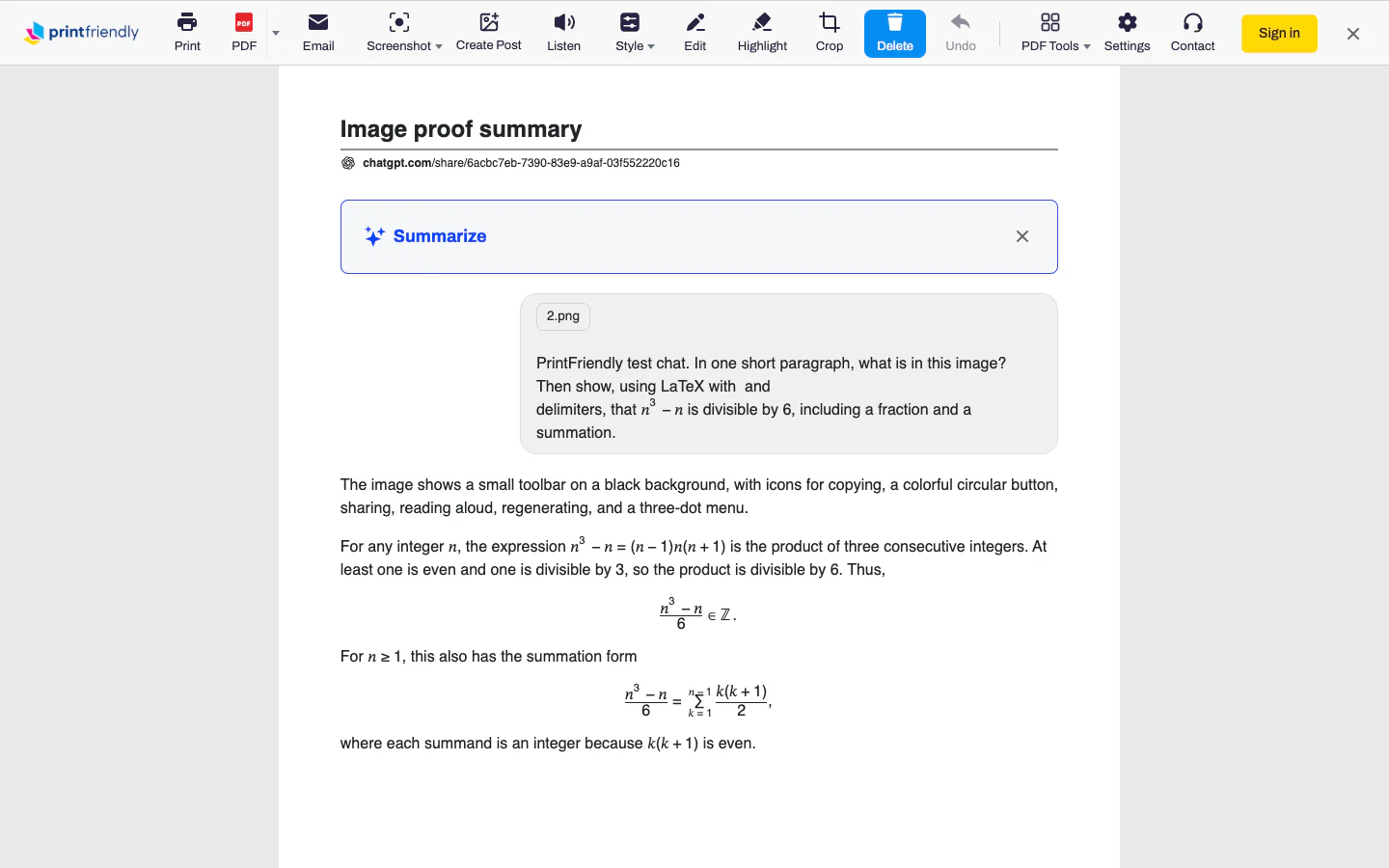
Either way, the result is laid out like a transcript. Your prompts sit in grey bubbles so you can see who said what. Answers run at full width. Code blocks stay code blocks, tables stay tables, and equations still read as equations instead of a jumble of numbers.
What comes through now
ChatGPT changes how it shows answers every so often, and a few things that used to go wrong don't anymore:
- Follow-ups make it in. Save a chat you're still in the middle of and you get every question and answer so far. Before, the PDF could stop at the first answer until you reloaded the page. If you regenerated an answer, you get the new one.
- The Save as PDF button at the top is back. For about a month, only the icon under each answer was showing up.
- Links inside an answer stay put. Web search answers often open with a linked name, like the company or place the answer is about. That name used to vanish from the PDF and leave the sentence without its subject. Now it stays where it was.
- Source pills stay too. The rounded pills that show where a web search answer got its facts used to be missing from the PDF entirely. Now they show up as small site icons and names, each linked to the page it cites, both in PrintFriendly View and in the PDF you save.
- Answers with cards and photo carousels come out as the answer, not as bits of code.
- Temporary chats print in full. Before, you could get your prompt and no answer.
- An answer that just finished prints once. Save it straight away and you no longer get the end of it twice with code mixed in.
- Shared chats work too. Open a link someone sent you, click the PrintFriendly button in your toolbar and choose PrintFriendly View, and you get the conversation with a title and its link under it, not the page's sign-up buttons and fine print.
- Codex shared threads (links that start with chatgpt.com/s/cx_) get the Save as PDF button at the top, and print as a conversation instead of a copy of the page: your prompts in bubbles, each answer, any images it made, and the list of files it changed with their line counts. The steps the page folds away behind "Worked for" stay out.
Tidy it, then save or print
Both buttons open the chat in PrintFriendly View, the same clean page the extension makes for any article. That means you can edit before you save.
Delete is already on when it opens, so click anything you don't want and it's gone. One click removes one block: a paragraph, an image, a list item. A tangent that ran for three replies takes a few clicks. If you remove too much, Undo brings it back. Highlight lets you mark the lines that matter, which is nice when it's a study guide.
Then pick what you need:
- PDF saves it as a PDF file.
- Print sends it to your printer.
- The arrow beside PDF opens more formats, including Word and Markdown, if you want something you can keep editing.
Turning the button on
The chat buttons are off until you ask for them, so nothing shows up on ChatGPT the day you install. There are two ways to turn them on.
From the chat. Open a ChatGPT conversation, click the PrintFriendly button in your toolbar and choose PrintFriendly View. A small panel appears in the corner offering to add Save as PDF to ChatGPT. Click Add the button and it stays from then on.
From Settings. In PrintFriendly View, click Settings, then Where PrintFriendly Appears, and turn on Show PrintFriendly on supported sites. That switches on the buttons for every site that has them, ChatGPT included. To pick just ChatGPT, open Choose sites and tick it. The same two buttons work on Claude and Gemini, too: here's how to save a Claude chat as a PDF and save a Gemini chat as a PDF.
The extension works in Chrome, Edge, Firefox and Safari. If you haven't installed it yet, Browser Extensions in the Help Center walks through it, including pinning the icon so it's always in your toolbar.
Frequently Asked Questions
Can I save a ChatGPT conversation as a PDF?
Yes. Your browser's print dialog can do it, but you usually get the sidebar, the message box and only part of a long chat. The PrintFriendly extension gives you a clean PDF of just the conversation.
How do I save or download an entire ChatGPT conversation, not just the part on screen?
Click Save as PDF at the top of the chat, not the small icon under one answer. PrintFriendly picks up every message, including the early ones you'd have to scroll back for, and puts them all in one PDF.
How do I print an entire ChatGPT conversation?
Click Save as PDF at the top of the chat to open the whole conversation in PrintFriendly View, then click Print instead of PDF. You get the full transcript on paper, without the sidebar or the buttons.
Does this work for Claude or Gemini chats too?
Yes, the same two buttons work on Claude and Gemini once you turn them on.