How to send a web page to your Kindle
Long article, small laptop screen, lots of ads? Send the cleaned-up page to your Kindle in one click, or save it as an EPUB for any e-reader.
You found a long article you actually want to read, and you'd rather read it on your Kindle than squint at it on a laptop between ads and pop-ups. Our browser extension can now send a web page to your Kindle as an e-book: just the article, its text and pictures, with the ads, menus and comment sections left behind. Not on a Kindle? It can save the same article as an EPUB for any other e-reader.
Set it up once
There's a short setup the first time, and it's Amazon's rule, not ours: a Kindle only accepts documents emailed from addresses you've approved in your Amazon account. So you tell Amazon to trust PrintFriendly, and tell PrintFriendly where your Kindle is.
- Get the extension for Chrome, Edge or Firefox if you don't have it yet.
- On the article, click the PrintFriendly button in your browser's toolbar and choose PrintFriendly View.
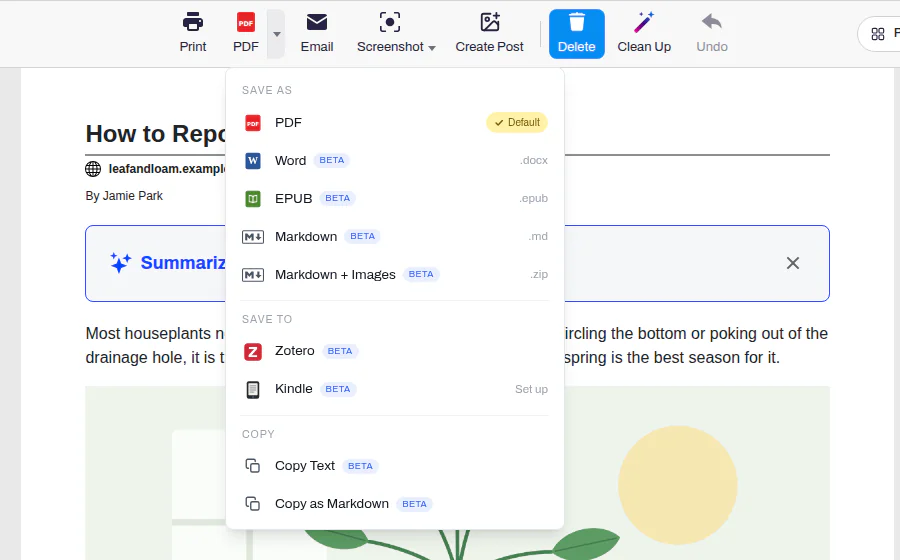
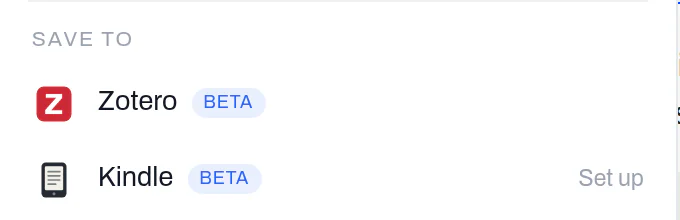
- Click the small arrow next to PDF at the top to open the Save menu, then pick Kindle. Until it's set up, the row says Set up.
- The Send to Kindle dialog shows PrintFriendly's sending address, kindle@printfriendly.com. Click Copy address, then Open Amazon settings.
- On Amazon, scroll to Personal Document Settings at the bottom and add the address to the Approved Personal Document E-mail List.
- On that same Amazon page you'll see your Kindle's own email address, the one ending in @kindle.com. Back in the dialog, type it in and click Save and send.
That's the whole setup. The dialog says it plainly too: your Kindle address stays on your device, and PrintFriendly uses it only to send your pages and doesn't keep it.
After that, it's one click
Every page after the first skips all of that. Open it in PrintFriendly View, pick Kindle from the Save menu, and you'll see Sent to your Kindle. It usually arrives within a few minutes.
Because it goes through PrintFriendly View, you get to tidy the page first. Delete mode is on when the view opens, so one click on a paragraph, picture or list item you don't want removes it. What's left is what lands on your Kindle.
Got a new Kindle, or typed the address wrong? The sent dialog has a Change Kindle address button.
If it doesn't arrive
Check your approved list on Amazon first. If kindle@printfriendly.com isn't on it, Amazon drops the page without telling anyone, which looks exactly like nothing happened. The sent dialog reminds you of this for that reason. Add the address, then send the page again.
Once in a while a page with lots of big pictures is too large to email to a Kindle. The dialog will say so and offer Download EPUB instead. Download it, then upload it on Amazon's own Send to Kindle page, which takes EPUB files.
Not a Kindle? Save it as EPUB
The EPUB row in the same Save menu downloads the cleaned-up article as an e-book file, the format Kobo, Apple Books and most other e-readers use. Open it in Apple Books on a Mac, or plug your Kobo into your computer and copy the file onto it. Same clean article, no Amazon account involved.
If what you have is already a PDF, our post on sending a PDF to a Kindle covers that.
Other ways to send a web page to a Kindle
There are a few:
- Amazon's own Send to Kindle extension works in Chrome and other Chromium browsers. Amazon's Send to Kindle page also takes files you upload, so you can print a page to PDF and send that.
- Read-later services can deliver to a Kindle too. Push to Kindle sends a set number of articles a month for free, and Instapaper's Kindle delivery comes with its paid plan.
Where ours is different: it's the same PrintFriendly View you'd print from, so you can clean up the page before it goes, and it lives in an extension you may already have, with an EPUB option for the e-readers that aren't Kindles.
Where it works
Send to Kindle and EPUB are in the PrintFriendly extension for Chrome, Edge and Firefox. In Firefox, the first send asks your permission before your Kindle address goes out with the page. The extension's feature list has the rest of what's in the Save menu.
Frequently Asked Questions
How do I send a web page to my Kindle?
Open the page in PrintFriendly View, click the arrow next to PDF, and pick Kindle. The first time, you approve PrintFriendly's sending address in your Amazon account and enter your Kindle's email address. After that it's one click.
Why didn't the page show up on my Kindle?
First check that kindle@printfriendly.com is on the Approved Personal Document E-mail List in your Amazon account. Amazon quietly drops anything from an address you haven't approved, so add it and send the page again.
Where do I find my Kindle's email address?
In your Amazon account, under Manage Your Content and Devices, on the Preferences tab, in Personal Document Settings at the bottom. It ends in @kindle.com, and the Open Amazon settings button in PrintFriendly's setup takes you to that page.
Can I read web articles on a Kobo or other e-reader?
Yes. Pick EPUB in PrintFriendly's Save menu instead of Kindle and you get the same cleaned-up article as an e-book file, which a Kobo, Apple Books and most other e-readers open.