How to merge PDF files into one, in the order you want
Three PDFs that should be one? Drop them on Merge PDF, put them in order, and download a single file.

The lease, and then the addendum someone sent a week later. Pages that came off the scanner one at a time. Six receipts for one expense report. They're all separate PDFs, and whoever's asking wants one. Drop them on Merge PDF and it'll combine them into a single file, in whatever order you put them.
How to merge PDF files
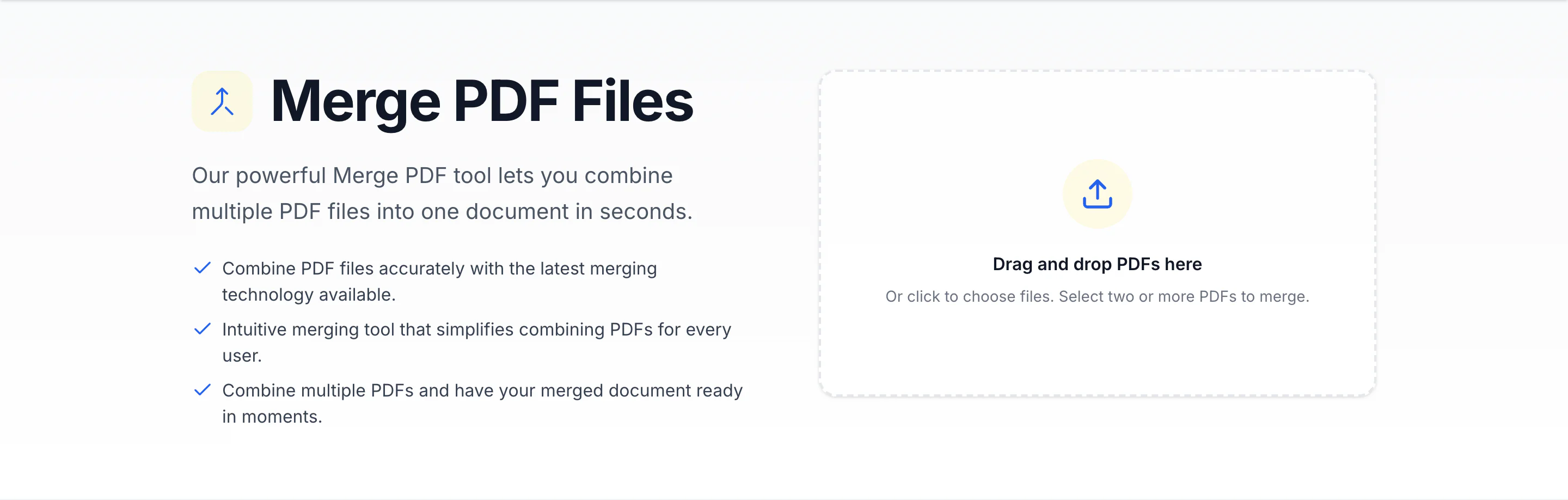
- Drop your PDFs on the box that says Drag and drop PDFs here, or click it and pick them. You can add up to 20 at a time.
- Each file shows up as a thumbnail of its first page. Drag them into the order you want. If a scan came out sideways, click the rotate arrow on its thumbnail until it's upright.
- Click Merge 3 files (the number matches however many you added).
Merging is open to anyone. Downloading the merged PDF takes a free account.
Locked files, and fixing the pile
A password-protected PDF doesn't hold things up. Instead of a thumbnail it shows a lock and an Unlock button. Type its password and it merges like the rest.
Forgot one? Add more files sits above the thumbnails. Added one too many? The little x in a file's corner takes it back out.
Where it works
Merge PDF is a page on printfriendly.com, so there's nothing to install or buy. You don't need Adobe Acrobat, and it works on a Mac, a Windows PC or a Chromebook. The details are in What Each PDF Tool Does.
Need to go the other way? Split PDF breaks one PDF into pieces.