How to print a wide table from a website (without shrinking the whole page)
Big tables print with columns missing or with every page shrunk to fit. Turn the paper sideways for just that page, and let only the table get smaller.
You print a page with a big table on it, a Wikipedia list or a spec sheet or a page of sports stats, and the right-hand columns just aren't there. Or they are, but every page came out in type so small you need to squint. Here's how to print a wide table from a website and actually be able to read it: turn the paper sideways, and shrink only the table, not the whole page.
Why wide tables print badly
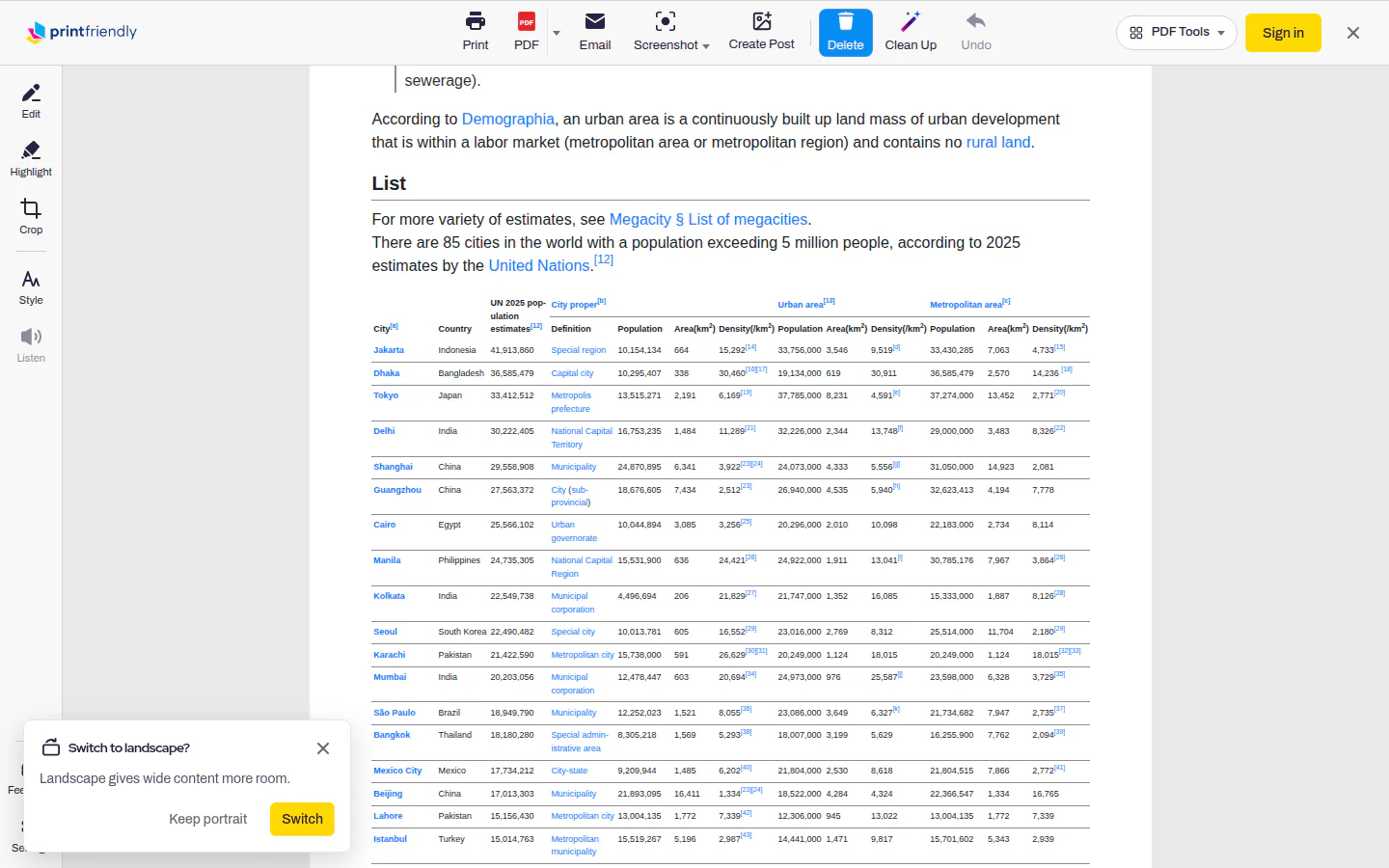
A portrait sheet of paper is a lot narrower than your screen. When a table doesn't fit across it, your browser has two options, and neither is good: cut off whatever runs past the right edge, or shrink the entire printout until the table fits. The second one sounds better until you notice the paragraphs shrank along with the table, on every page, just to make room for one wide thing.
The quick fix in your browser's print dialog
Every browser lets you turn the paper and change the scale. Press Ctrl+P (Command+P on a Mac), then:
- Chrome and Edge: set Layout to Landscape. For scaling, open More settings and change Scale.
- Firefox: set Orientation to Landscape. Scale offers Fit to page width or a percentage.
- Safari on a Mac: pick the sideways orientation icon and type a Scale percentage.
That fixes plenty of tables. The catch is that scaling makes everything smaller, not just the table, and landscape alone won't save a table that's still wider than a sideways page. That's the part we wanted to fix.
Landscape for just this page, with PrintFriendly
Install the PrintFriendly extension, open the page with the table, click the PrintFriendly button in your toolbar and choose PrintFriendly View. Then open Style and set Orientation to Landscape.
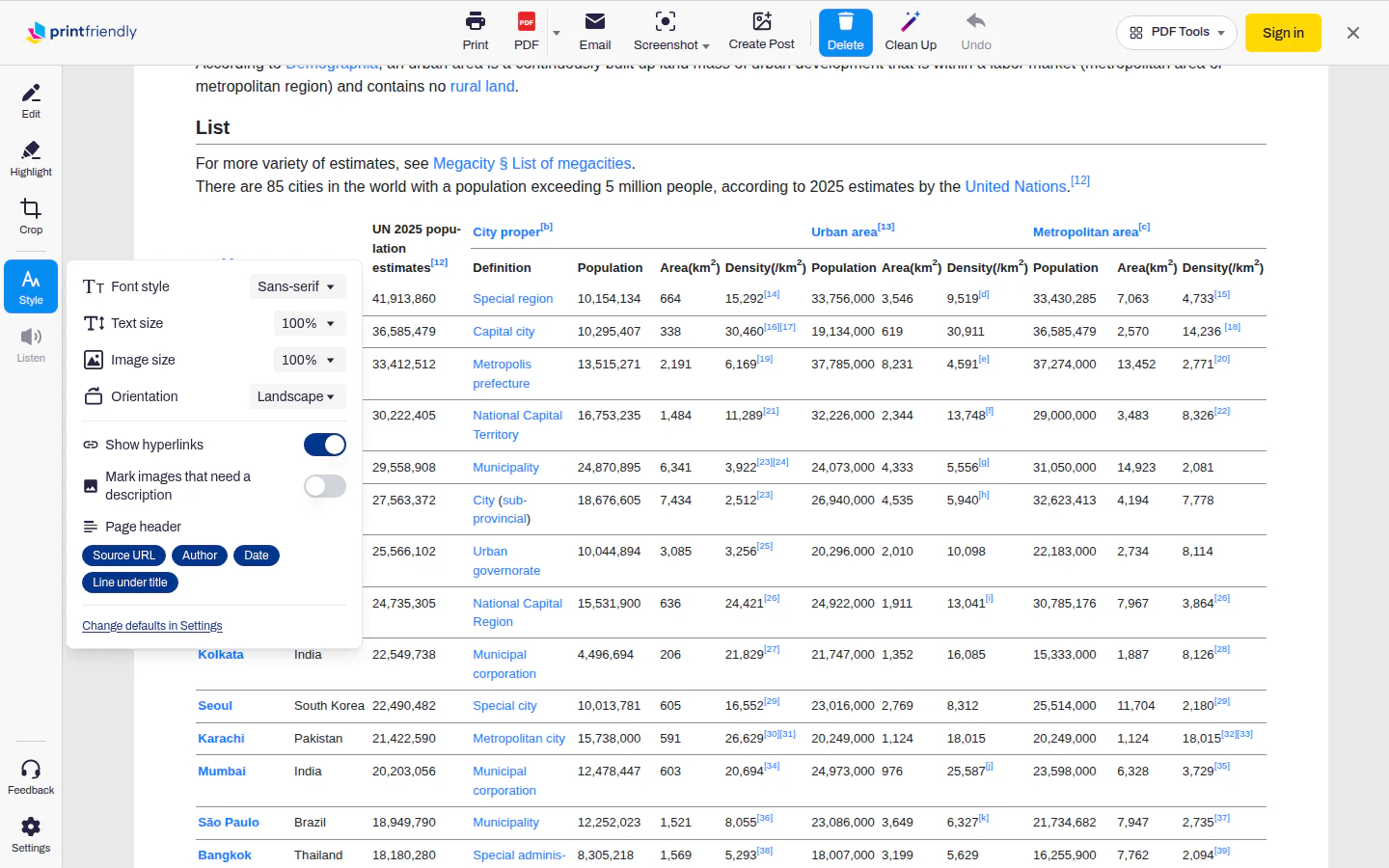
The page in the preview widens to match the sideways paper, so what you see is what prints. It only applies to the page in front of you. The next page you open starts in portrait again, so you won't print a recipe sideways by accident next week.
It offers when a page needs it
You don't have to remember any of that. When a page has a table or a block of code that would print too small on portrait paper, a small card shows up in the corner asking Switch to landscape? Click Switch and the page turns. Click Keep portrait and it leaves you alone. If you keep saying no, it stops asking.
Only the table gets smaller
Sometimes a table is so wide that even a sideways page can't hold it. When that happens, PrintFriendly shrinks just that table to fit the page and leaves the rest of the article at full size. You get every column, and the paragraphs around it print like normal text instead of fine print. That's true whether you click Print or PDF.
It works on printfriendly.com too. Paste the page's address into the box on our home page, press Go, and a wide table gets fitted the same way when you print or save a PDF from there. Landscape itself is only in the extension.
While you're in PrintFriendly View, clear out whatever else you don't need. Delete mode is on when it opens: hover over a block (an ad, a paragraph, an image) and click to remove it. Undo brings back anything you didn't mean to cut. Fewer leftovers around the table usually means fewer pages.
Code too
Long lines of code have the same problem. On a portrait page, a tutorial's code wraps line after line until it's hard to tell where one statement ends and the next begins. Landscape gives those lines room, and PrintFriendly offers to switch when it finds code like that, the same way it does for tables.
When the table is really data
If you want to sort the table, total a column or keep working with the numbers, printing is the wrong tool. Select the table, copy it and paste it into a spreadsheet instead. A printout is for reading, and a spreadsheet is for the 40-column table you actually want to work with.
Where it works
Landscape is in PrintFriendly View in the Chrome, Edge, Firefox and Safari extensions. In Safari on a Mac, also choose Landscape in Safari's print dialog when you print. It isn't available on iPhone or iPad. The rest of what PrintFriendly View can do is on the Help Center's extension features page, and if you mostly want a file, here's how to save a webpage as a PDF.
Frequently Asked Questions
Why does my table get cut off when I print a web page?
A sheet of paper is narrower than your screen. When a table doesn't fit, the browser either drops the columns that run off the edge or shrinks the whole printout until it fits, so every paragraph gets smaller too.
How do I print a web page in landscape?
Press Ctrl+P (Command+P on a Mac) and set the orientation to Landscape in the print dialog. With the PrintFriendly extension, you can also open Style in PrintFriendly View and set Orientation to Landscape for that page.
Can I fit a wide table on the page without making all the text tiny?
Yes. Print it from PrintFriendly and a table that's too wide gets smaller on its own, while the rest of the article stays at full size. Switching to landscape first means the table needs less shrinking, or none.
How do I save a web page as a PDF in landscape?
In PrintFriendly View, open Style, set Orientation to Landscape, then click PDF. You get a landscape PDF with the wide tables fitted to the page.