Print without the URL, author or date
Handing out a recipe or a worksheet? Leave the web address, byline and date off the top. One page at a time, or every page.
A printout for a class, a recipe card for the fridge, a PDF for a client: sometimes you don't want a web address, a byline and a date sitting under the title. PrintFriendly View now lets you switch each of them off, along with the line under the title.
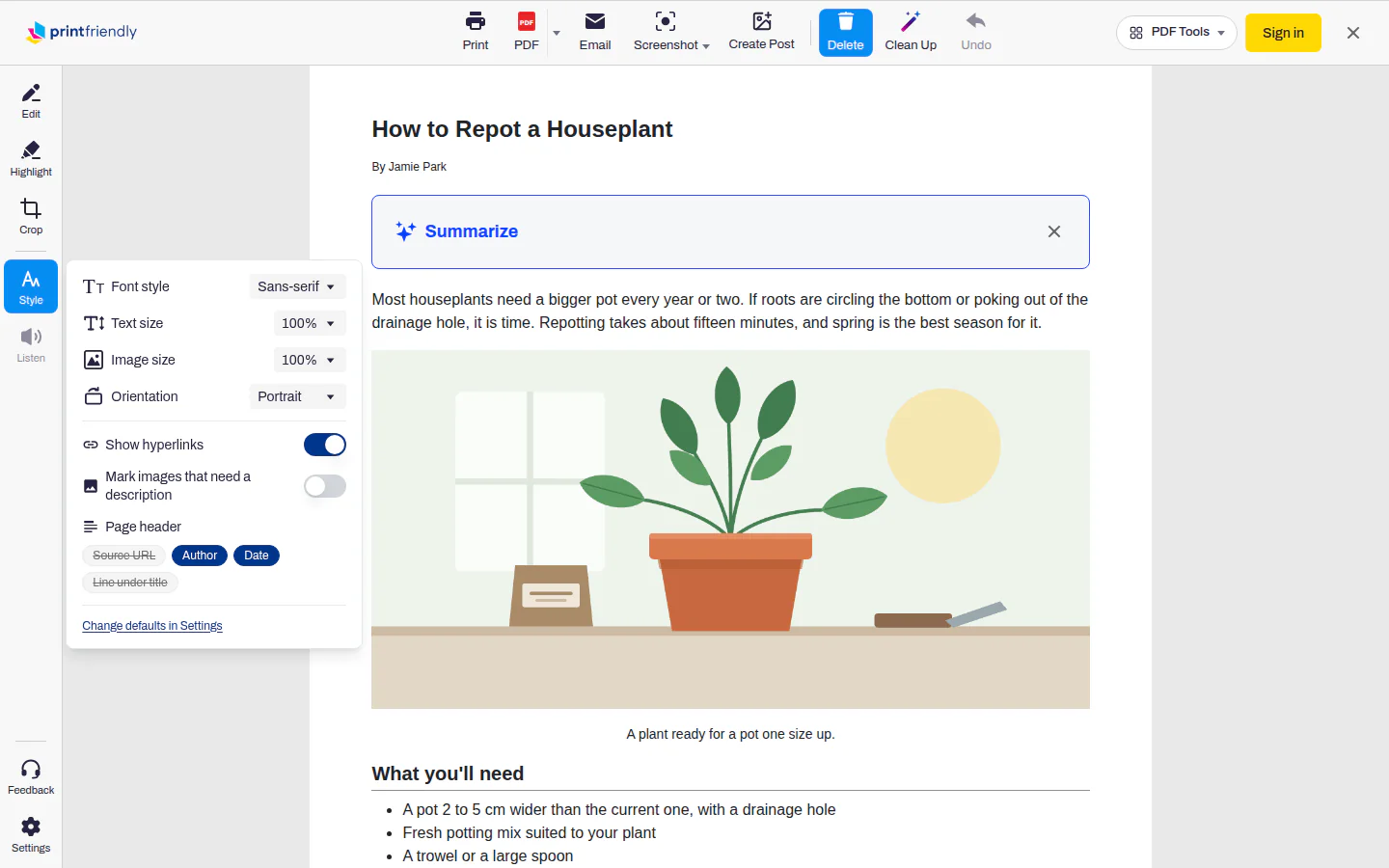
Just this page
Open an article in PrintFriendly View and click Style. Near the bottom there's a Page header row with four buttons: Source URL, Author, Date and Line under title. Click one to hide it, and click again to bring it back. A hidden one turns grey and gets crossed out.
This only changes the page you're on, the same way Show hyperlinks does in that menu. The next article goes back to your usual setup.
Every page
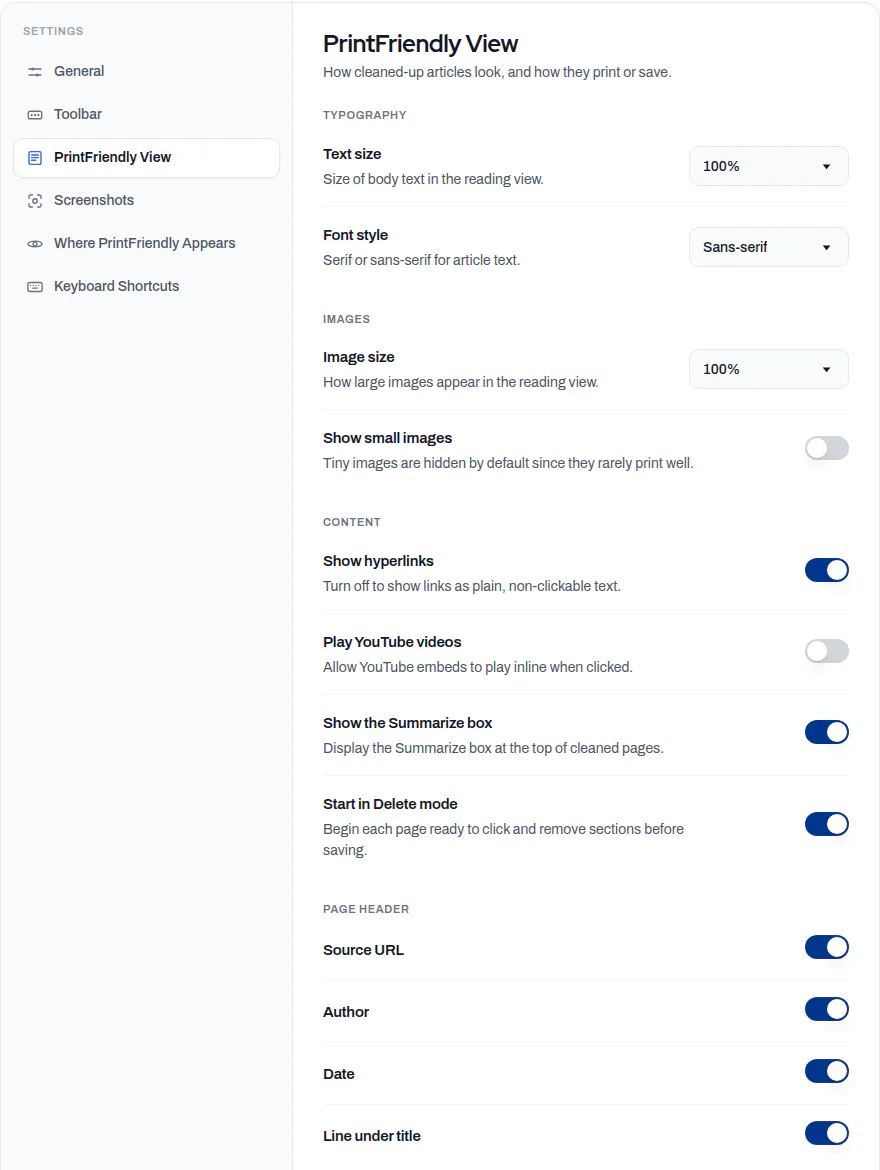
If you never want the address on your printouts, set it once. Click Change defaults in Settings at the bottom of the Style menu, and Settings opens on the PrintFriendly View tab. Under Page header are the same four items as switches. Whatever you turn off there is off on every page you open.
It stays off when you save
What you hide on screen stays hidden in the printout and the PDF. It's left out when you copy the text, save Markdown or download a Word file, too.
The date and address in the margins
Seeing a date, page title or web address in the very top and bottom corners of the paper? That's your browser, not the article. In Chrome's print dialog, open More settings and untick Headers and footers.
Where it works
It's in the PrintFriendly extension for Chrome, Edge and Firefox. If you're tidying up a page before you print, Clean Up clears the clutter an article leaves behind.