How to take a full page screenshot in Chrome, Edge, Firefox or Safari
Your screenshot key stops at the bottom of the screen. Here's how to get the whole page in one image, save it as a PDF or print it, and the built-in way in each browser.
You hit the screenshot key and get exactly one screen, while the page keeps going for another twenty. If you want to know how to take a full page screenshot, top to bottom in one image, the PrintFriendly extension for Chrome does it for you: it scrolls the page, joins it all together, and opens the result in a new tab. It's the easiest way we know to get a full page screenshot in Chrome, and it works the same in Edge, Firefox and Safari.
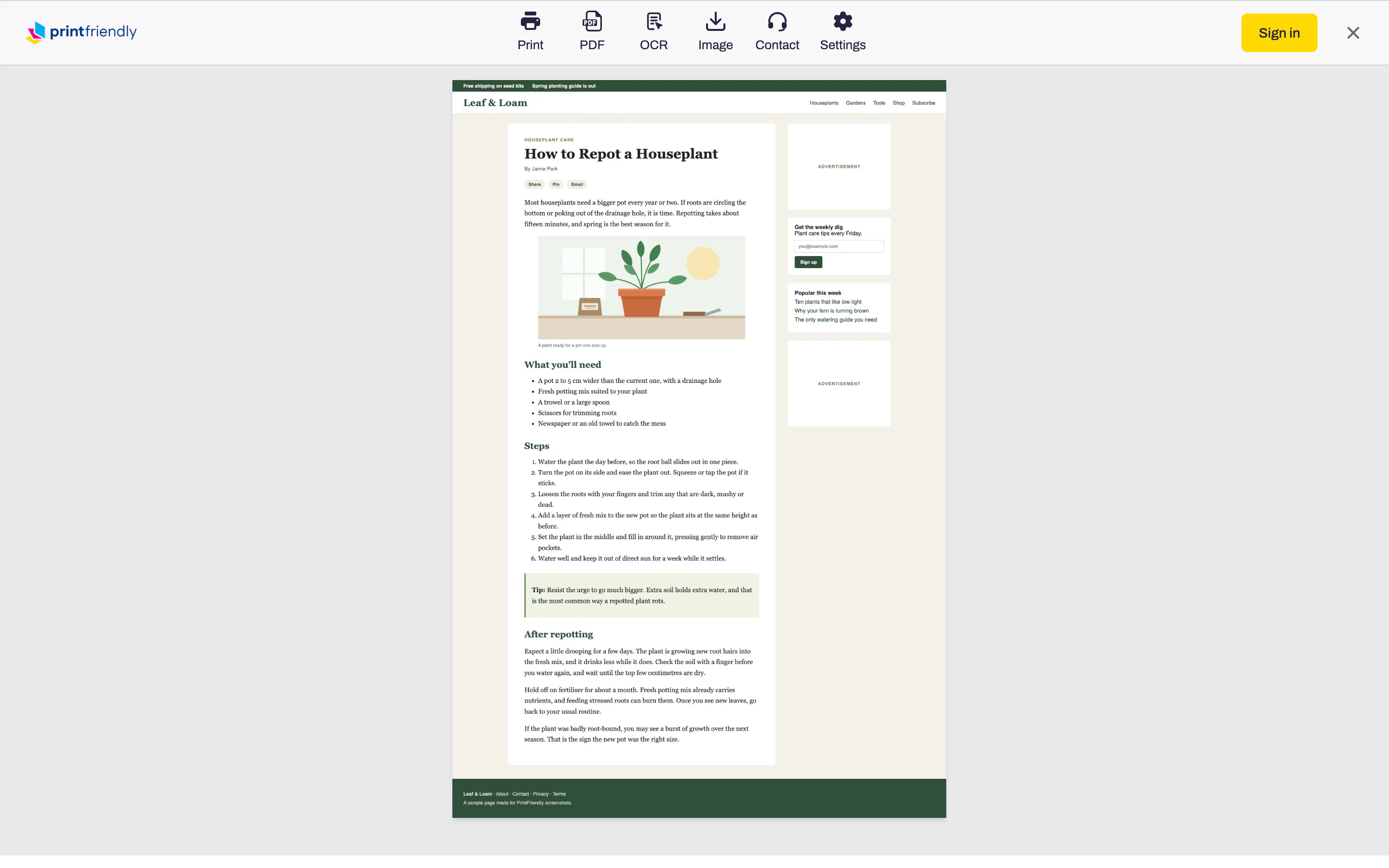
How to take a full page screenshot
- Open the page and click the PrintFriendly icon in your browser's toolbar.
- Choose Full Page Screenshot. A progress bar fills while it scrolls the page for you.
- The finished screenshot opens in a new tab, right next to the page.
That's a scrolling screenshot without any of the scrolling on your part. If you only want what's on screen right now, choose Current View Screenshot instead.
You can also start from PrintFriendly View: click Screenshot in its toolbar and pick either option. PrintFriendly View closes first, so you get the page as it really looks, ads, sidebar and all, not the cleaned-up version. That's the point of a screenshot. If you wanted the tidy article instead, PrintFriendly View's own PDF button is the one to press.
Save it as an image, a PDF, or print it
Most guides stop at "a PNG lands in your Downloads folder." The screenshot tab gives you a few more choices, along the top:
- Image saves it as a JPEG. If you'd rather have a PNG (sharper text and line art), switch Image format in Settings.
- PDF splits the tall image across Letter or A4 pages, whichever paper size you use, so you can save a full page screenshot as a PDF in one click.
- Print sends it to your printer, cut into pages that fit the paper.
- OCR saves a PDF with the page's text behind the picture, so you can search it and select it later. Handy when you're keeping a record of a page and need to find a line in it next month.
The image and the PDF are made right in your browser. Your screenshot isn't uploaded anywhere.
Pages that trip up screenshot tools
If you've ever taken a "full page" screenshot and got one screen back, the page was probably built in a way that fools the tool. Two kinds cause most of the trouble.
Pages that scroll inside a panel. A lot of web apps don't scroll the whole window. The chat, the inbox or the dashboard scrolls inside a box, and the page around it never moves. To a screenshot tool that measures the window, the page is exactly one screen tall, so that's all it captures. PrintFriendly finds the panel that actually scrolls and scrolls that instead, so you get the whole conversation or the whole list.
Sticky headers. Menus that stay pinned to the top of the window are nice while you read and terrible in a stitched screenshot, where they show up again on every screen. In a PrintFriendly screenshot the header appears once, at the top, where it belongs.
Some sites still won't play along. When a full page isn't possible, the extension tells you so, and Current View Screenshot or PrintFriendly View is the way out.
One click, or a keyboard shortcut
If you take a lot of these, skip the menu. In Settings, set Default action to Full Page Screenshot, and clicking the PrintFriendly icon takes one straight away.
Or use the keyboard: switch on Enable keyboard shortcuts in Settings, then press Ctrl+Shift+9 (Cmd+Shift+9 on a Mac) on the page you want. Shortcuts are off until you turn them on, and they're for computers, not iPhone or iPad.
How to take a full page screenshot without an extension
Every major browser has a way to do it on its own. They're just tucked away.
Chrome. Open Developer Tools (right-click the page and choose Inspect), then open the command menu with Ctrl+Shift+P (Cmd+Shift+P on a Mac). Type "screenshot" and choose Capture full size screenshot. A PNG goes to your Downloads folder. Brave works the same way.
Edge. Edge has its own screenshot tool in the ... menu. Open it and choose the full page option, then save.
Firefox. Right-click the page, choose Take Screenshot, then Save full page, and download it.
Safari on a Mac. Only through the developer tools. Turn on Safari's features for web developers in its settings (under Advanced), open Web Inspector, right-click the html line at the top of the Elements tab, and choose Capture Screenshot.
iPhone and iPad. Take a screenshot in Safari as usual, tap the preview that pops up in the corner, and choose Full Page. You get a PDF, which you can save to Files.
These all work, and if you need one screenshot a year, they're fine. The catch is that most of them live in developer tools you'd never otherwise open, you get one image file and nothing else (no PDF, no printing, no searchable text), and on pages that scroll inside a panel they can stop at the screen. That's where the extension earns its place.
Where it works
PrintFriendly's screenshots work in Chrome, Edge, Firefox and Safari, including Safari on iPhone and iPad. The Help Center's Screenshots page has the rest of the settings and what to try when a page won't capture. And if you wanted the page's text as a clean PDF rather than a picture of it, see how to save a webpage as a PDF.
Frequently Asked Questions
How do I take a scrolling screenshot of a whole web page in Chrome?
With the PrintFriendly extension, click its icon and choose Full Page Screenshot. It scrolls the page for you and opens the whole thing as one image in a new tab. Chrome's Developer Tools can do it too, with the Capture full size screenshot command.
Why does Chrome's Capture full size screenshot only capture part of the page?
It can stop at the screen on pages that scroll inside a panel instead of the whole window, like chats, dashboards and web apps. To the browser, the page is only one screen tall. PrintFriendly's Full Page Screenshot scrolls that panel for you.
Can I save a full page screenshot as a PDF?
Yes. In the tab where your screenshot opens, click PDF and the tall image is split across Letter or A4 pages. Click OCR instead for a PDF whose text you can search.
How do I take a full page screenshot on iPhone?
Take a screenshot in Safari as usual, tap the preview, and choose Full Page, which saves a PDF. Or use PrintFriendly's Full Page Screenshot, which works in Safari on iPhone and iPad too.