How to convert HEIC to PDF, plus PNG, WebP and TIFF
Got an iPhone photo and a form that wants a PDF? Here's the quick way across, and what to do with a PNG, WebP or TIFF.

Your iPhone saves photos as HEIC, Apple's format for keeping them small, and a lot of apps and upload forms have no idea what to do with one. So when the insurance portal or the school form says PDF, you're stuck. Drop the photo on HEIC to PDF and you get a PDF back.
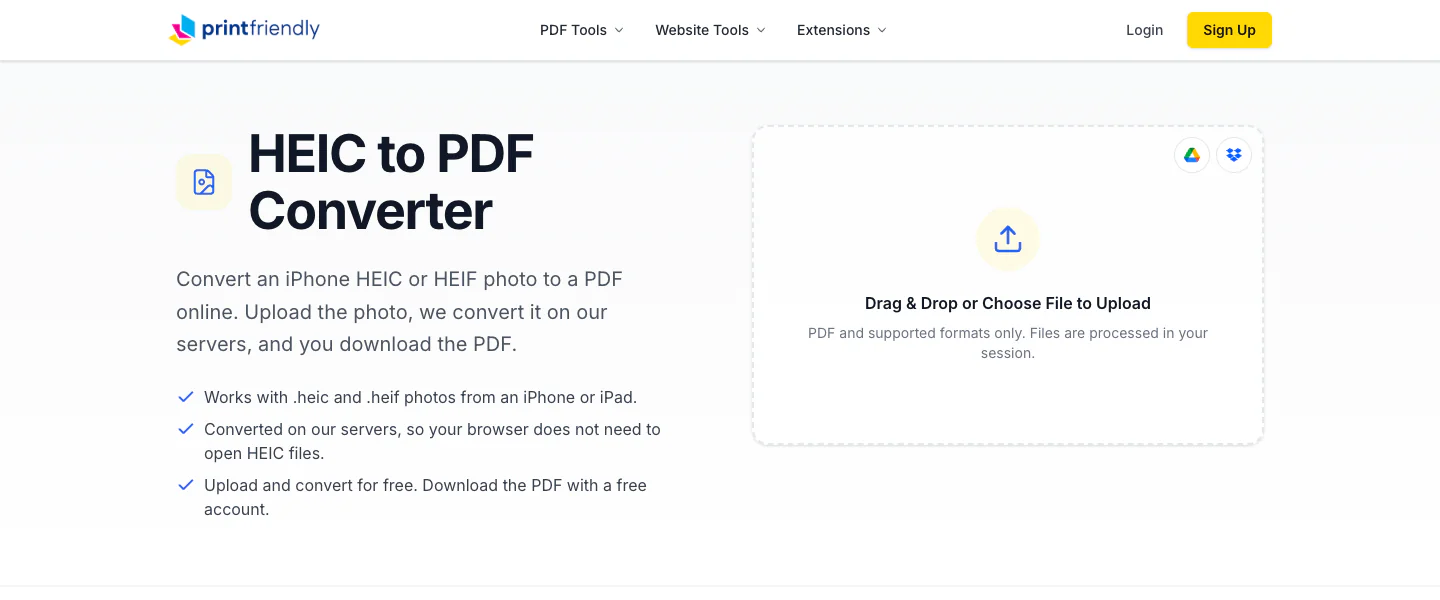
How to convert HEIC to PDF
- Drop the photo on the box that says Drag & Drop or Choose File to Upload, or click the box and pick it. Photos ending in .heic or .heif both work.
- Wait a moment while a progress window shows the upload and the conversion.
- Download your PDF. This is the one step that needs a free account, and you're asked to sign in or make one right then.
You don't need an app that can open a HEIC yourself.
Several photos in one PDF
The converter takes one photo at a time. Got five pages of a lease photographed on your phone? Convert each photo, then drop the PDFs on Merge PDF, drag them into the order you want, and you get one file.
Not a HEIC?
Screenshots are usually PNG. Pictures saved from websites often end in .webp. Scanners and fax software tend to save TIFF. Each has its own page: PNG to PDF, WebP to PDF and TIFF to PDF. Any of these boxes takes all of those, plus JPG, GIF and BMP.
Those images open in our PDF editor, so you can add a note or your signature before you click Download and pick PDF. File limits and what needs an account are on the PDF Tools help page.
It's all on printfriendly.com, so there's nothing to install. It works on a Mac, a Windows PC, a Chromebook, a tablet or a phone.