Convert HTML to PDF in n8n with the PrintFriendly node
PrintFriendly is a verified n8n node. One node turns a web page, HTML or Markdown into a clean PDF, a Word file or Markdown your next step can use.
You've got an n8n workflow that should turn a web page into a PDF, or hand an AI step the text of an article, and you're wondering which node does that. People ask on the n8n forum and on Reddit which node to use for n8n HTML to PDF. Our answer: PrintFriendly is now a verified node in n8n, and it's one node. Give it a page address, some HTML or some Markdown, and get back a clean document with the ads and menus left out.
What the node does
The PrintFriendly node has three operations:
- Convert. Pick a Source Type (URL, HTML or Markdown) and an Output Format: PDF, Word, Markdown, HTML, plain text or JSON. PrintFriendly keeps the article and leaves out the ads, menus and pop-ups. A PDF or Word file comes back as a file link, and text comes back in a
contentfield the next node can use. JSON splits the article into pieces (title, author, date, text). - Read Page. Give it a URL and get the article back as clean Markdown or JSON. It's for reading, not for making a file.
- Get Job. Picks up a long conversion that ran in the background and hands you the finished file or text.
The node also works as a tool inside n8n's AI Agent node, so an agent can read a page as Markdown or make a PDF on its own.
Install it
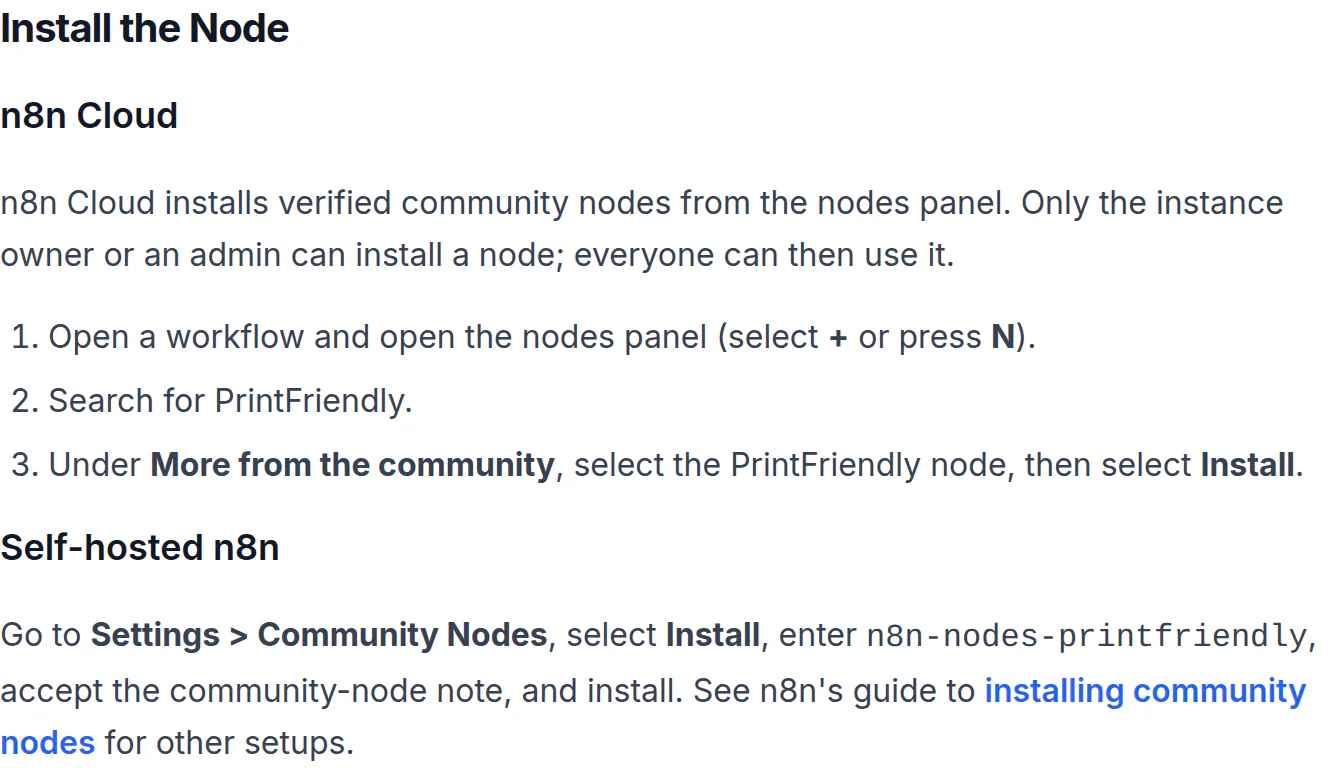
On n8n Cloud: open a workflow, open the nodes panel (click + or press N) and search for PrintFriendly. Under More from the community, select the PrintFriendly node, then Install. The instance owner or an admin has to do the install. After that, everyone on the instance can use it.
Self-hosted: go to Settings > Community Nodes, click Install, enter n8n-nodes-printfriendly, accept the community node note and install.
Why "verified" matters to you: it's what lets n8n Cloud install the node right from the panel.
Connect your key
- Sign in to PrintFriendly and open your API Key page. Copy your key. A free key includes 100 documents a month and needs no credit card.
- In n8n, add a PrintFriendly node and create a PrintFriendly API credential.
- Paste your key into API Key and save. Leave API Base URL as it is.
- Click Test on the credential to check it. That check never uses one of your documents.
Save new blog posts as PDFs in Google Drive
This is the workflow most people are after when they search for an n8n HTML to PDF node: something new shows up, and a clean PDF of it lands in a folder. Three nodes:
- RSS Feed Trigger. Paste the address of the blog's feed. Every new post starts a run.
- PrintFriendly, Convert. Set Source Type to URL and map the feed item's link into the URL field. Set Output Format to PDF and turn on Download File.
- Google Drive, Upload. Use the binary field from the PrintFriendly node and pick a folder.
Download File is the switch that matters here. Without it, the node gives you a link to the PDF. With it, the PDF itself rides along to the next node as binary data, so Google Drive, an email step or anywhere else n8n reaches gets the actual file. Swap PDF for Word if you'd rather edit the copies later.
Each post comes out as the article itself, without the ads, menus and pop-ups around it. The Convert options also let you pick Letter or A4, add a title or header text, and bring your own CSS if you want the PDFs to match your style.
Read a page for an AI summary
Lots of n8n workflows need a page's text more than a file of it. Use Read Page with the URL and Markdown as the format, then point an AI node (or your own step) at the content field. The model gets the article as clean Markdown instead of a page of raw HTML full of scripts and menus. That's usually all a summary, a tagging step or an agent needs, and you don't have to write a single selector.
Already have the HTML?
Sometimes the page doesn't live anywhere yet. An earlier node built a report, an invoice body or an email, and you want it as a PDF. Set Source Type to HTML (or Markdown) and map that node's output into the field. Pick PDF or Word, turn on Download File, and send the file wherever it needs to go.
For very long pages, every option on the node, and fixes for common errors, see PrintFriendly for n8n. If you use Zapier instead, PrintFriendly works with Zapier too.
Frequently Asked Questions
Is there an HTML to PDF node for n8n?
Yes. The PrintFriendly node converts a web page address, HTML or Markdown into a PDF. It's a verified community node, so it installs from the nodes panel on n8n Cloud.
Can I convert HTML to PDF in n8n for free?
Yes. A free PrintFriendly API key includes 100 documents a month and needs no credit card. Each conversion that works uses one document, and one that fails doesn't.
Can I install the PrintFriendly node on n8n Cloud?
Yes. It's verified, so it installs straight from the nodes panel on n8n Cloud. The instance owner or an admin installs it, and then everyone can use it.
Can n8n get the text of a web page without a scraper?
Yes. The PrintFriendly node's Read Page operation takes a web page address and gives back the article as clean Markdown or JSON, with no selectors to write.