PrintFriendly

Turn any web article into a clean class handout

PrintFriendly takes the ads, menus and sign-up boxes off a web page, so you can print it or save it as a PDF for your students. It works in Chrome, Edge, Firefox and Safari, and on Chromebooks.

Add PrintFriendly to Chrome

Printing and saving PDFs is free.

Work in school IT? See the privacy and install details.

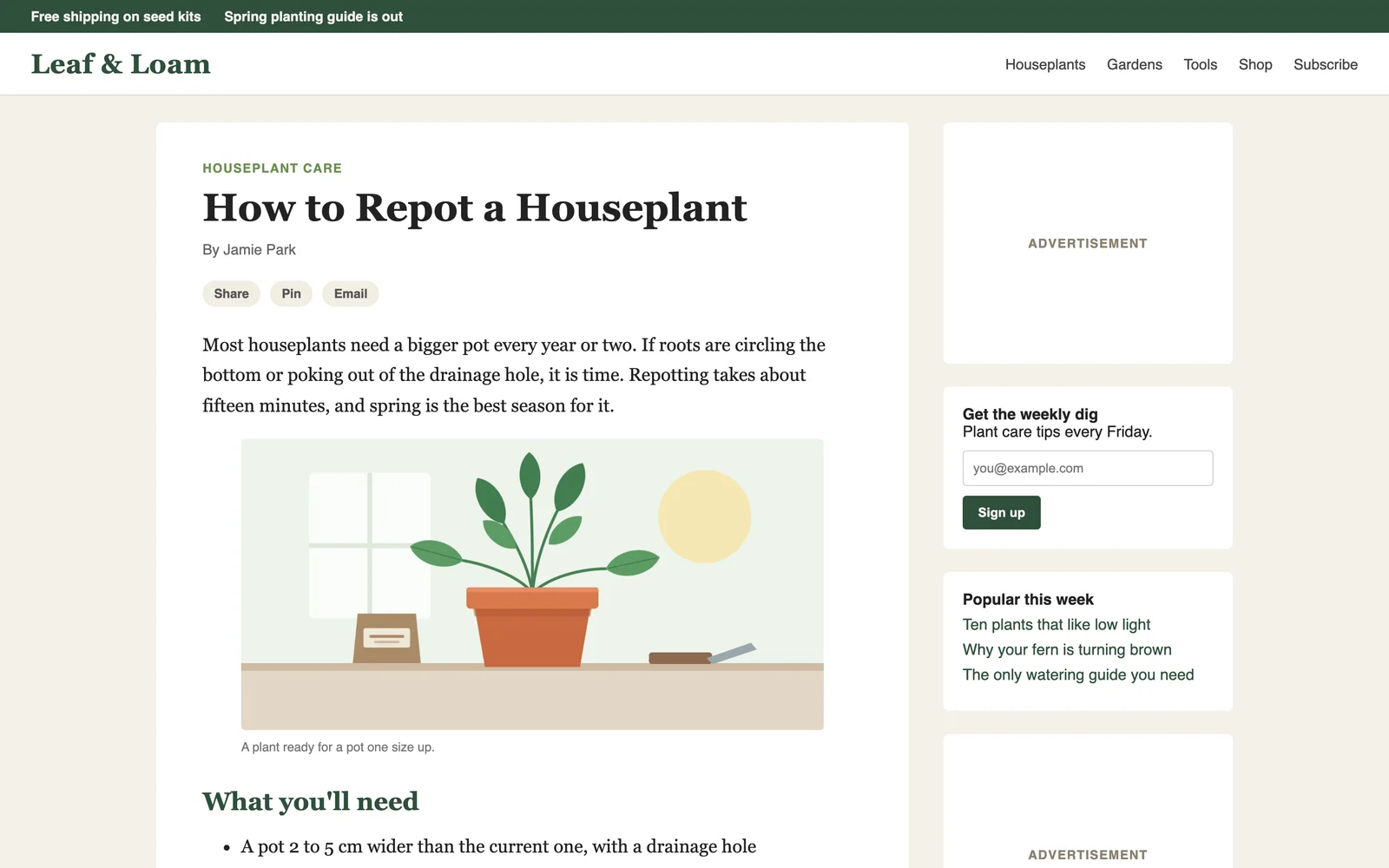
A web article with a promotion bar, a menu, two ad boxes and a newsletter sign-up beside the text
A web article as published
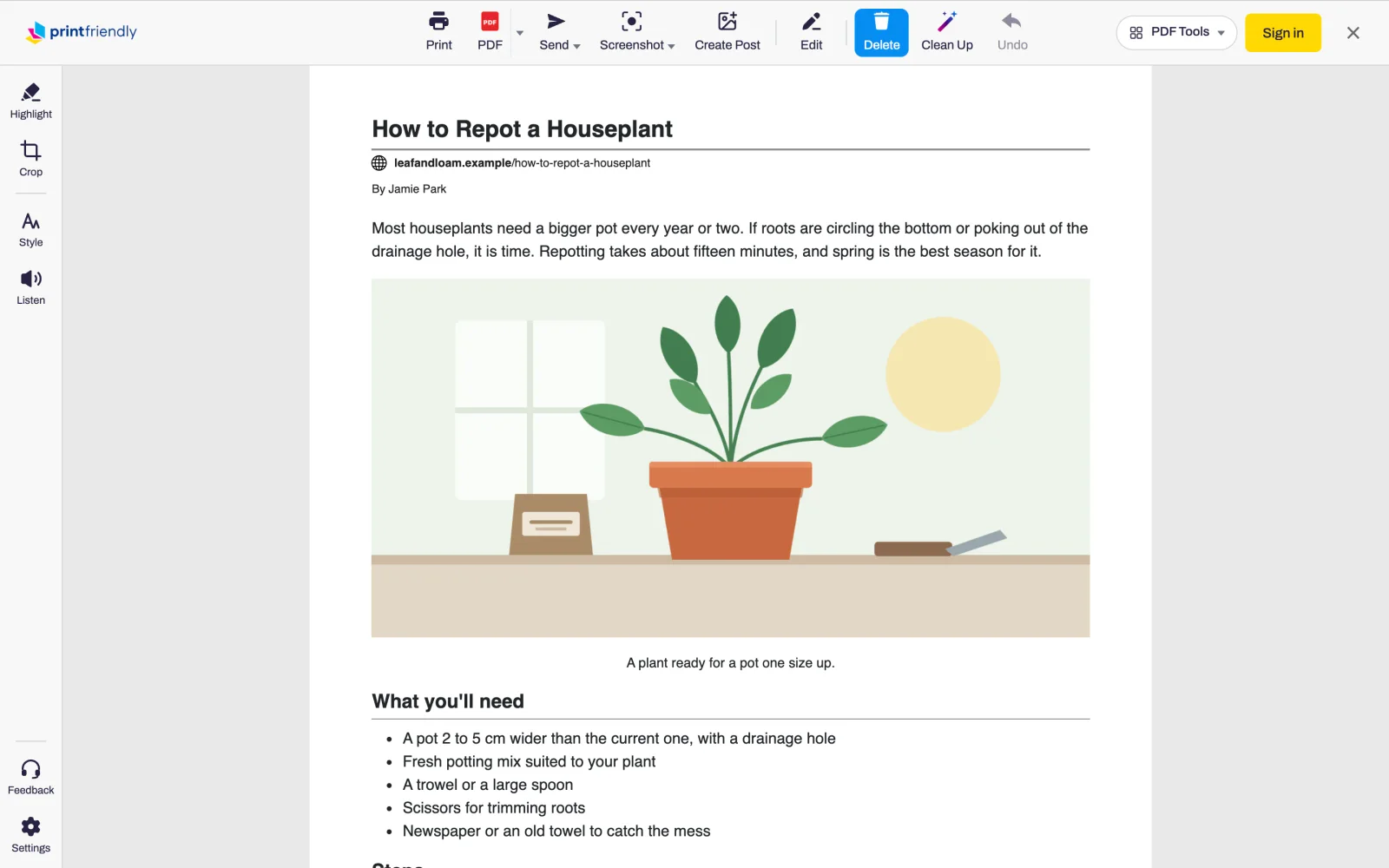
The same article in PrintFriendly, with only its title, source, author, text and picture
The same article in PrintFriendly

What teachers use it for

The quotes are from teachers' reviews of PrintFriendly on the Chrome Web Store.

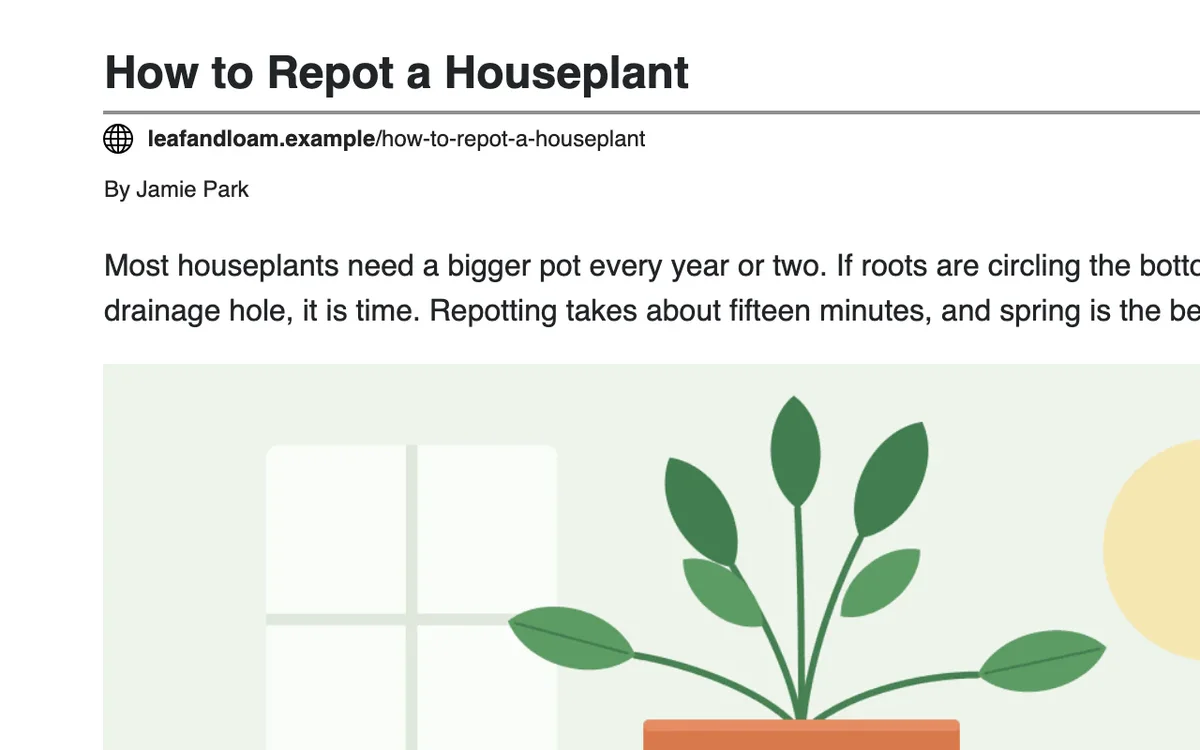
An article in PrintFriendly with its title, web address and author above the text

Make a class reading from any article

Open a news story, a primary source or a science article and click PrintFriendly. You get the article by itself, with its title, author and web address at the top, so students can see where it came from.

“Love this extension! Use it all the time to print news articles for my AP environmental science students to read.”
Tracy W.AP Environmental Science teacher
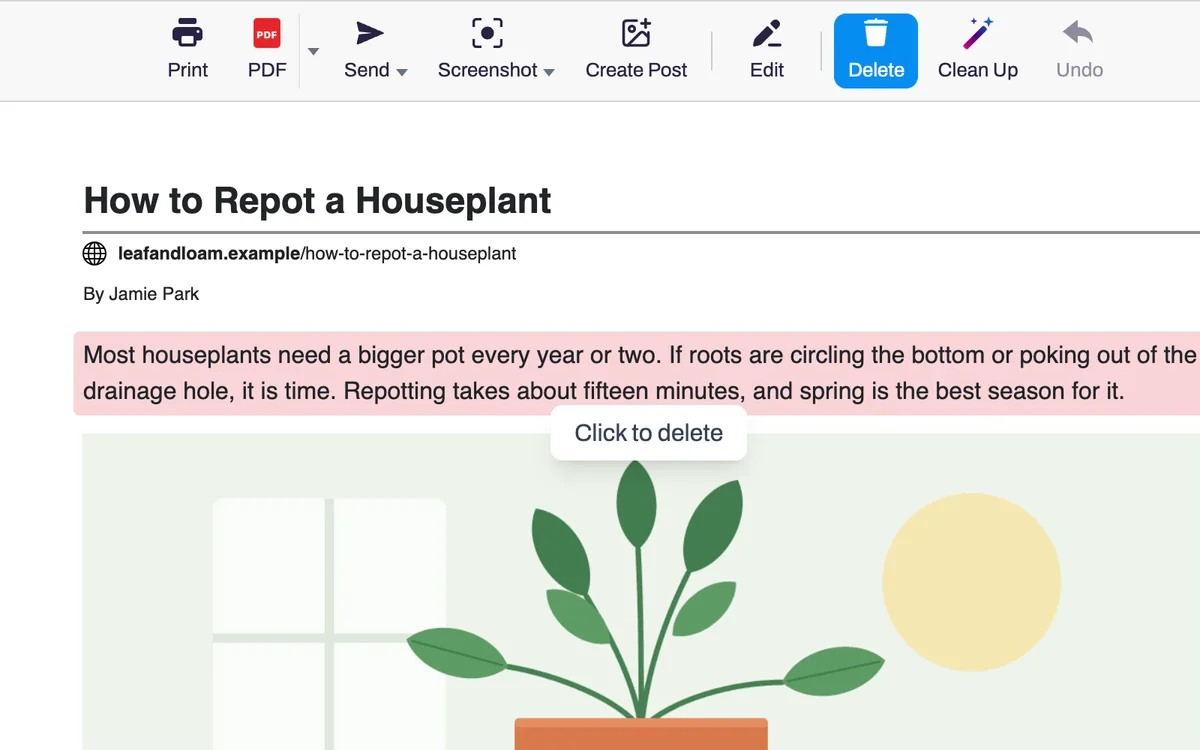
A paragraph marked in red with the label Click to delete

Take out ads and anything not for class

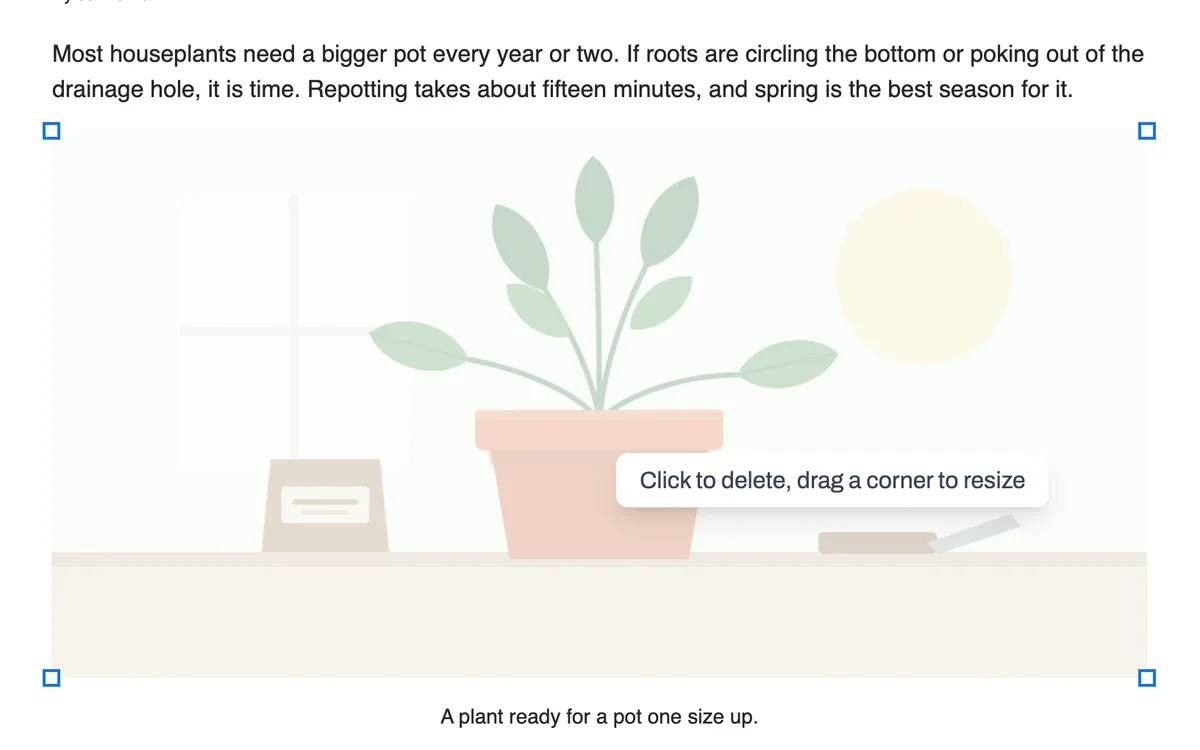
Ads, menus and sign-up boxes are left out. If a paragraph or picture isn't right for your students, click it to delete it before you print.

“It truly is one of the most helpful online tools in a teacher's utility belt, as it removes the ads and extraneous online bits to help my students focus on the content of an article.”
Stacy U.Teacher
A picture selected in PrintFriendly with the label Click to delete, drag a corner to resize

Make it shorter to save paper

Delete the photos and sections you don't need, shrink a picture by dragging its corner, or set a smaller size for the text and every image, so a long article takes fewer pages.

“I love being able to print articles for my classroom - without all the ads and without it being 100 pages long!”
April K.Teacher
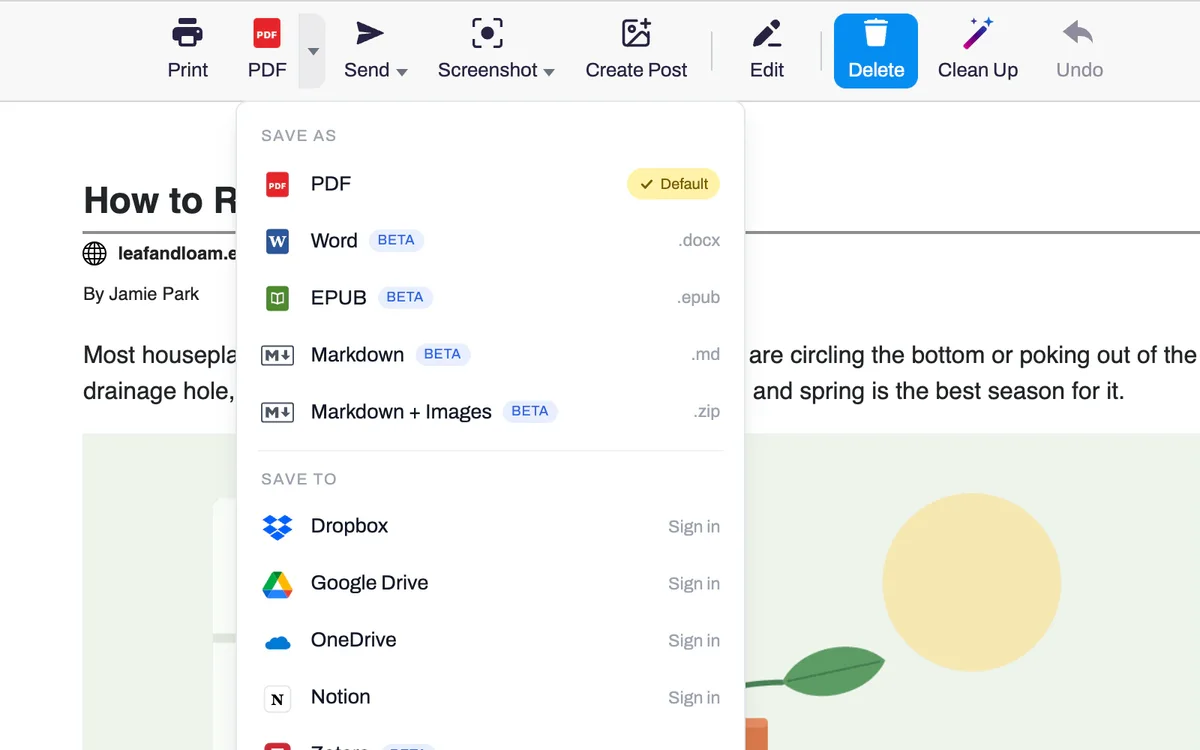
PrintFriendly's Save menu listing PDF, Word, Google Drive and other places to save

Post a PDF instead of a link

Save the article as a PDF or a Word file and post it in Google Classroom, Canvas or wherever your class works. A PDF stays the same if the web page changes or goes away, and you can save it straight to Google Drive.

“I use it to generate .pdfs of articles which I can more easily share in my teacher workshops.”
Andy M.Leads teacher workshops
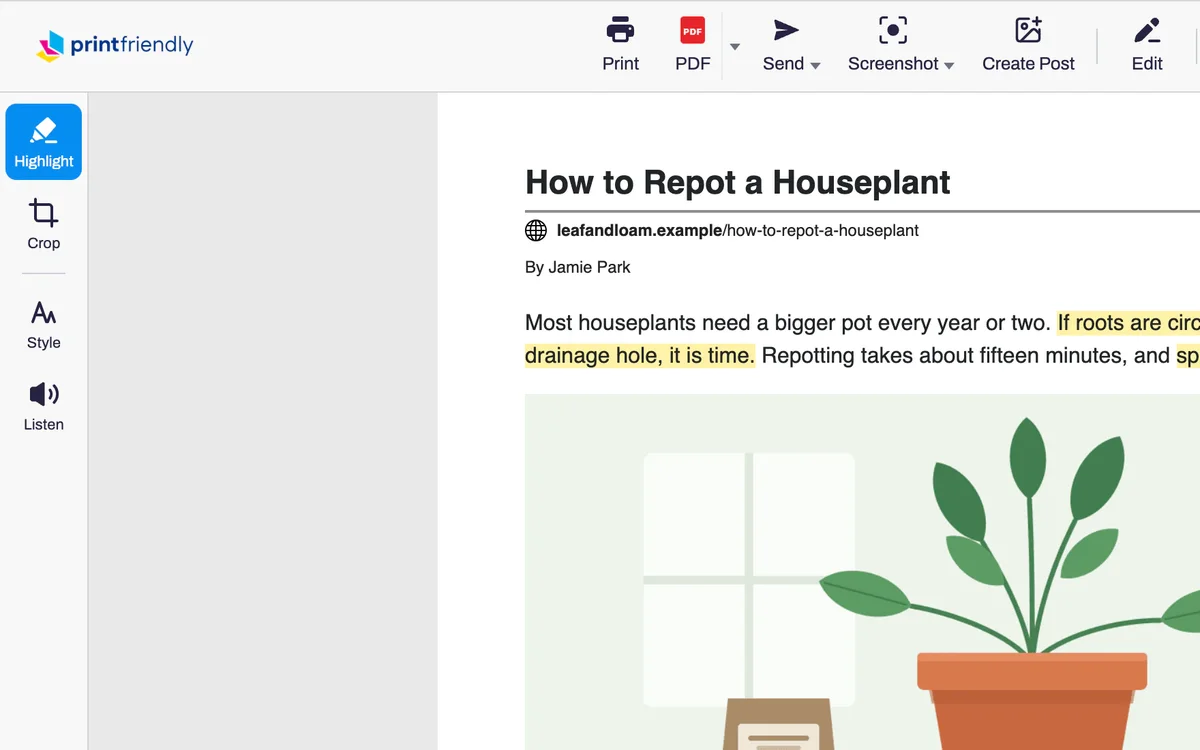
Two passages of an article highlighted in yellow in PrintFriendly

Print pages students can mark up

Set each margin yourself to leave room for notes or a three-hole punch, and highlight the passages you want students to notice. A PDF can carry a page number on every page.

“When we're doing research, I like my students to mark-up and annotate their sources.”
Toni S.Teacher
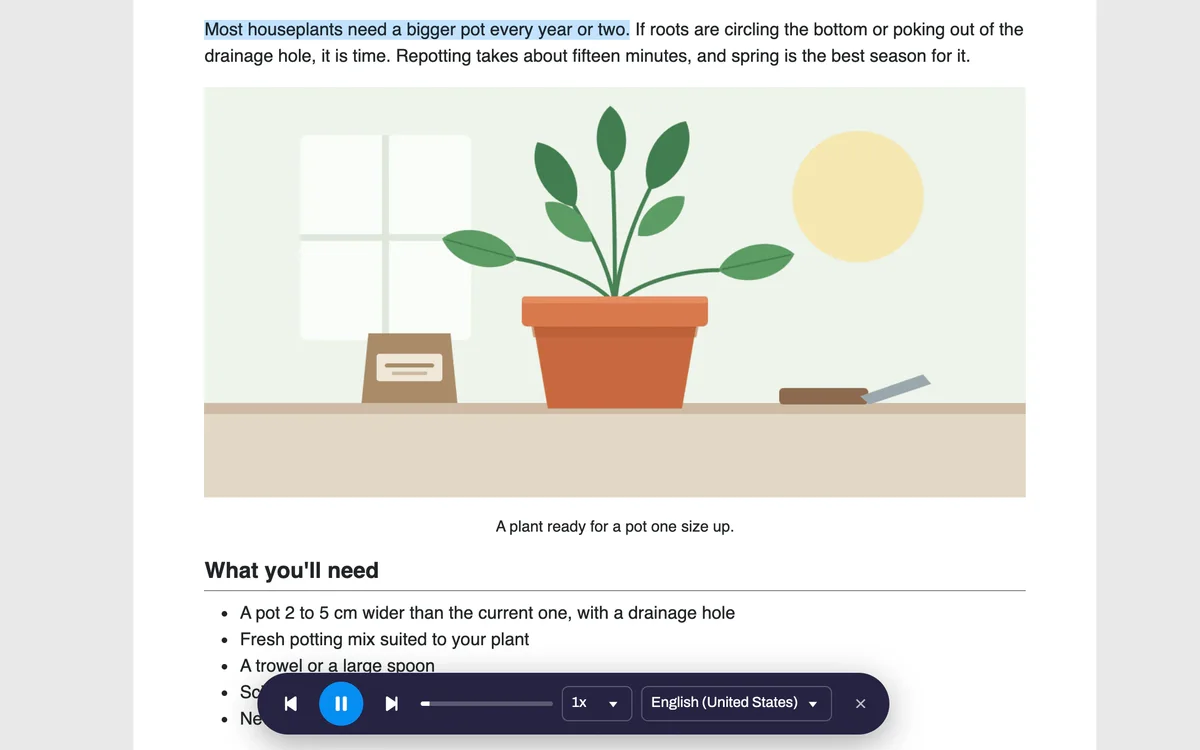
PrintFriendly reading an article aloud, with the sentence being read marked and a player bar below

Read it aloud or make the text larger

Listen reads the article aloud and marks each sentence as it goes, with a choice of voices and speeds. You can also make the text larger before you print.

“I use the print-friendly option to remove ads, comments, sidebars, etc and turn it into a pdf document of text for my students to use.”
Lisa O.Teaches students with learning challenges

For school IT and privacy teams

What you need to approve PrintFriendly and put it on school devices.

Student data privacy agreements

We have student data privacy agreements with schools and districts. Many are signed through the Student Data Privacy Consortium, and its registry lists them. If your district is a member, check the registry first: you may be able to join an agreement that is already in place.

To ask about an agreement for your district, email support@printfriendly.com with the district's name and state.

Student Data Privacy Consortium

Accounts and student data

Printing, saving a PDF and editing the page work without signing in. A PrintFriendly account is needed for Clean Up, Summarize, emailing a page, saving to cloud storage such as Google Drive, and syncing settings. A school can ask us to review, correct or delete the student information we hold for it.

Privacy Policy: studentsTerms: schools and students

What the extension can access

PrintFriendly asks for no access to websites when it is installed. It works on a page when someone clicks its button there.

Ads

The extension has no ads in it. Pages on printfriendly.com, such as the PDF tools, show ads.

Install it from the Google Admin console

  1. Go to Devices, then Chrome, then Apps & extensions, and open Users & browsers.
  2. Choose the organizational unit: students, staff or everyone.
  3. Click Add, choose Add Chrome app or extension by ID, and paste the Chrome extension ID.
  4. Set the installation policy to Force install, then save.

Chrome extension ID

ohlencieiipommannpdfcmfdpjjmeolj

Microsoft Edge add-on ID

nhiebejbpolmpkikgbijamagibifhjib

Install it on iPads and Macs

On iPad, iPhone and Mac, PrintFriendly is an app, and its Safari extension comes with it.

  1. Install the PrintFriendly app on your devices with your device management system (MDM).
  2. Add a Safari extension setting for it. Your MDM asks for the team identifier and the extension identifier.
  3. Set the extension to Always On, so nobody has to turn it on by hand.

Managing a Safari extension this way needs iOS 18, iPadOS 18 or macOS 15 or later, on supervised devices.

Team identifier

3293AP87G4

Safari extension identifier

com.printfriendly.pfextension.SafariExtension

App bundle ID

com.printfriendly.pfextension

Questions from teachers and schools

Is PrintFriendly free for teachers and schools?

Yes. Printing a page and saving it as a PDF are free for everyone, including on school devices.

Does it work on Chromebooks?

Yes. It works in Chrome on a Chromebook, including one your school manages. It also works in Chrome, Edge, Firefox and Safari on Windows and Mac.

Will my students see ads?

The extension has no ads in it. Pages on printfriendly.com, such as the PDF tools, show ads.

Do students need an account?

Not to print, save a PDF or edit the page. An account is needed for Clean Up, Summarize, emailing a page and saving to cloud storage.

Can students under 13 use it?

Yes, when their school provides it. The school can consent on behalf of parents, where the law allows, and supervises students' use. Section 28 of our Terms and Conditions has the details.

Do you have a student data privacy agreement?

We have student data privacy agreements with schools and districts, many of them signed through the Student Data Privacy Consortium. To ask about one for your district, email support@printfriendly.com with the district's name and state.

“Amazing app. I have used it as a teacher for over 6 years. I couldn't do my job without it.”
Kimberly P.Teacher, Chrome Web Store review

Try it on your next reading

Open an article you plan to assign, click PrintFriendly, and print it or save the PDF.