PrintFriendly saves a web page as a clean PDF with its title, author and web address on it, so you still have the source if the page changes. Highlight what matters, then send it to Zotero, Notion or Google Drive.
The quotes are from public reviews of PrintFriendly on the Chrome Web Store.
Save any source as a clean PDF
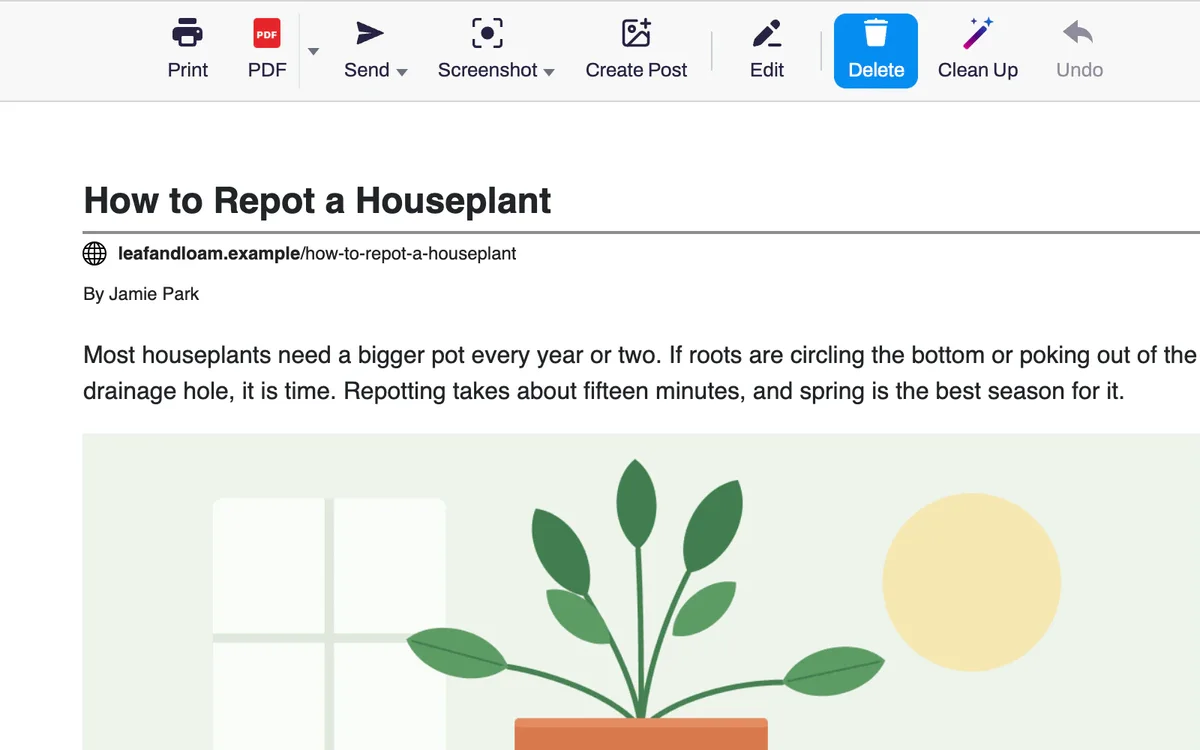
Open the page and click PrintFriendly. Ads, menus and sign-up boxes are left out, and you can delete anything else before you save, so every source you keep has the same plain layout.
“I am a researcher and struggled for years trying to download articles and other online information media in a usable form. I was thrilled to discover PrintFriendly and use it frequently for my work. I always cite the source.”
Wendy B.Researcher
Keep a copy with its source on it
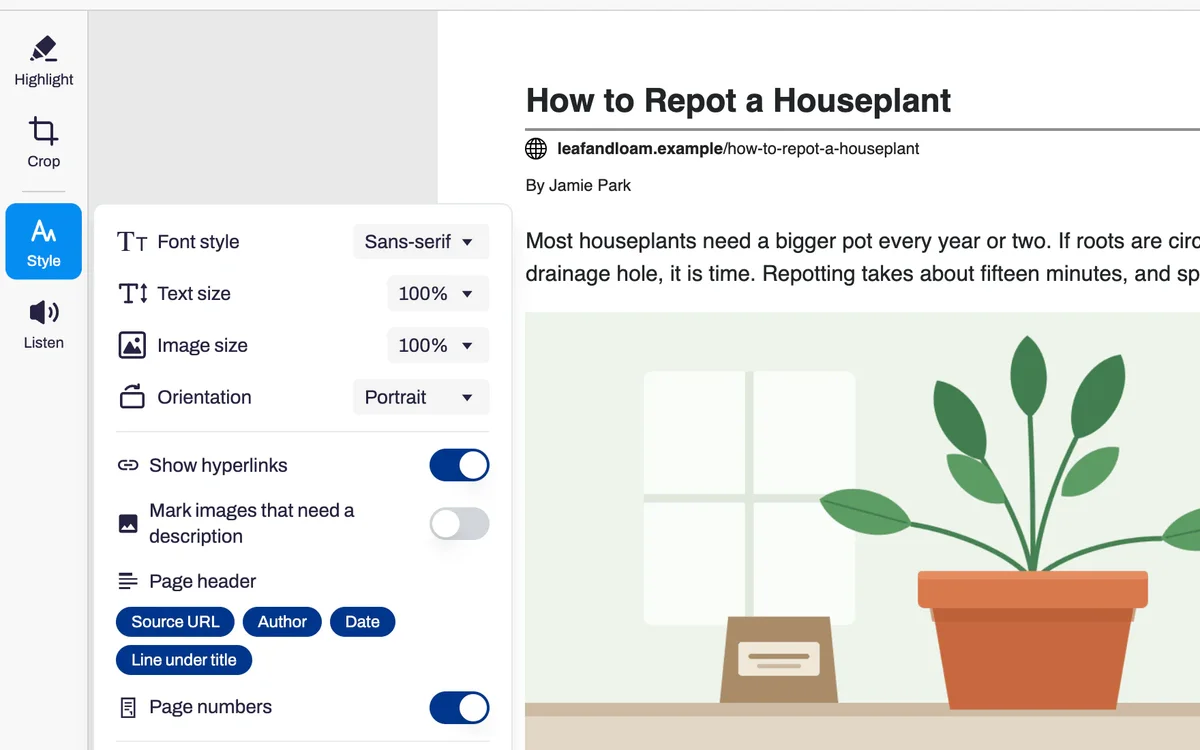
A saved PDF stays the same when the web page is edited, moved or taken down. The title, author and web address are at the top of the first page, with the date when the page gives one, so you can always tell where it came from.
“A great way to archive internet content that might disappear anytime.”
Zsolt G.
Highlight and note what matters
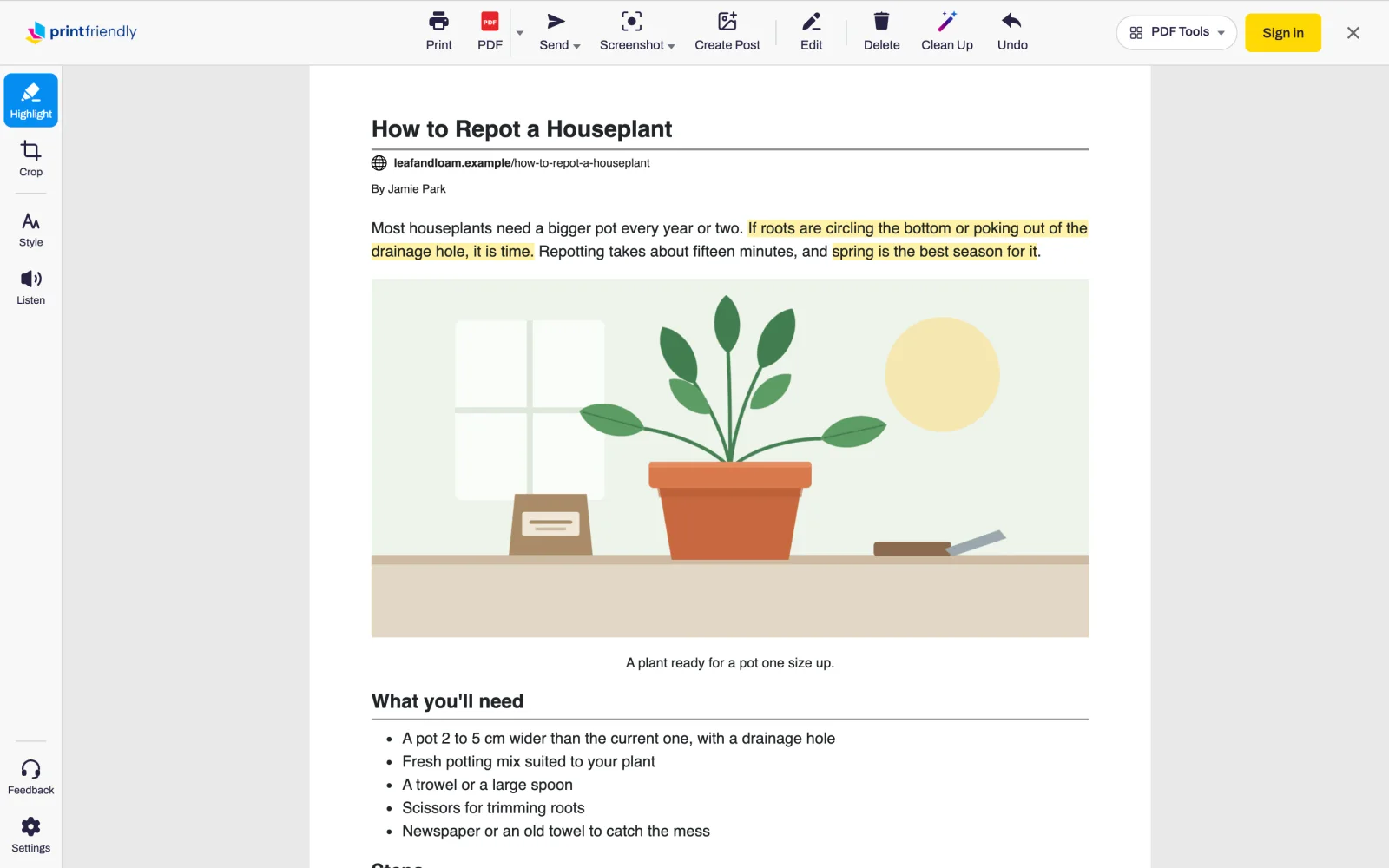
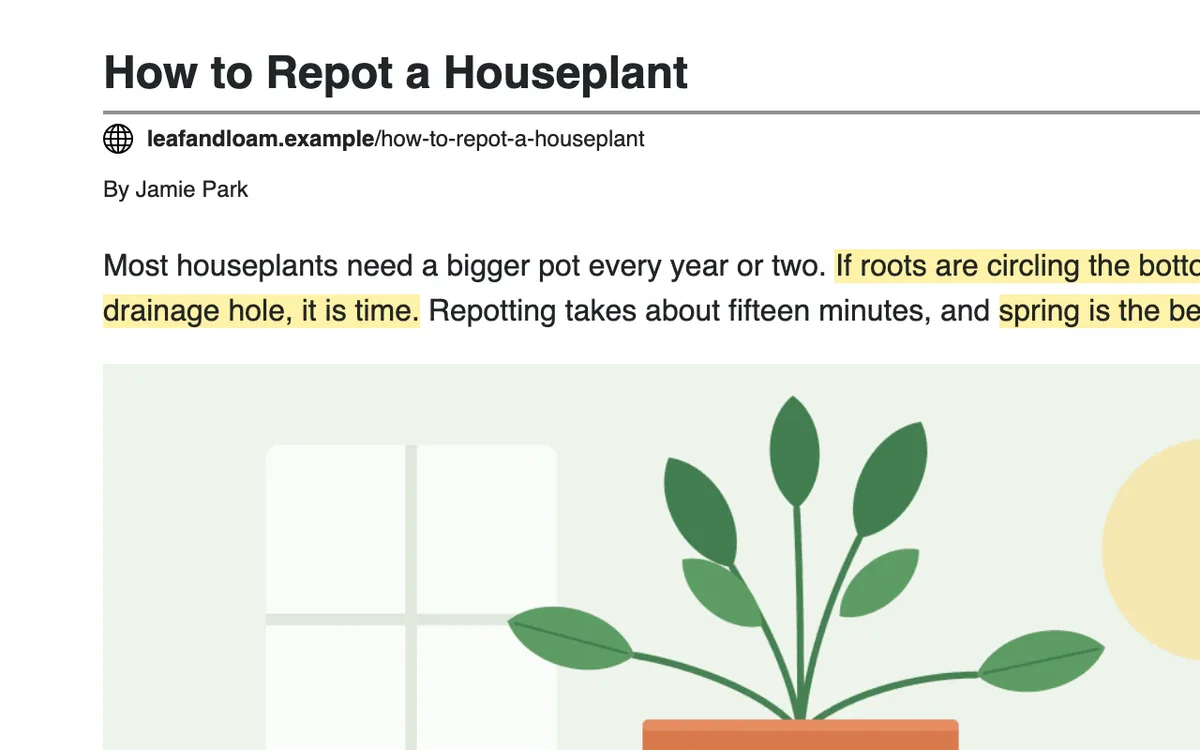
Mark the passages you will come back to, and they stay marked on paper and in the PDF. You can also edit the text to add a note of your own, or cut the parts you don't need.
“Professionally, I am often required to review, markup, and document the contents of a variety of web material.”
Bryan D.
Send it to Zotero, Notion or Drive
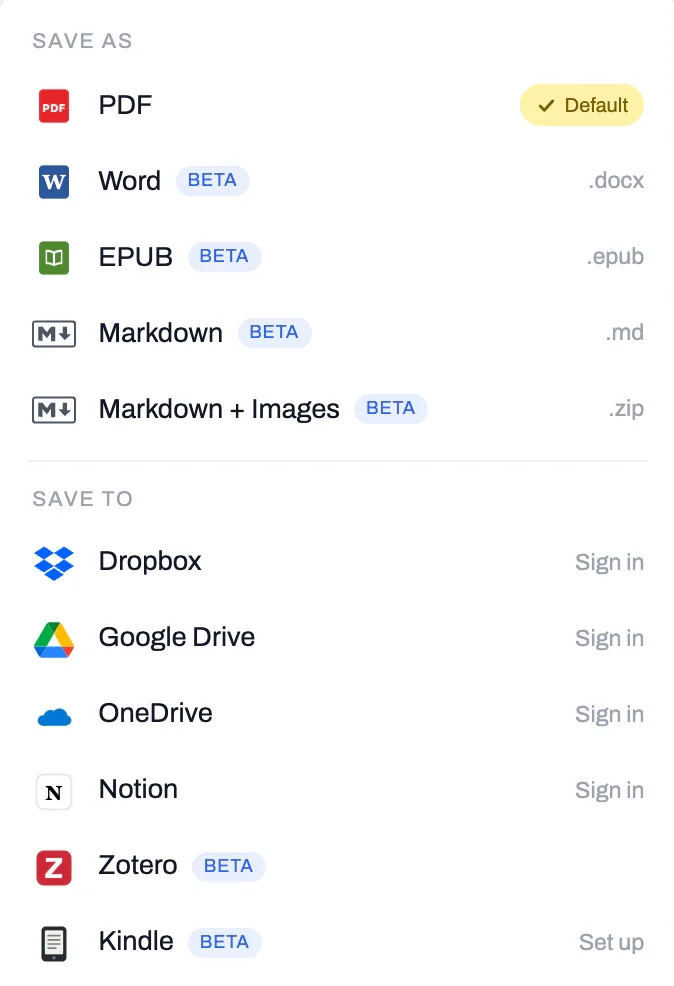
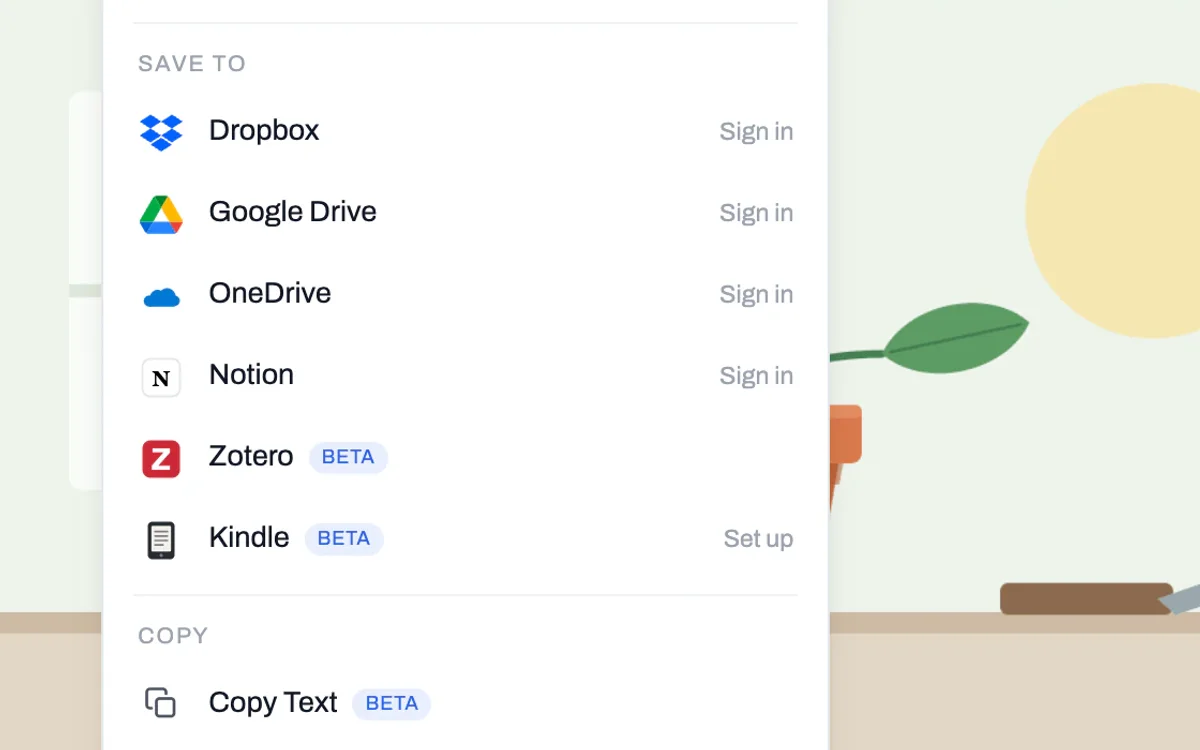
Save the clean PDF straight into a Zotero collection, with the title, author, date and link filled in. Or send it to Notion, Google Drive, Dropbox or OneDrive after you sign in to PrintFriendly once.
“For instance, almost daily I use PrintFriendly to permanently archive magazine articles or webpages in Zotero.”
Davide R.
Use it in your notes app or AI tool
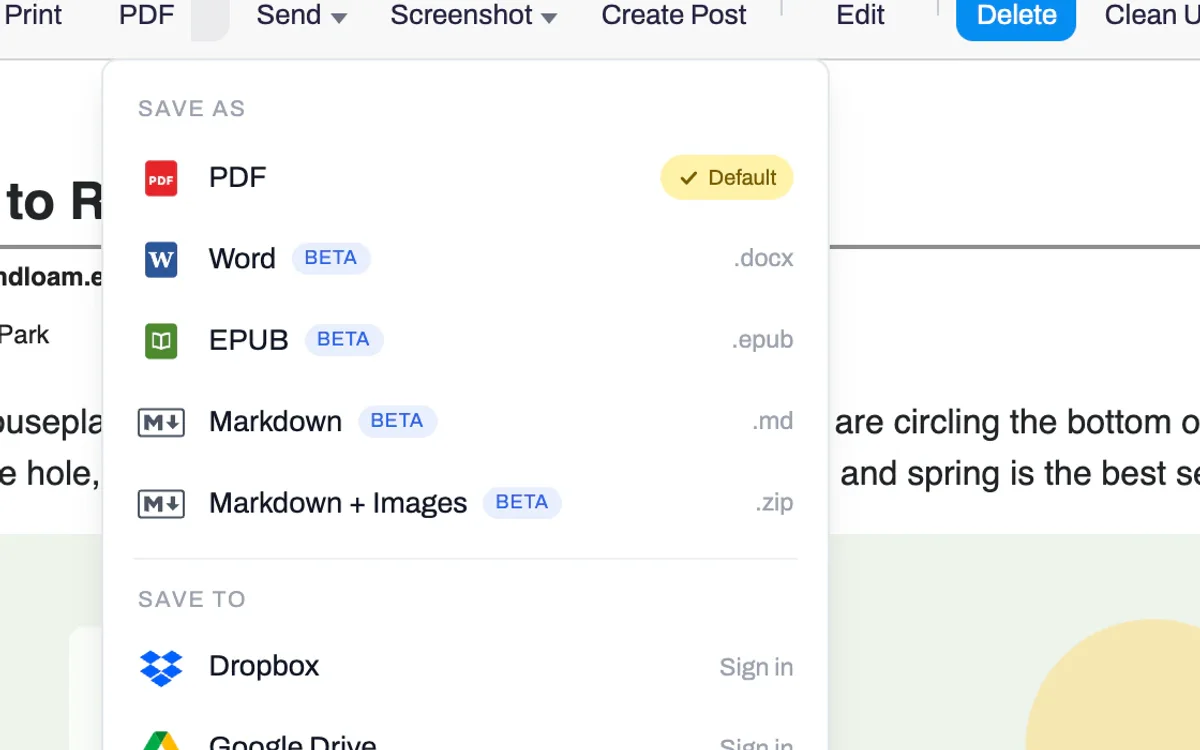
Download the article as Markdown, with its images in a folder beside it, for Obsidian or any app that reads Markdown. The clean PDF also works as a source you can upload to a tool like NotebookLM.
“It's perfect for uploading documents to my e-ink tablet for focused reading, or for adding sources to NotebookLM when a direct web link isn't an option.”
Georgios K.
Print it with room for notes
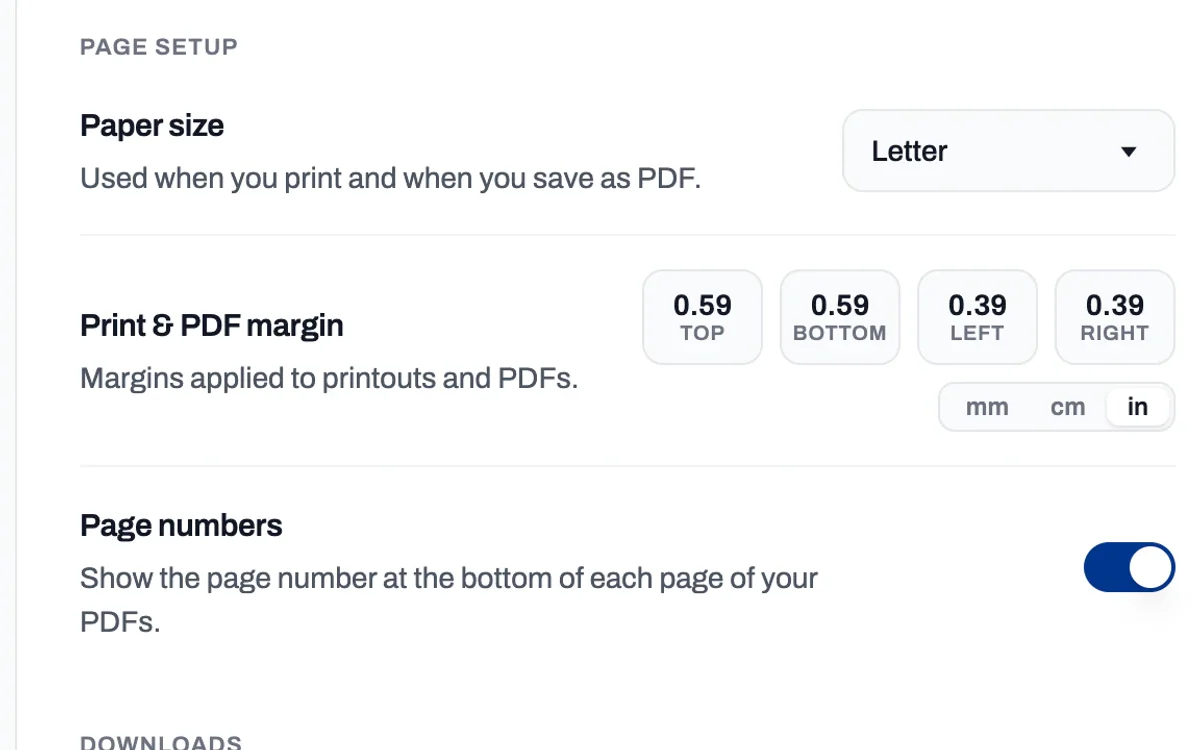
Set the top, bottom, left and right margins yourself, in inches, centimeters or millimeters, to leave space for notes beside the text. A PDF can carry a page number on every page.
“I'm able to easily set custom margins that mimic the Cornell Notes setup (wide margin on the side for cues/questions, tall margin on the bottom for page summary).”
Michael G.University student
Questions about saving sources
Is it free?
Yes. Printing a page and saving it as a PDF are free.
Does the PDF say where it came from?
Yes. The title, web address and author are at the top of the first page, with the date when the page gives one. You can turn any of them off.
Does it write citations?
No. PrintFriendly keeps the source details on the page. If you use Zotero, saving there creates a Web Page item with the title, author, date and link, and attaches the clean PDF, so Zotero can write the citation.
What do I need to save to Zotero?
The Zotero app, open on the same computer. You don't need a Zotero account or the Zotero Connector. It works in Chrome, Edge, Firefox, and Safari on a Mac.
Which notes apps work with the Markdown file?
Any app that reads Markdown, such as Obsidian. You can download the article as a Markdown file, download it with its images in a folder, or copy it to the clipboard.
Can I read a long source on my Kindle?
Yes. Send to Kindle delivers the article to your Kindle as an e-book. You set it up once in your Amazon account.
“As a researcher and blogger PrintFriendly has become an essential part of my work. Hardly a day goes by that I don't use it and it comes through with great success!”
Valerie H.Researcher and blogger, Chrome Web Store review
Try it on the next source you want to keep
Open the page, click PrintFriendly, and save the PDF.