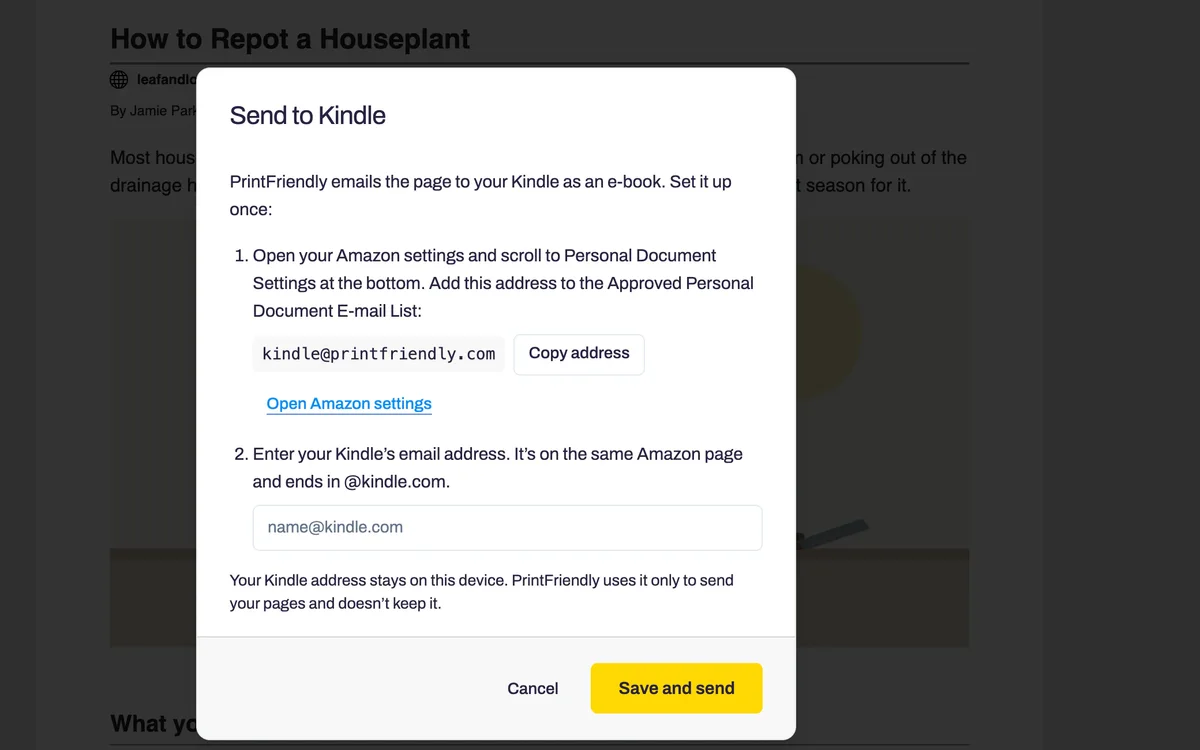
Set it up once
A Kindle only accepts documents from addresses you have approved. Add PrintFriendly's sending address in your Amazon settings, then type in your Kindle's own address. The dialog walks you through both.

PrintFriendly sends the page to your Kindle as an e-book: the article's text and pictures, without the ads, menus and comments. For any other e-reader, it saves the same thing as an EPUB.
 Add PrintFriendly to Chrome
Free. Set it up once, then it is one click.
Want the walkthrough? Read how to send a web page to your Kindle.
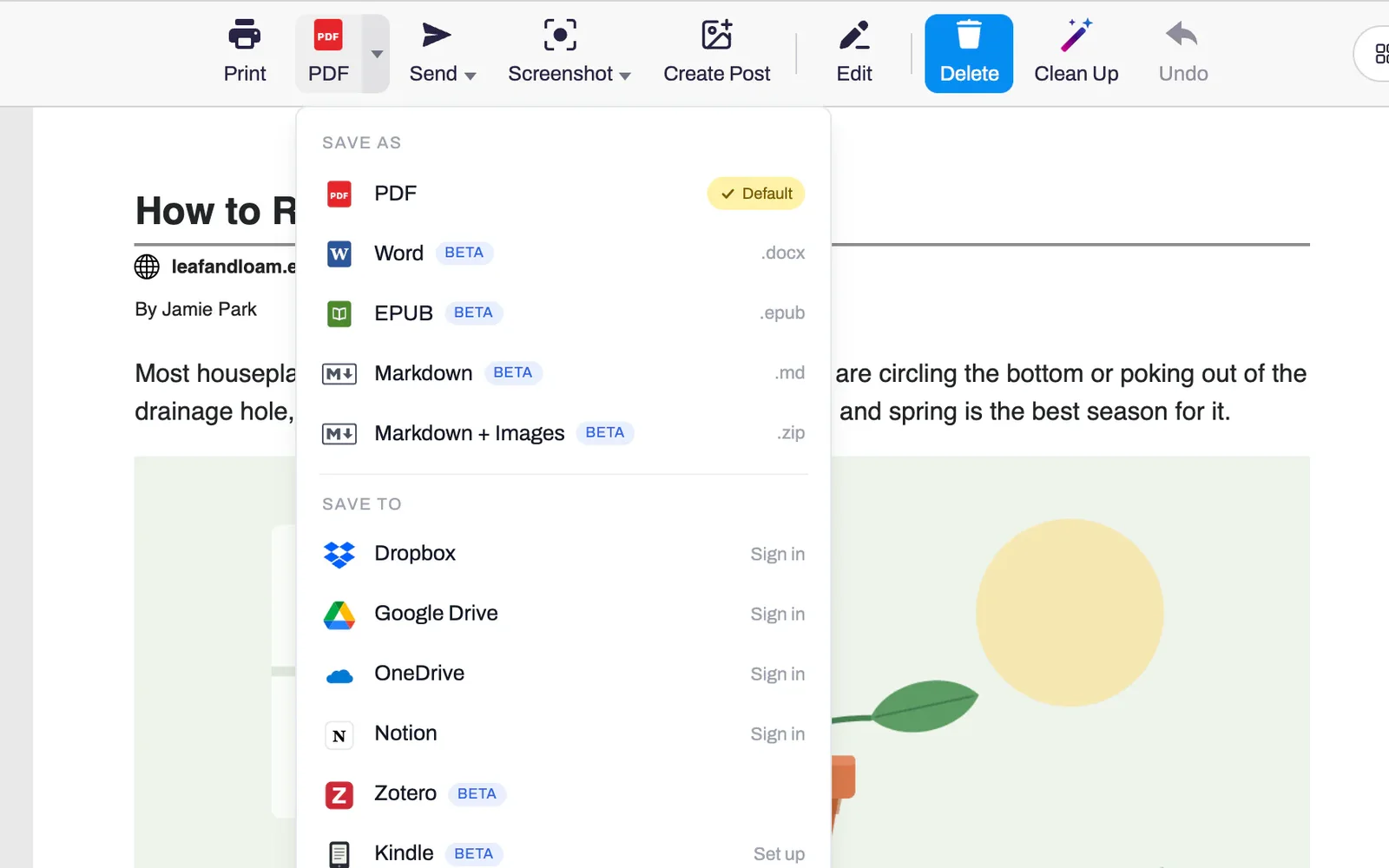
Open the article and click the PrintFriendly button in your browser's toolbar.
Click the arrow next to PDF to open the Save menu, and choose Kindle.
The first time, follow the short setup. After that the page is sent in one click.
A Kindle only accepts documents from addresses you have approved. Add PrintFriendly's sending address in your Amazon settings, then type in your Kindle's own address. The dialog walks you through both.
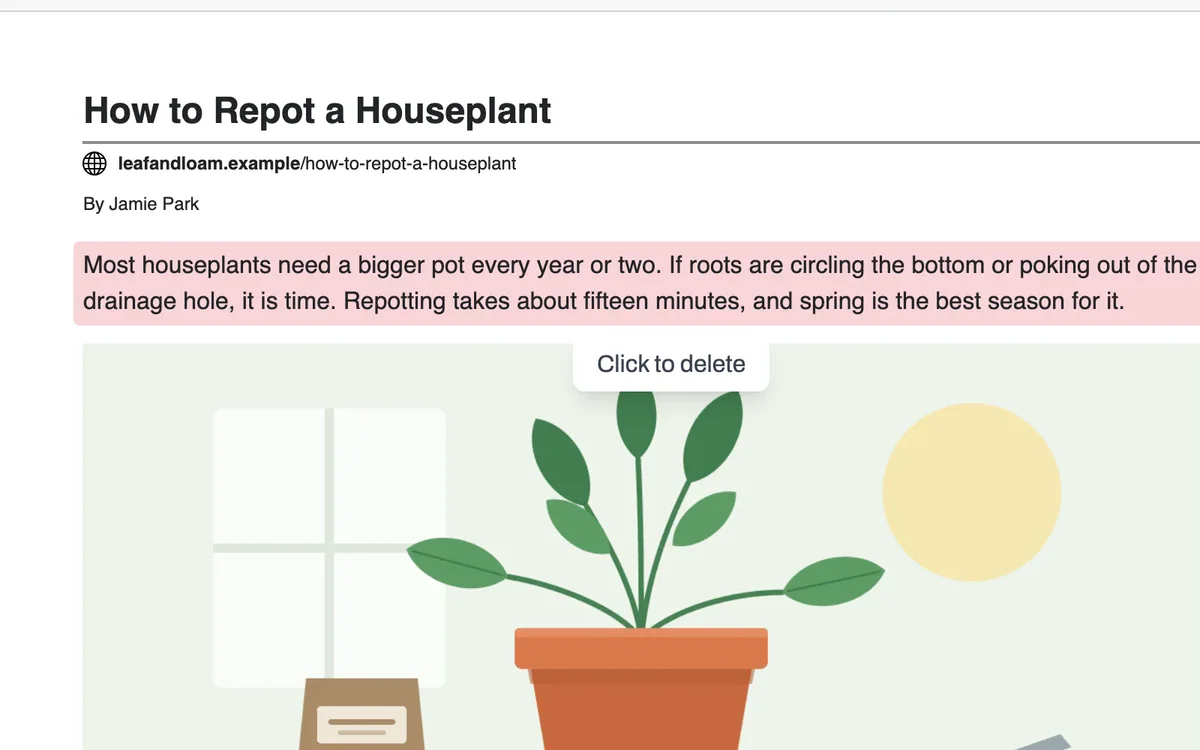
Click a paragraph, a picture or a list item to delete it. What is left is what lands on your Kindle.
Choose Kindle from the Save menu and you see Sent to your Kindle. It usually arrives within a few minutes.
The EPUB row in the same menu downloads the article as an e-book file for Kobo, Apple Books and most other e-readers.
It is kept on your device. PrintFriendly uses it only to send your pages and does not keep it.
Yes. Sending a page to your Kindle and saving an EPUB are both free, and neither needs a PrintFriendly account.
It is Amazon's rule. A Kindle only accepts documents emailed from addresses you have approved in your Amazon account, so you add PrintFriendly's address once.
Check the approved list in your Amazon settings. If PrintFriendly's address is not on it, Amazon drops the page without telling anyone. Add the address and send the page again.
A page with many large pictures can be too big to email to a Kindle. PrintFriendly says so and offers Download EPUB, which you can upload on Amazon's Send to Kindle page.
Yes, through EPUB. Save the article as an EPUB and open it in Apple Books, or copy it onto your Kobo.
In the PrintFriendly extension for Chrome, Edge and Firefox. In Firefox, the first send asks your permission before your Kindle address goes out with the page.
Add PrintFriendly to your browser and send the next long article.