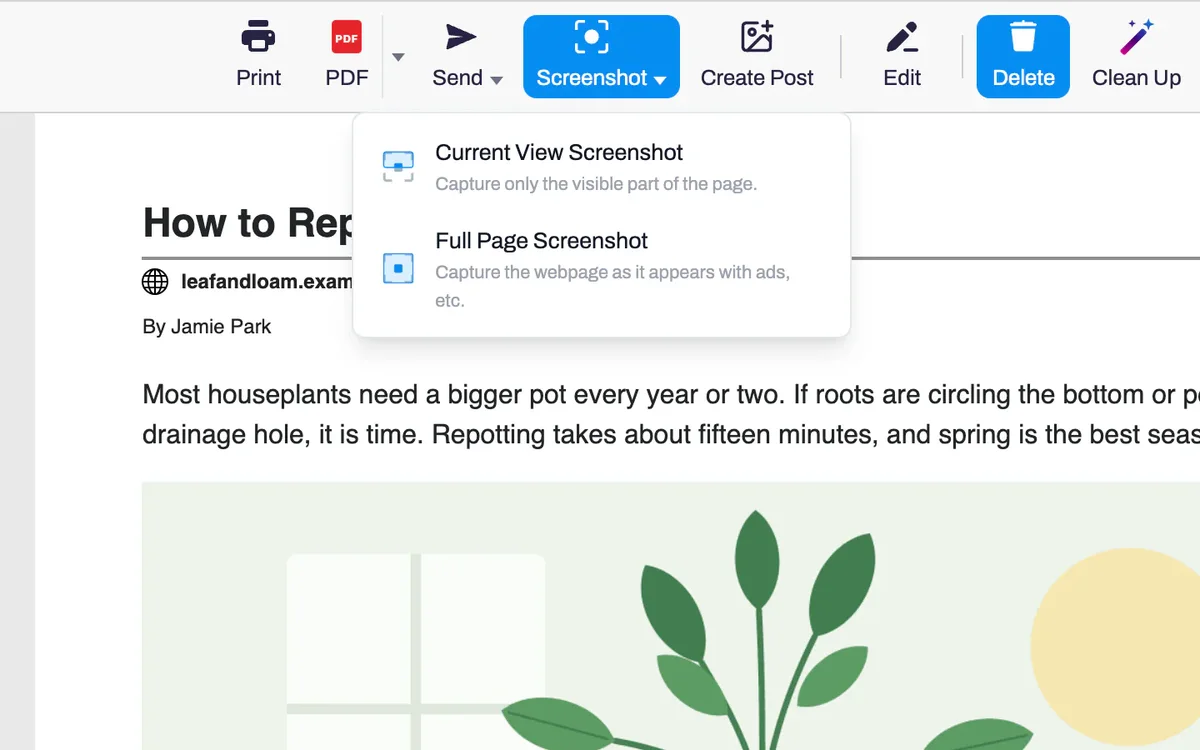
The whole page, or just what you see
Full Page Screenshot captures the page as it looks, from the top to the very bottom. Current View Screenshot captures only the part on your screen.

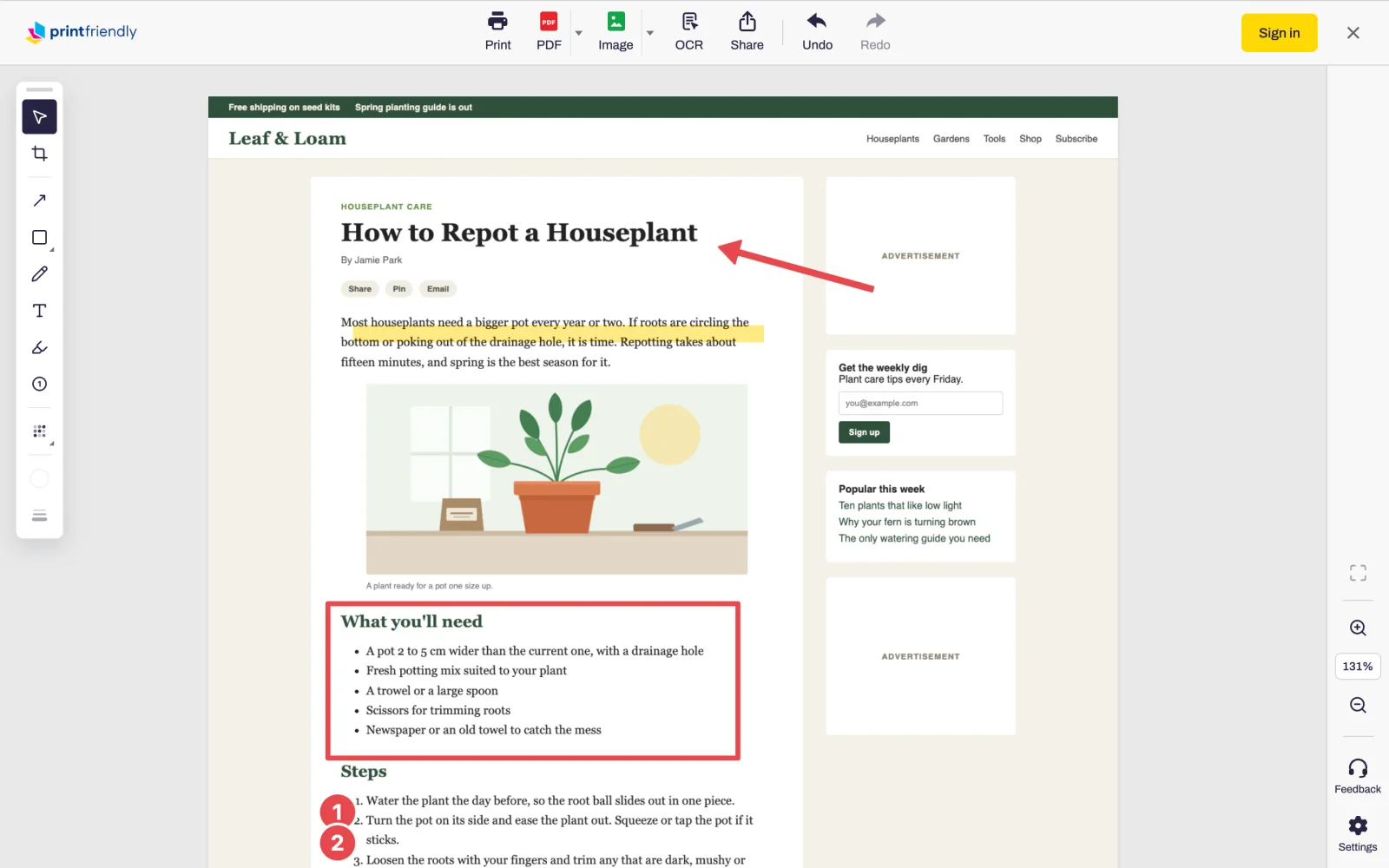
PrintFriendly scrolls the page for you and joins it into one picture. Then mark it up, crop it, and save it as an image or a PDF.
 Add PrintFriendly to Chrome
Screenshots are free.
Already have it? See how screenshots work.
Open the page and click the PrintFriendly button in your browser's toolbar.
Choose Full Page Screenshot. PrintFriendly scrolls the page and joins the pieces into one picture.
The screenshot opens in a new tab, ready to mark up, save, print or share.
Full Page Screenshot captures the page as it looks, from the top to the very bottom. Current View Screenshot captures only the part on your screen.
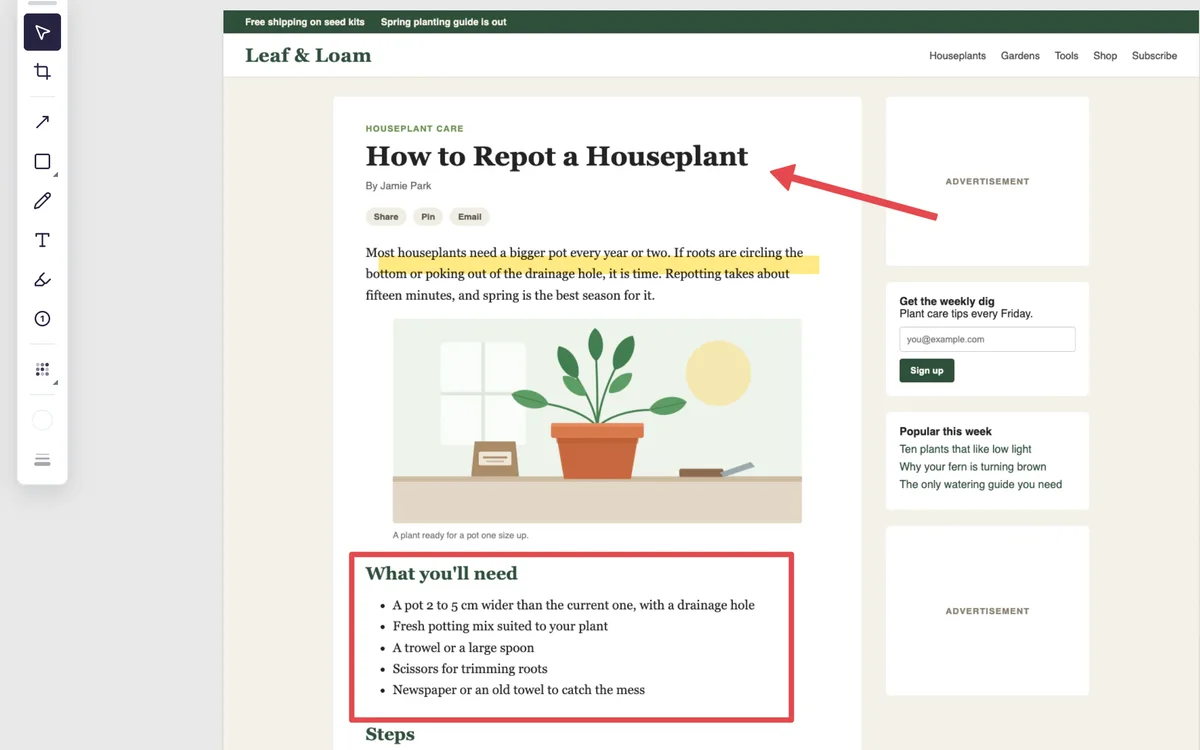
Add arrows, boxes, ovals, lines, typed notes, highlights and numbered steps, or draw freehand. Undo takes back the last one. Marking up is on a computer.
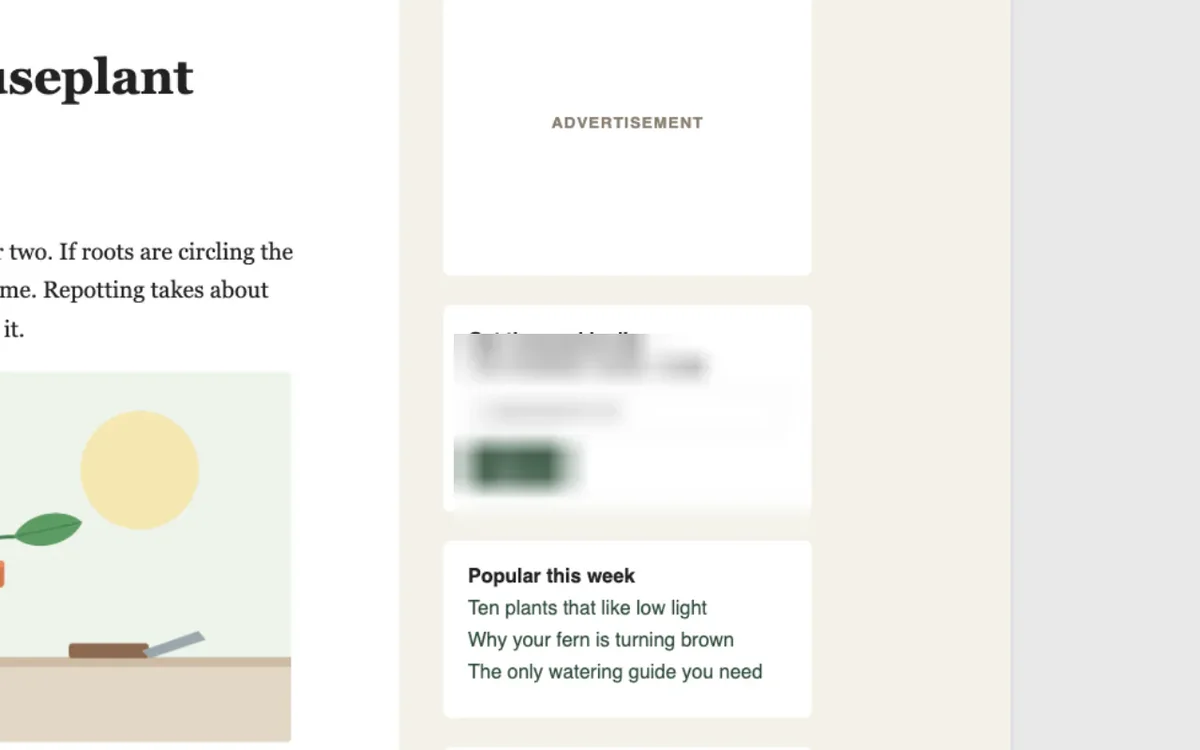
Blur an email address or a face, or black it out with Redact, before you share the screenshot.
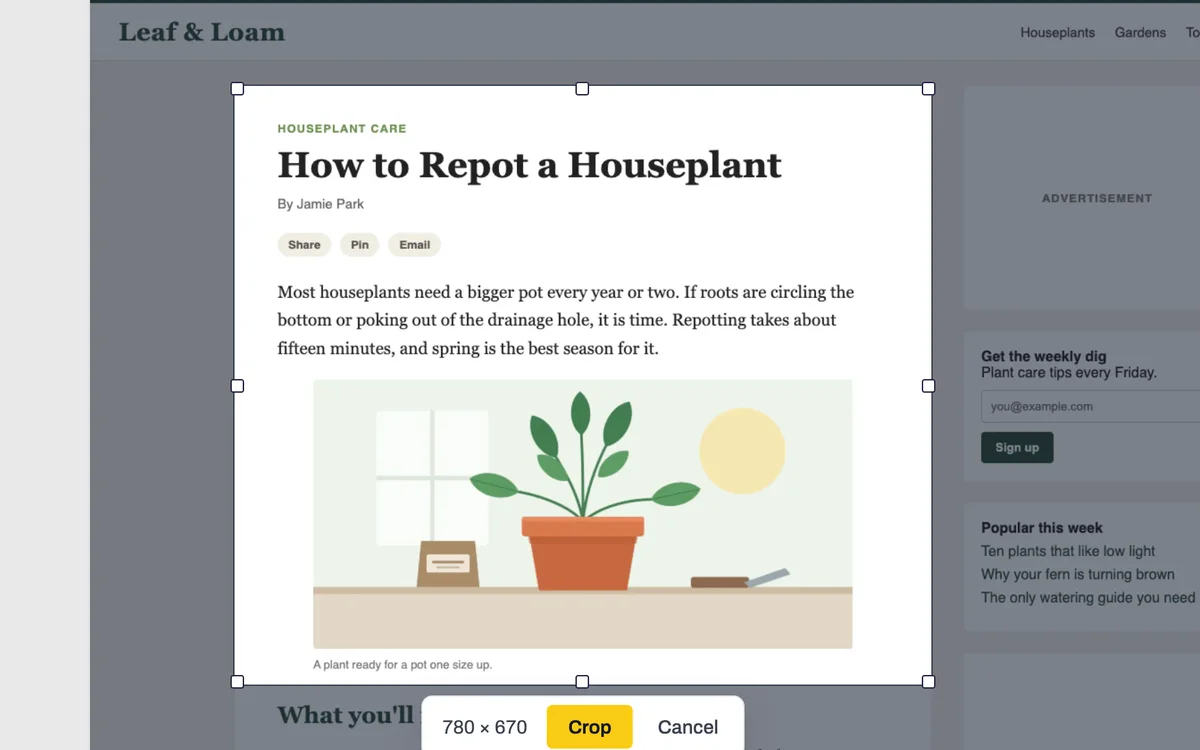
Drag to choose the area to keep, then click Crop. Printing and saving use the cropped screenshot. Cropping is on a computer.
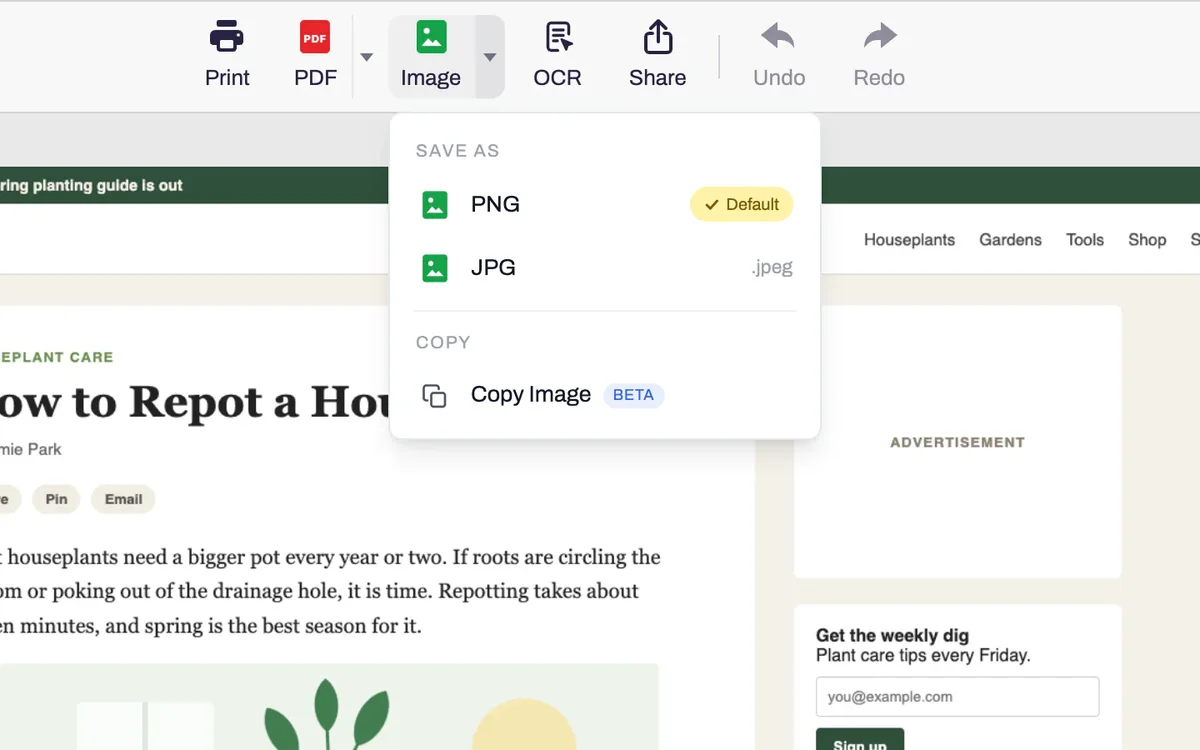
Image saves a PNG, or a JPG if you prefer. PDF splits a long screenshot across Letter or A4 pages. OCR makes a PDF whose text you can search and select.
“Gets the basics right and the most thought out screen capture extension with ocr i've ever seen.”
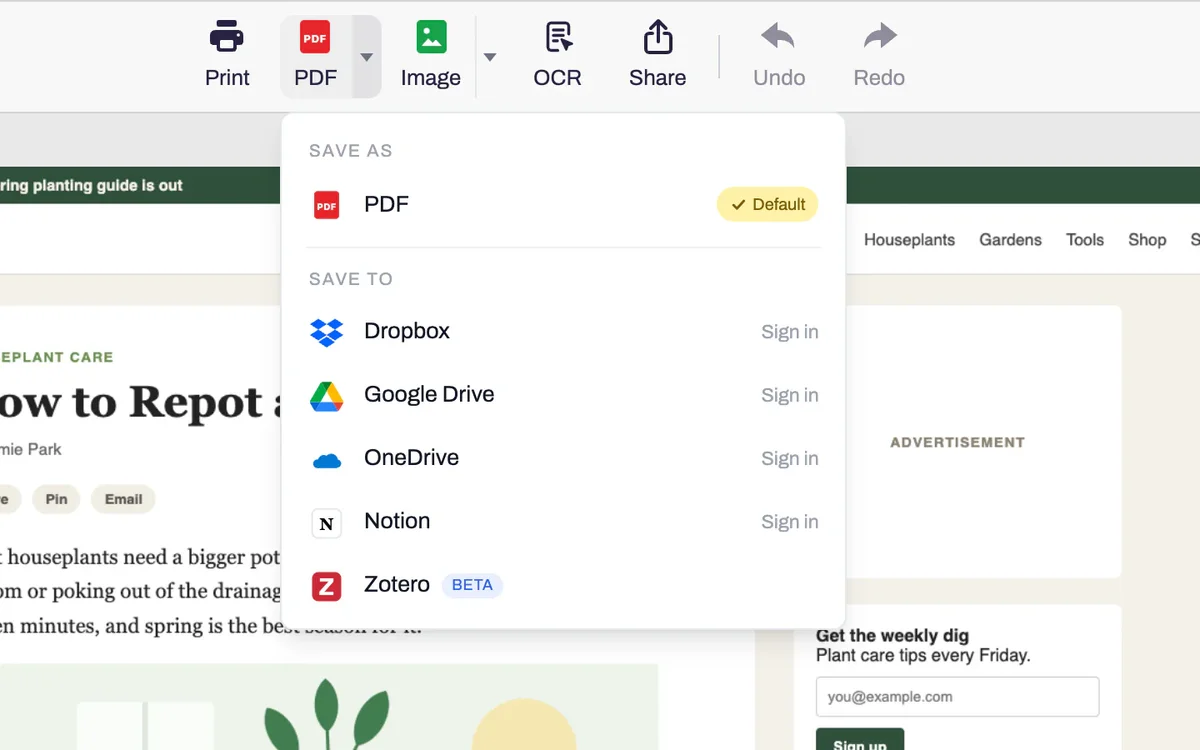
Save straight to Dropbox, Google Drive, OneDrive, Notion or Zotero. You can also copy the image to paste somewhere else, or share it from your device's share menu.
Yes. Taking, marking up, saving and printing a screenshot is free and needs no account. Saving to Dropbox, Google Drive, OneDrive or Notion needs a free PrintFriendly account.
Chrome, Edge, Firefox and Safari, including Safari on iPhone and iPad. Marking up and cropping are on a computer only.
Yes. A screenshot shows the page as it appears, ads included. For a clean copy without them, print the page or save it as a PDF with PrintFriendly instead.
The page probably loads its content as you scroll, and the screenshot moved on before it arrived. Set a Per-screen delay of a second or two in Settings and try again.
Some sites use frames or moving parts that block a complete capture. Try Current View Screenshot there. Screenshots also don't run on browser settings pages or extension stores.
Yes. OCR saves a PDF whose text you can search, select and copy, when PrintFriendly can read the page's text.
“I used to just love it for the distilling of pages; more recently, I love it for the ability to capture a FULL PAGE in a screenshot! It's awesome!”
Add PrintFriendly to your browser and choose Full Page Screenshot.