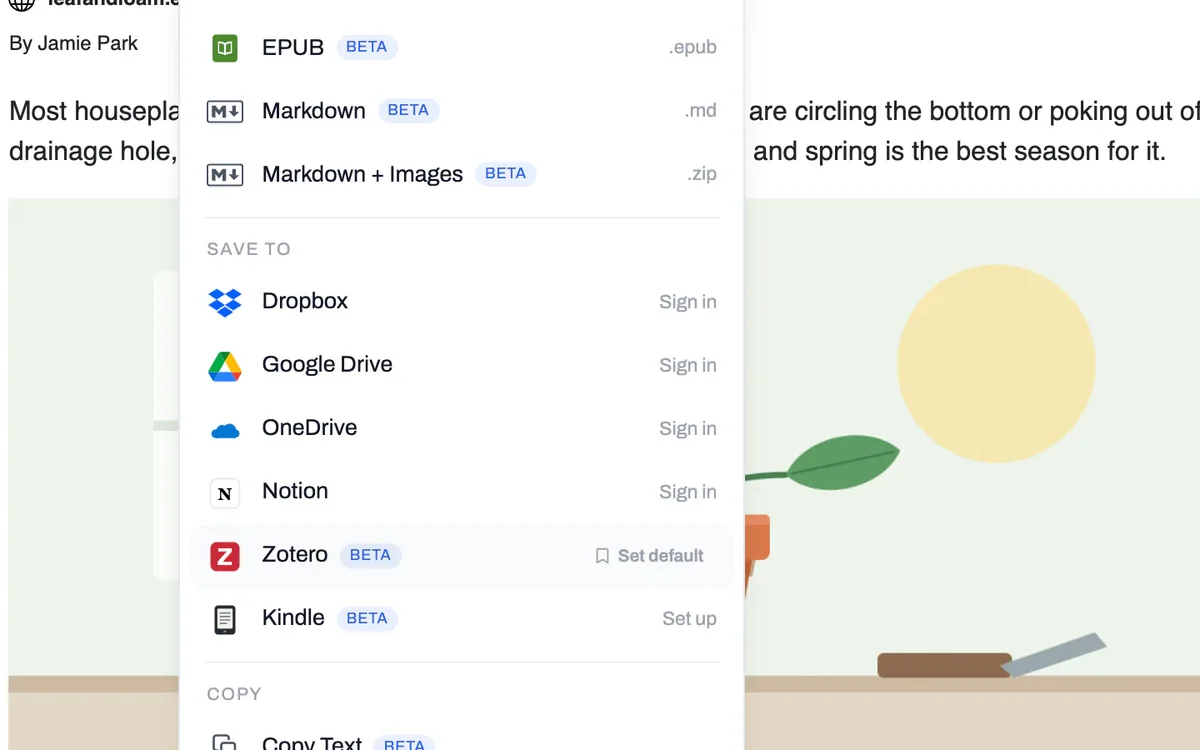
It sits in the Save menu
Zotero is under Save to, beside Dropbox, Google Drive, OneDrive and Notion. Hover over it and click Set default, and the PDF button becomes a Zotero button.

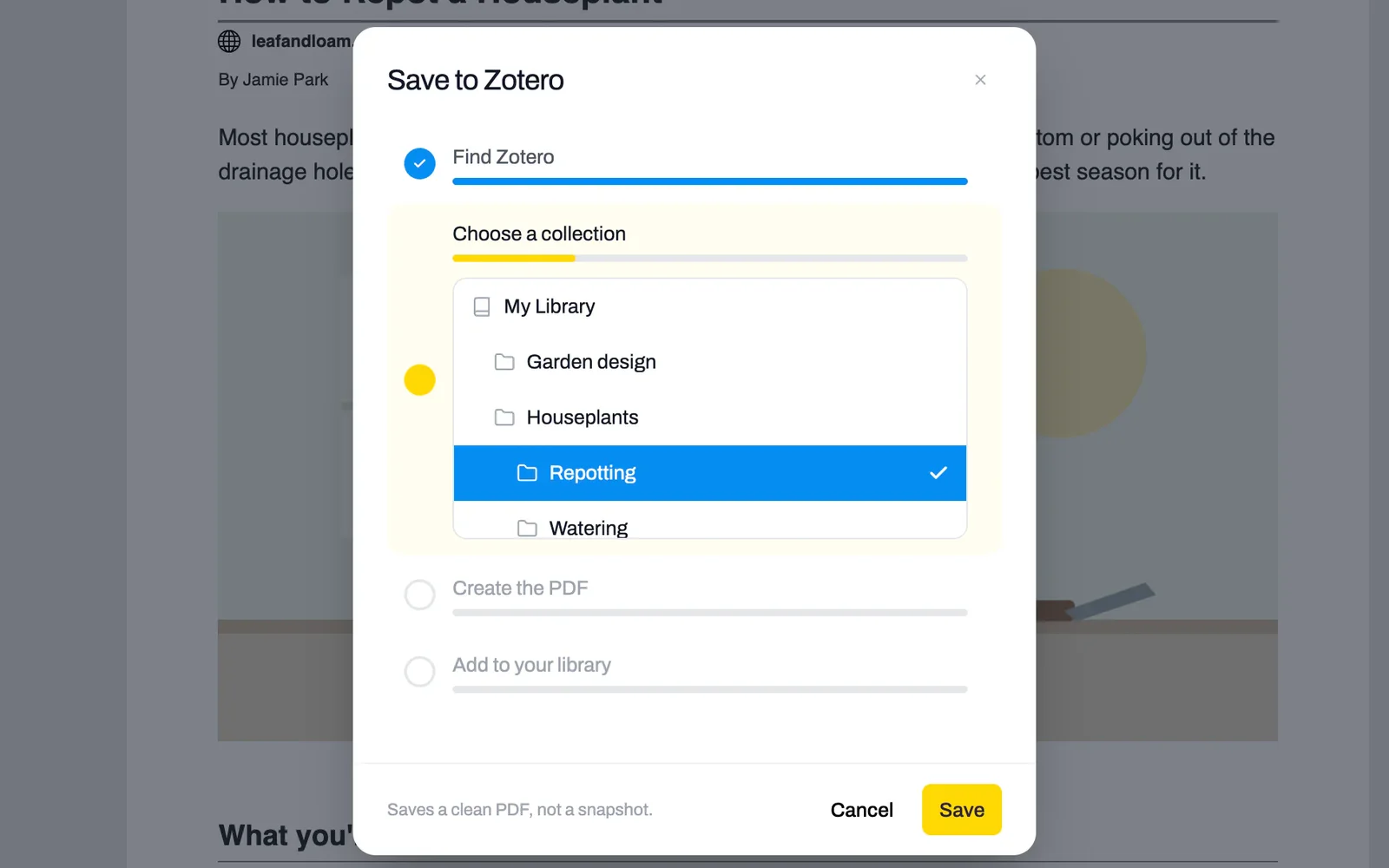
Pick a collection and PrintFriendly files the page in your Zotero library: a clean PDF without the ads and menus, on an item with the title, author, date and link filled in.
 Add PrintFriendly to Chrome
Free, with nothing to sign in to.
Already have it? See how saving to Zotero works.
Open the page and click the PrintFriendly button in your browser's toolbar.
Click the arrow next to PDF to open the Save menu, and choose Zotero. The first time, your browser asks for permission. Allow it.
Pick a collection and click Save. The one you have open in Zotero is already picked.
Zotero is under Save to, beside Dropbox, Google Drive, OneDrive and Notion. Hover over it and click Set default, and the PDF button becomes a Zotero button.
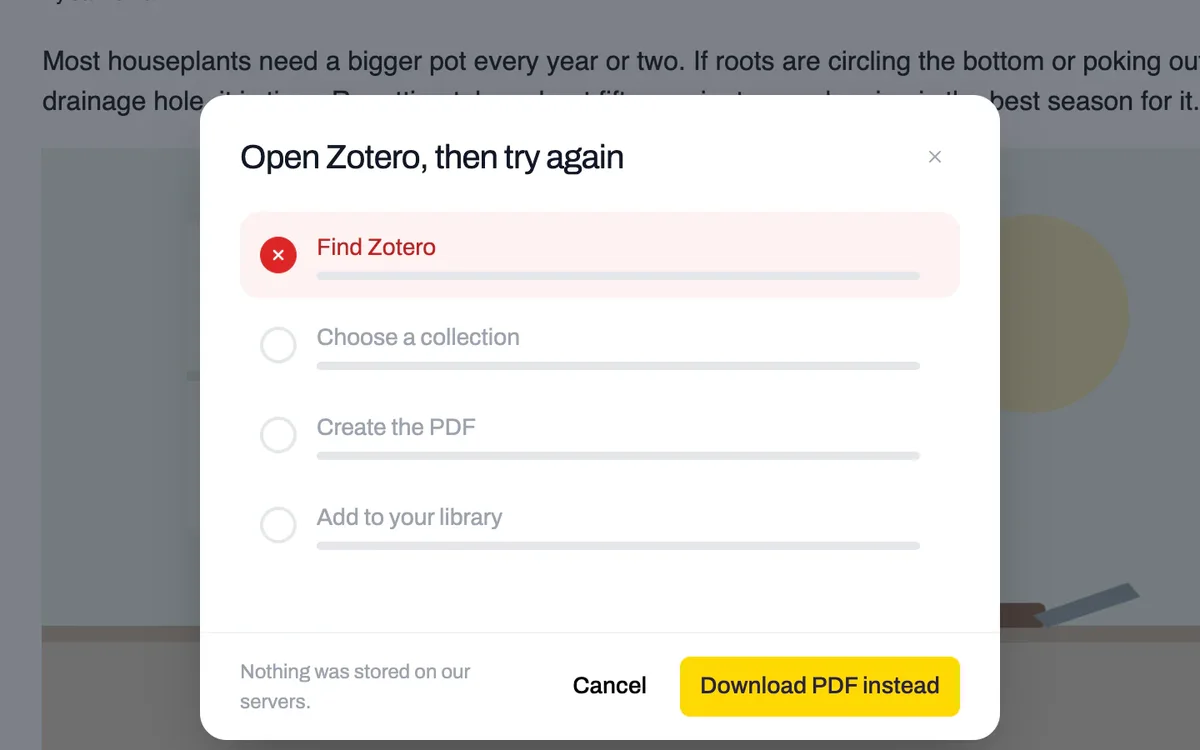
PrintFriendly tells you when it can't find Zotero. Open the app and try again, or click Download PDF instead.
Zotero gets a Web Page item with the title, author, date and link, and the clean PDF attached to it, in the collection you picked.
The PDF matches what you see in PrintFriendly. Delete the comments or a list of related links first, and they stay out of your library.
The Connector is the one for journal articles and books, where it fills in the full citation. PrintFriendly is for everyday pages: a news story, a blog post, a how-to.
The Zotero app, open on the same computer. You don't need a Zotero account or the Zotero Connector.
Yes, and there is nothing to sign in to.
The first time, your browser asks to let PrintFriendly reach two addresses. 127.0.0.1 is your own computer, which is how PrintFriendly reaches the Zotero app. storage.printfriendly.com is where PrintFriendly keeps the PDF it just made, so it can hand it to Zotero.
For a web page, yes: the title, author, date and link. For a journal article or a book, use the Zotero Connector, which recognizes the source and fills in the journal, volume, pages and DOI.
In the PrintFriendly extension for Chrome, Edge, Firefox, and Safari on a Mac. It does not work on an iPhone or iPad, because the Zotero app there doesn't accept saves from the browser.
No. PrintFriendly is not made by or affiliated with Zotero. Zotero is a free, open-source reference manager from zotero.org.
Add PrintFriendly to your browser, open Zotero and save the next page you want to keep.