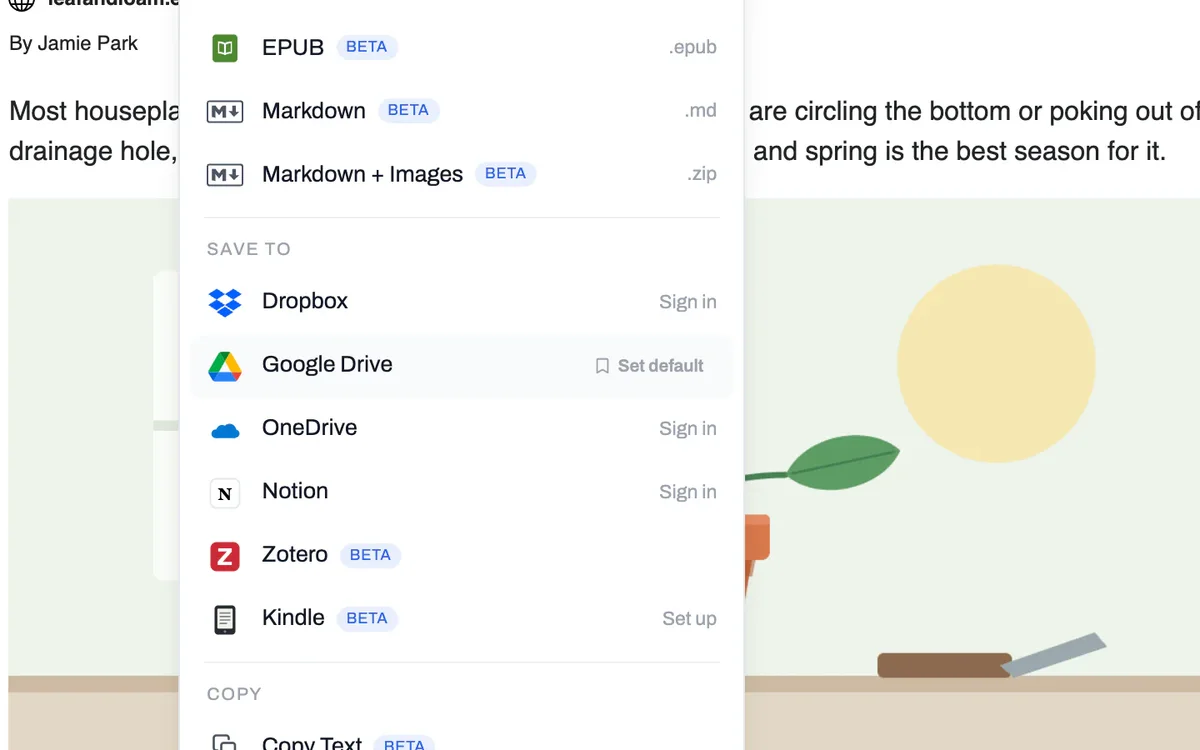
Make it one click
Hover over the service you use most and click Set default. The PDF button then carries that service's name, and one click starts the save.

Pick Google Drive, Dropbox, OneDrive or Notion in PrintFriendly's Save menu and the clean PDF goes straight there. Nothing lands in Downloads, and there is nothing to upload afterwards.
 Add PrintFriendly to Chrome
Free with a PrintFriendly account.
Already have it? See where each service puts the file.
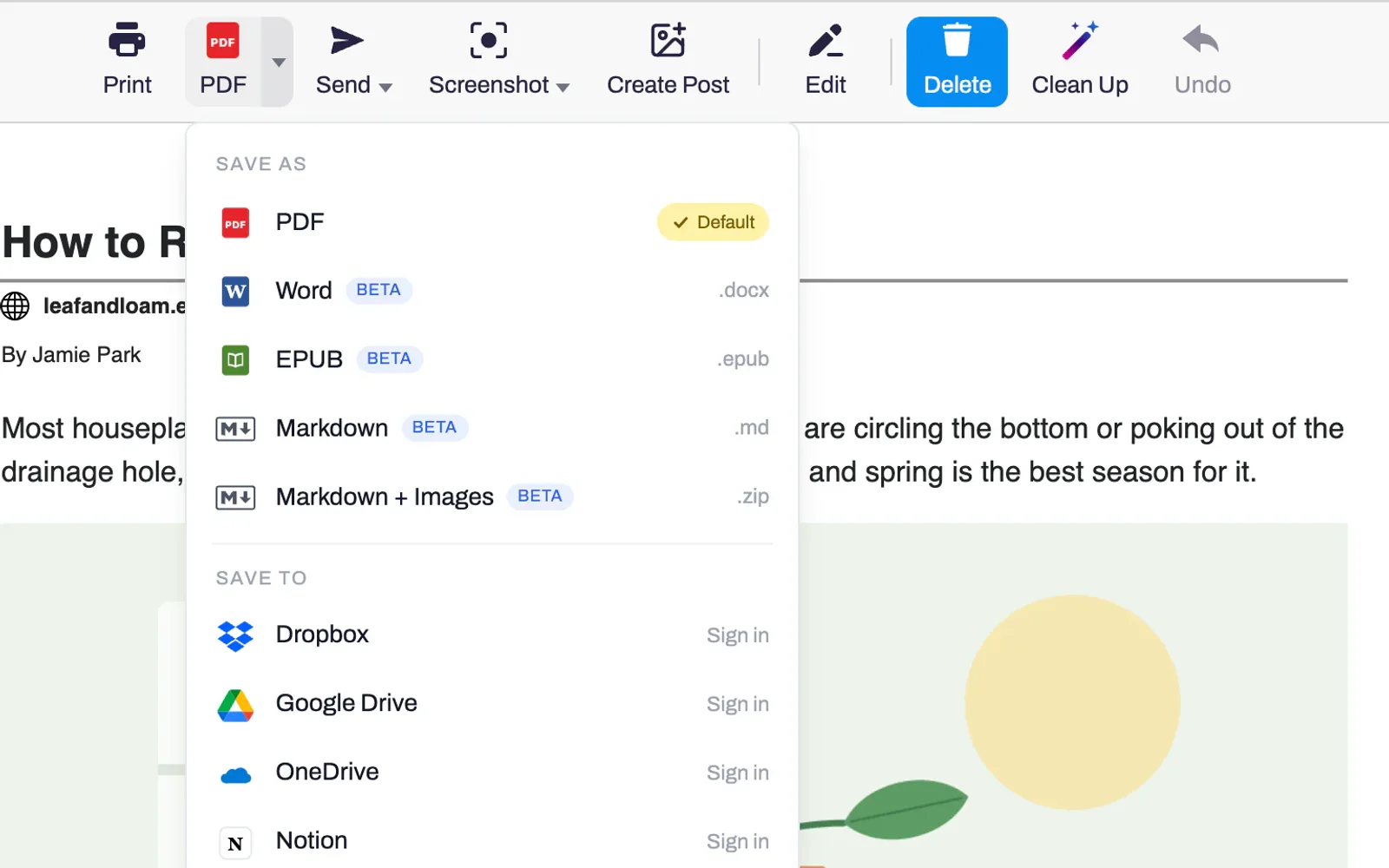
Open the page and click the PrintFriendly button in your browser's toolbar.
Click the arrow next to PDF to open the Save menu, and pick Google Drive, Dropbox, OneDrive or Notion.
The first time, sign in to PrintFriendly and approve the connection. After that, picking the service saves the PDF.
Hover over the service you use most and click Set default. The PDF button then carries that service's name, and one click starts the save.
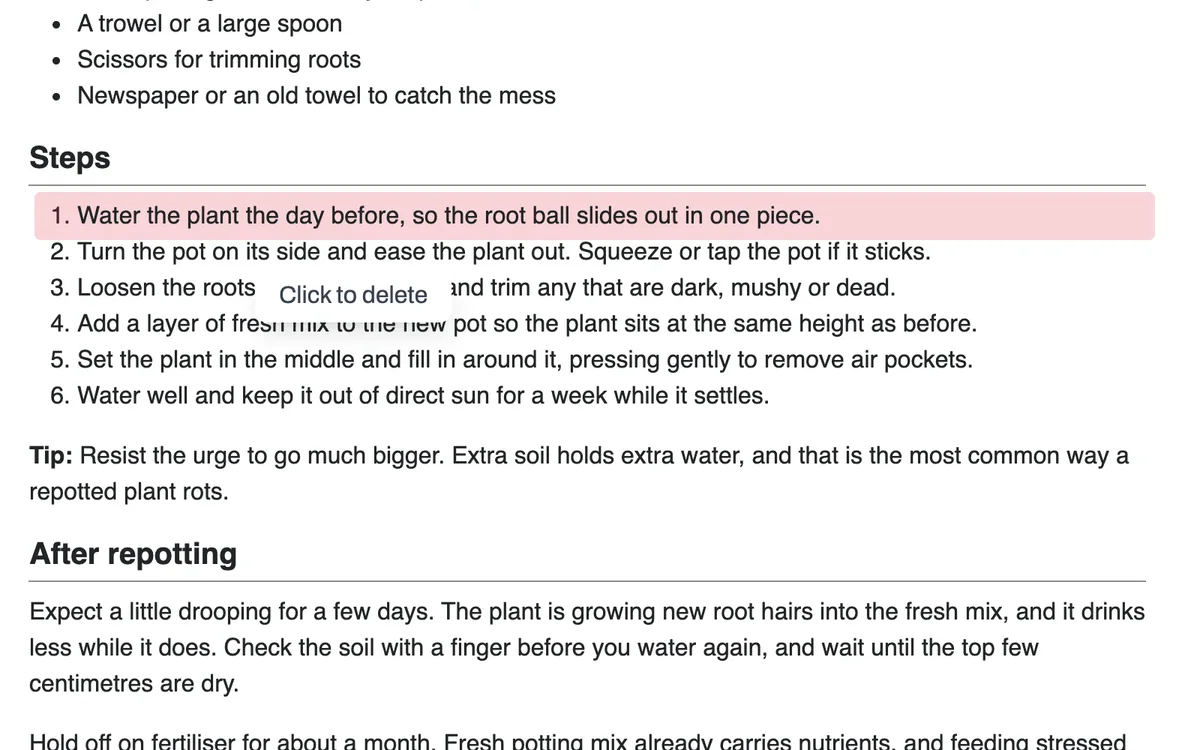
PrintFriendly opens the page without the ads and menus. Click anything else to delete it, and that cleaned-up page is the PDF that lands in your storage.
The first time you pick a service, you sign in to PrintFriendly and approve the connection in the tab that opens. PrintFriendly brings you back and finishes the save.
In Dropbox and OneDrive, PrintFriendly can see and write to one PrintFriendly folder. In Google Drive, it can only see the files it saved there itself. In Notion, only the pages you share with it.
It works in Safari on an iPhone or iPad, where saving a PDF usually means finding it in the Files app and uploading it again.
Yes, with a free PrintFriendly account. You connect each service the first time you use it.
Google Drive saves it to the top level of your Drive. Dropbox and OneDrive put it in a PrintFriendly folder. Notion adds it to a page called PrintFriendly, or to a page or database you have shared with PrintFriendly, which you pick each time you save.
A PDF of the page as you see it in PrintFriendly, without anything you deleted.
PrintFriendly shows a note that the file was saved, with a button to open it in that service.
Sign in on printfriendly.com and open Settings in your account. Connected apps lists each service with a Disconnect button.
In the PrintFriendly extension for Chrome, Edge, Firefox and Safari, including Safari on an iPhone or iPad.
Add PrintFriendly to your browser and pick your service in the Save menu.