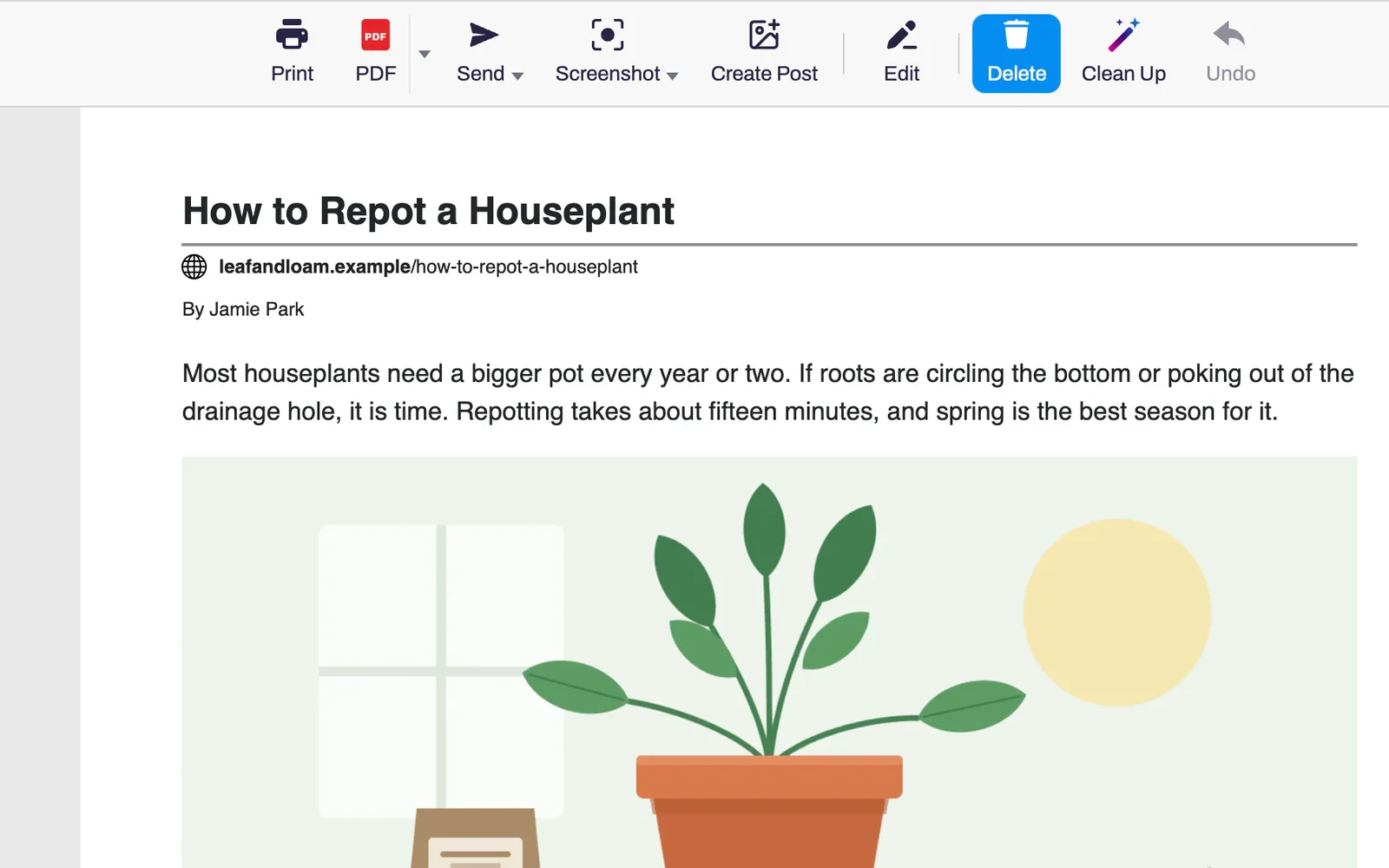
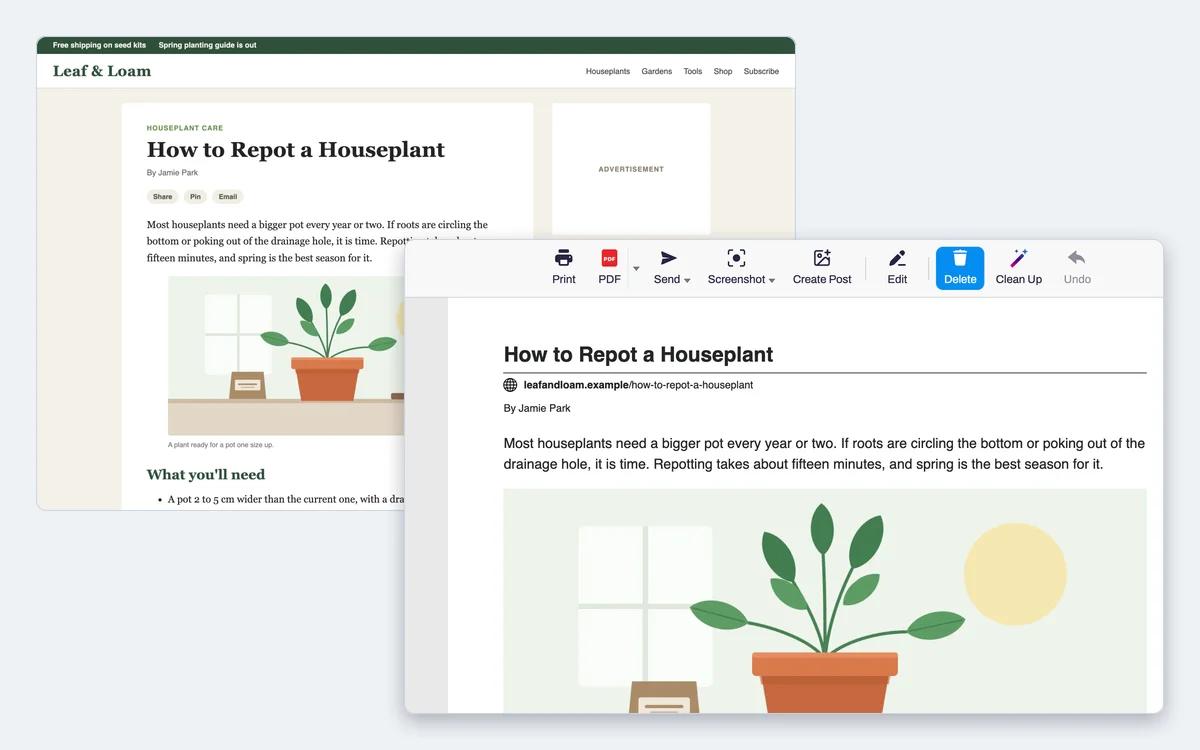
PrintFriendly opens a clean copy of the page you're reading, without the ads, menus and pop-ups. Delete anything else you don't need, then print it or save it as a PDF.
Open the page and click the PrintFriendly button in your browser's toolbar.
2
A clean copy opens with the ads and menus already gone. Click anything else you don't want, and it's deleted.
3
Click Print, or PDF to save it as a file.
What you get
The ads and menus are already gone
A web page is laid out for a screen, so its ads, menus and sidebars print along with the article. PrintFriendly leaves them out and keeps the text and its pictures.
“Love this extension! I have already used it at least ten times and I just put it on my Chromebook. It really cleans up the copy so I don't have to print so many pages. Mainly use it for knit and crochet patterns and a few recipes.”
Corinne R.
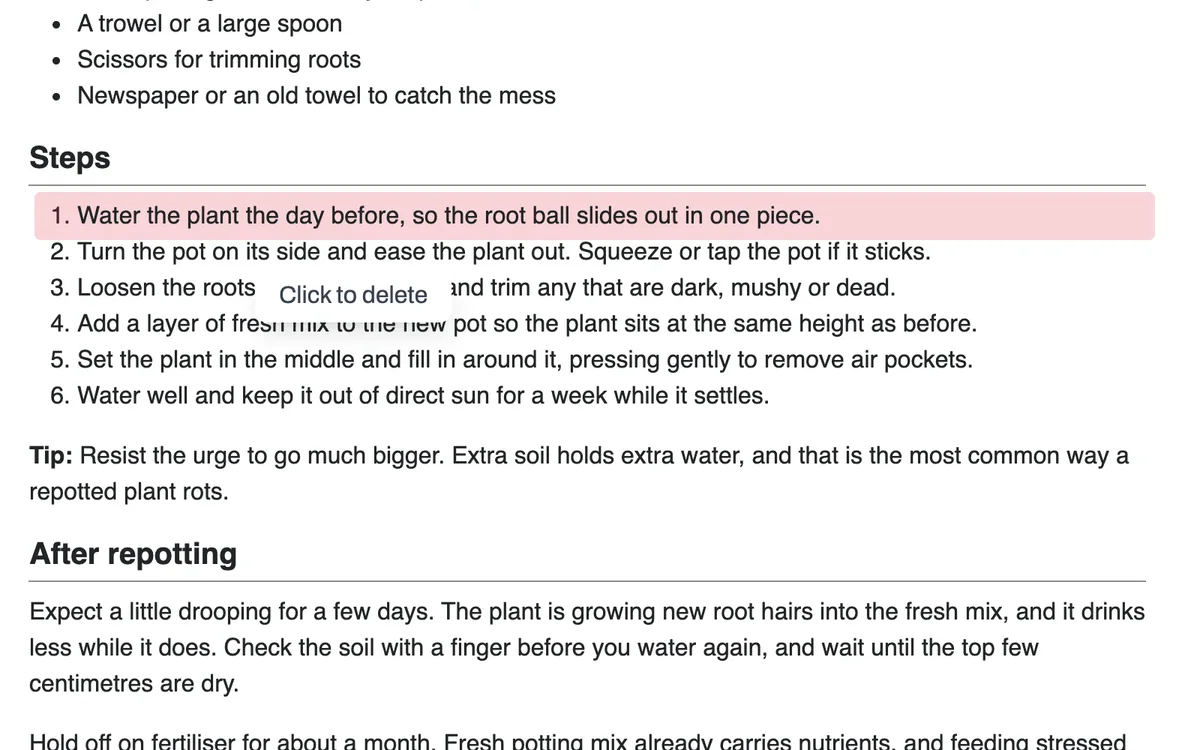
Click anything to delete it
Hover over a paragraph, a picture or a list item and click. It's gone, and Undo brings it back.
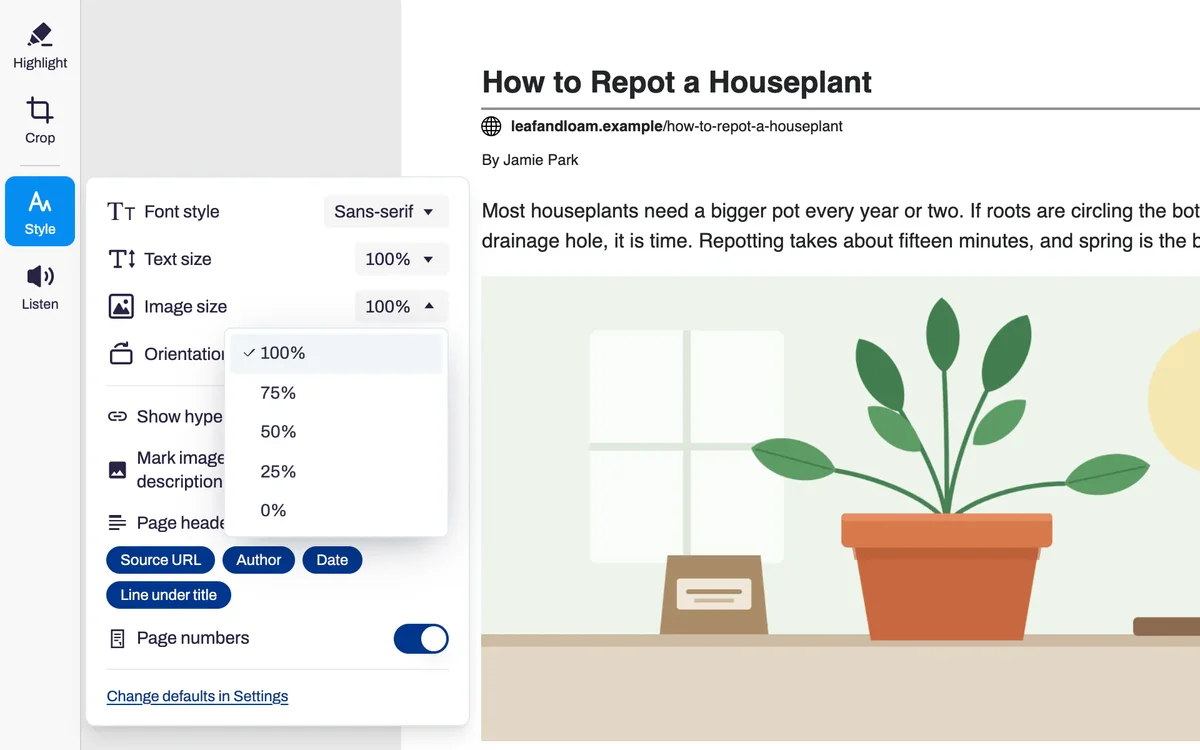
Bigger text, smaller pictures
Open Style to make the text bigger or smaller. Image size shrinks every picture to 75%, 50% or 25%, or leaves them all out at 0% to save ink.
Print it, or keep it as a PDF
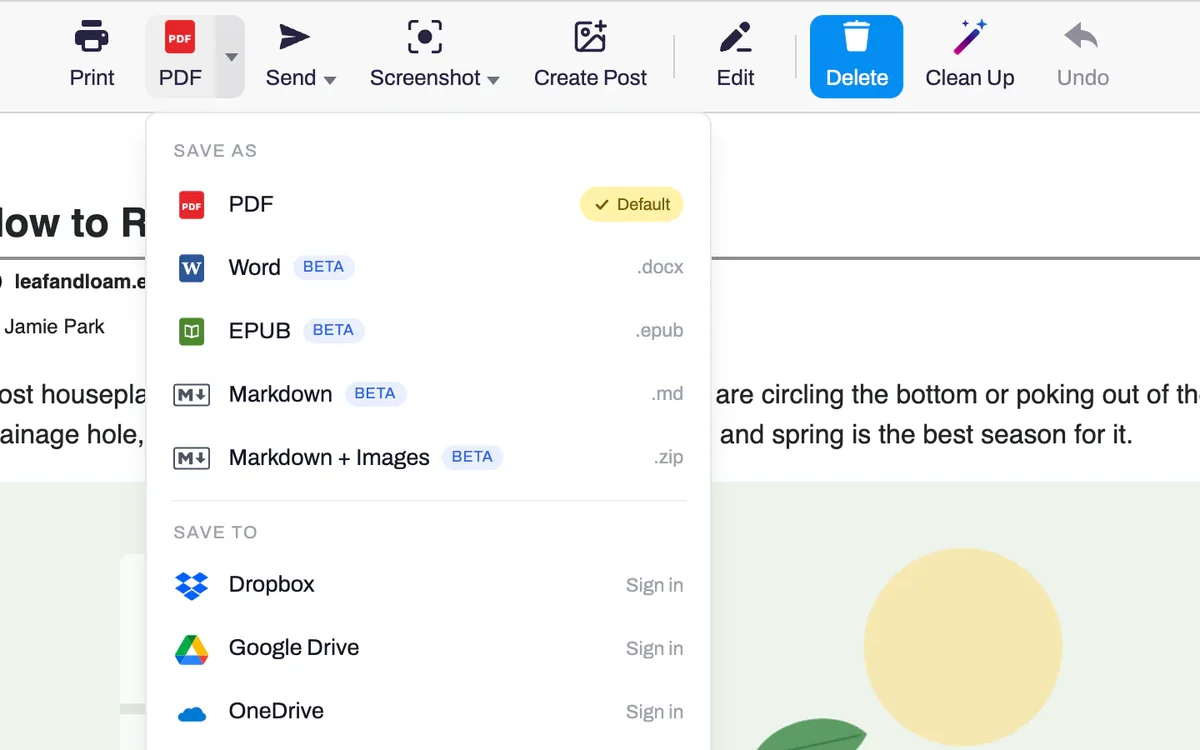
Print sends the clean page to your printer, and PDF saves it as a file. The arrow next to PDF opens the rest: Word, Markdown, Google Drive, Dropbox and more.
Questions about printing web pages
Is it free?
Yes. Printing a page and saving it as a PDF are free and need no account.
Do I have to install anything?
No. Paste the page's address into the box on the printfriendly.com home page and you get the same clean page. The extension skips that step, and it works on pages you are signed in to.
Something I don't want is still on the page. What now?
Hover over it and click to delete it. For a page with a lot left over, Clean Up clears sign-up boxes, related links and share buttons in one click. It is in the extension for Chrome, Edge and Firefox and on printfriendly.com, and needs a free PrintFriendly account.
Can I print without the pictures?
Yes. Open Style and set Image size to 0% to leave out every picture, or click the ones you don't want to delete just those.
Can I change the text?
Yes. Click Edit to fix a typo, shorten a passage or type a note into the page before you print it.
Where does it work?
In the PrintFriendly extension for Chrome, Edge, Firefox and Safari, in the PrintFriendly app for iPhone, iPad and Android, and on printfriendly.com.
“I love the ability to save paper and delete pictures or text that I do not need printed. This works great for recipe sites as well as finding readings for my classroom without ads or extra navigation buttons. The fact that you can also save prints as PDFs for future uses is also wonderful.”
Erica B.Chrome Web Store review
Print what you need and nothing else
Add PrintFriendly to your browser and open the next page you want on paper.