Browser reading mode vs a reader extension
Every browser can strip an article down to the words. Here's when the built-in reading mode is all you need, and when an extension does a better job.
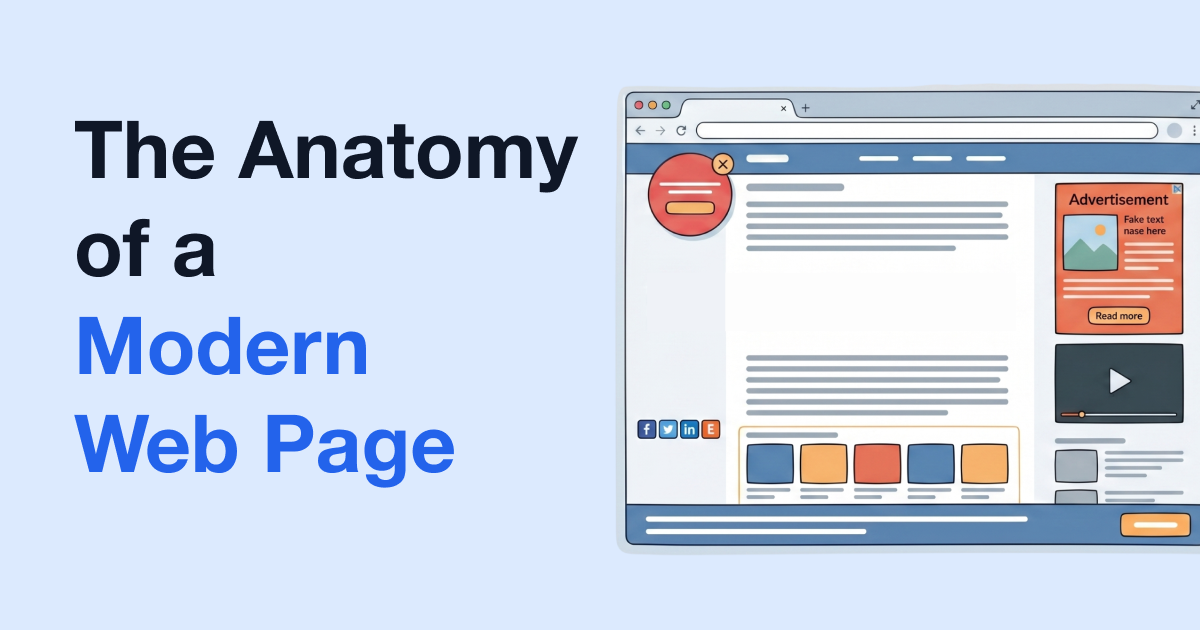
You open an article and have to scroll past ads, a video that plays itself and a newsletter box before you get to the first paragraph. Every major browser has a reading mode built in to fix exactly that, and the extension stores have plenty of reader extensions that promise to do it better. So, the browser's reading mode or a reader extension: which do you actually need?
Short answer: for a normal article now and then, the one built into your browser is probably enough. An extension earns its place when the browser won't open the page in its reader, when you want more control over what's left, or when you want to do something with the article afterwards.
What a reading mode does
It pulls the article's text and pictures out of the page and shows them in a plain layout, without the ads, menus, sidebars and pop-ups. Both kinds do that part. The difference is everything around it: which pages it works on, how much you can change, and what you can do with the article once it's clean.
The reading mode built into your browser
Each browser has its own, with its own name:
- Chrome has Reading mode.
- Safari has Reader. Apple's guide to hiding distractions in Safari describes it as the article on one page, formatted for easy reading, without navigation or other distractions. It's in Safari on iPhone and iPad too.
- Firefox has Reader View, which Mozilla's Reader View page says strips away clutter like buttons, ads, background images and videos, and lets you customize how it looks.
- Edge has Reading mode, which you may know by its older name, Immersive Reader.
What it's good at:
- It's free and already there. Nothing to install, nothing to sign into.
- Nothing extra gets to read the pages you visit. It's your browser doing it.
- It's quick. On an ordinary news article it's one click and you're reading.
What it's bad at:
- It only shows up on pages the browser decides are articles. A recipe, a forum thread or a product page often doesn't qualify.
- It can drop parts of the article, like a table or a figure, and nothing tells you what it left out.
- You take what it gives you. If it kept a block you don't want, there's no removing it.
- Every browser's is different, so if you switch between a work laptop in one browser and a phone in another, you're learning two of them.
Reader extensions
A reader extension is something you add to your browser that does the same decluttering, usually with more around it. They vary a lot, so this is the kind in general.
What they're good at:
- Many open on whatever page you're on, because you decide when to open the reader, not the browser.
- More control over how it looks. Depending on the extension: themes, fonts, text width, line spacing.
- Extras. Read aloud, a summary, a table of contents, highlighting, and saving the article in other formats are all common.
- The same reader in every browser the extension supports.
What they're bad at:
- It's one more thing to install, and it has to be allowed to read the pages you open in it.
- Quality is all over the place. Plenty of the ones in the stores barely work.
- The best features are often behind a subscription or a one-time fee.
- A browser update can break one, and it may not exist for your browser or your phone at all.
And one thing worth saying plainly: a reading extension isn't a screen reader. If you rely on one, keep using it.
PrintFriendly View
PrintFriendly is a reader extension, though it started life as a way to print and save web pages, and that still shows. Click the PrintFriendly button in your toolbar, then choose PrintFriendly View. It works in Chrome, Edge, Firefox and Safari, including Safari on iPhone and iPad.
What it's good at:
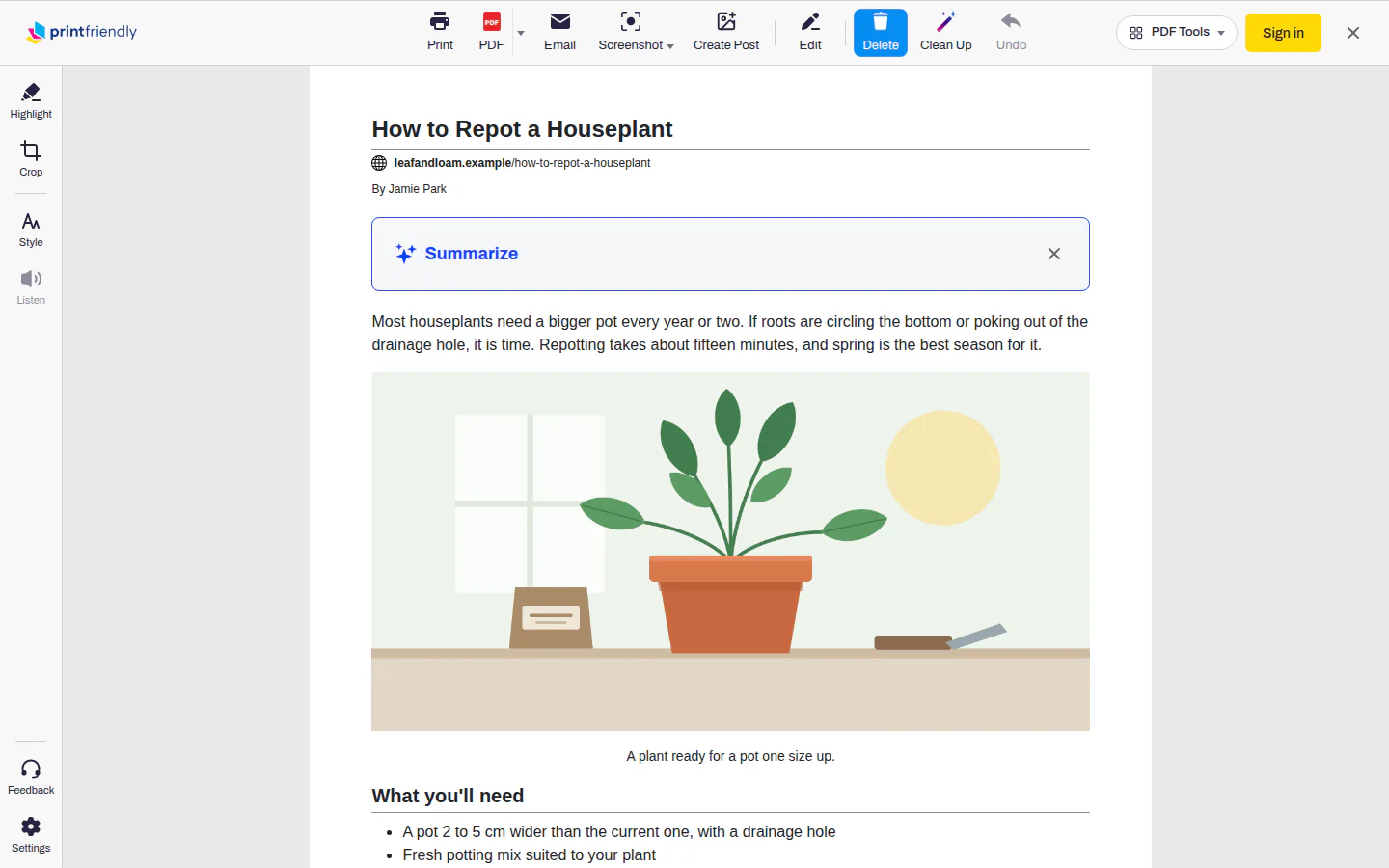
- You decide what's left. Delete is already on when it opens: click a paragraph, a picture or a list item and it's gone. Undo brings it back. That's the thing a built-in reader can't do.
- Clean Up clears the leftovers in one click, things like sign-up boxes and related links. It needs a free account.
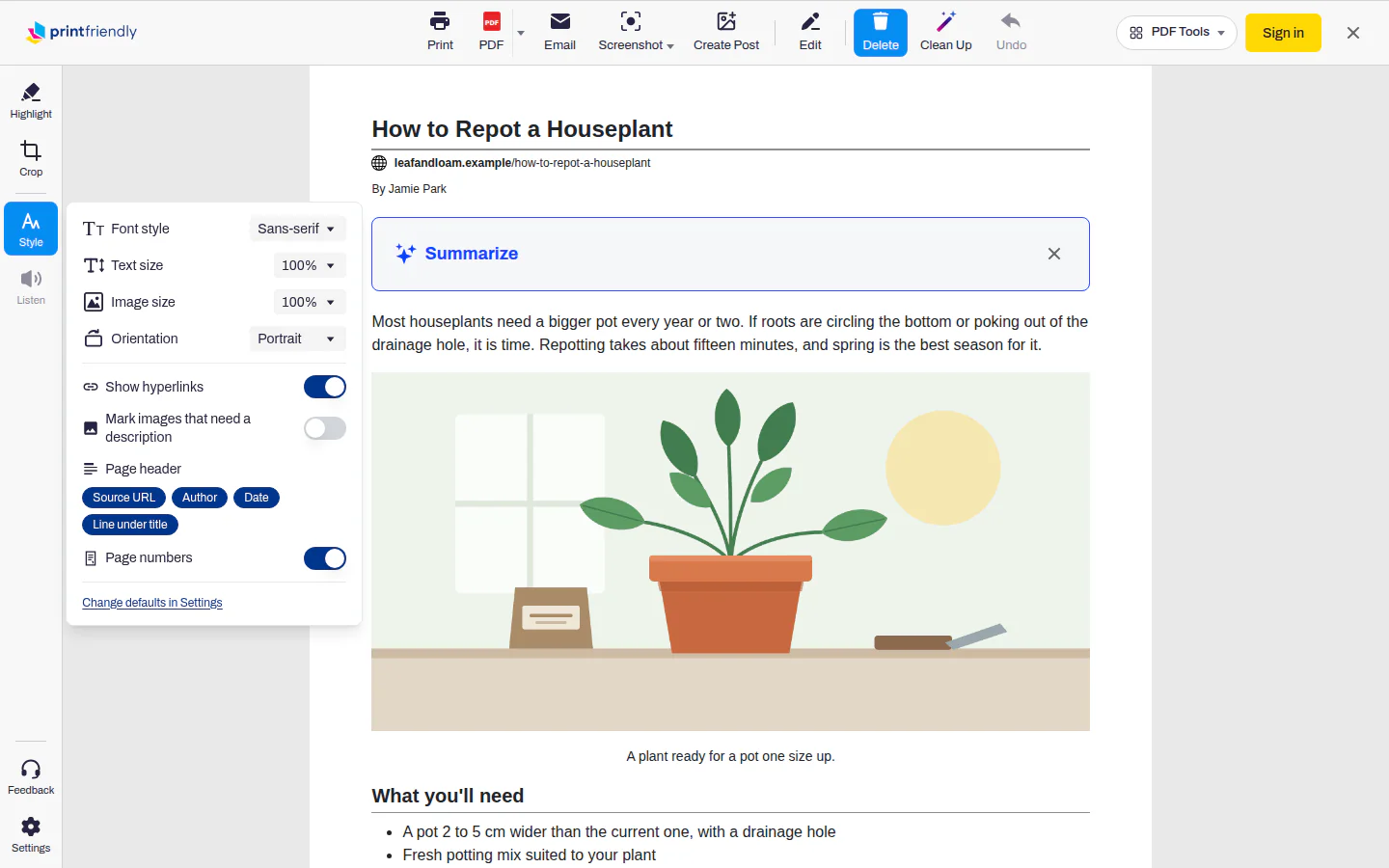
- Style has Font style (serif or sans-serif), Text size from 70% to 130%, and Image size, which shrinks every picture or drops them all.
- Listen reads the article aloud with a choice of voices, using the voices your browser has.
- Summarize gives you a short summary of a long article before you commit to reading it. It needs a free account.
- It works on the page in your browser, so pages you're signed into work too.
- When you're done reading, keep it: Print, PDF, or the arrow beside PDF for EPUB, Kindle and more.
What it's bad at, for reading:
- There are no colour themes or dark background, and no line or letter spacing settings. Your browser's reader and the extensions made for accessibility do more here.
- It's built around printing and saving first, so the toolbar has a lot on it if all you want is to read.
- For a plain news article you'll read once, your browser's own reader is quicker.
Side by side
| Built-in reading mode | Reader extensions | PrintFriendly View | |
|---|---|---|---|
| Cost | Free | Often free, best features often paid | Free; Clean Up and Summarize need a free account |
| Install | Nothing | The extension | The extension |
| Which pages | Ones the browser reads as articles | You choose; varies | You choose |
| Remove parts of the page | No | Varies | Yes, block by block, with Undo |
| Look settings | Depends on the browser | Often themes, fonts, spacing | Font style, text size, image size |
| Same across browsers | No | Yes, where it's available | Chrome, Edge, Firefox, Safari |
| Phones | Depends on the browser | Varies | Safari on iPhone and iPad |
| Keep the article | Print it, in some browsers | Varies | Print, PDF, EPUB, Kindle and more |
Which to use when
- A normal news article now and then: your browser's reading mode. It's free, already there and one click away.
- Low vision, dyslexia or trouble focusing: start with your browser reader's own text settings. If they're not enough, a reader extension built around accessibility, with themes, spacing and reading guides, will do more than either your browser or PrintFriendly.
- A page the browser won't open in its reader, or one you want to cut down yourself: PrintFriendly View, because you choose the page and delete what you don't want.
- You want a summary first, or want to keep the article as a PDF or on a Kindle: PrintFriendly View. Everything else it does is on the extension features page.
- You want it on paper: we compared that separately in the best way to print a web page.
Frequently Asked Questions
Does Chrome have a built-in reading mode?
Yes. Chrome calls it Reading mode. Like Safari's Reader and Firefox's Reader View, it shows the article without the clutter around it.
Why isn't my browser's reader showing on this page?
Your browser only offers it on pages it reads as an article. Recipes, forum threads, product pages and app-like sites often don't qualify. A reader extension can usually still open them.
What does Reader do in Safari?
Safari's Reader shows the article on one page, set out for easy reading, without the site's navigation and other distractions. It's built into Safari, so there's nothing to install.
Do I need a reader extension?
Not for the odd news article: your browser's own reading mode is quicker. An extension is worth it if you want a clean view on pages the browser won't open, want to delete parts of the page yourself, or want to keep the article as a PDF or e-book.
Sources
- Hide distractions when reading articles in Safari on Mac, Apple. Safari's Reader shows an article without ads, navigation and other distractions.
- Firefox Reader View for clutter-free web pages - Mozilla Support, Mozilla. Firefox Reader View strips away clutter like buttons, ads and background images.