The best way to print a web page (and skip the ads)
You wanted one page of article and got four pages of ads and menus. Here are the four ways to print a web page, what each one is good and bad at, and which to pick.
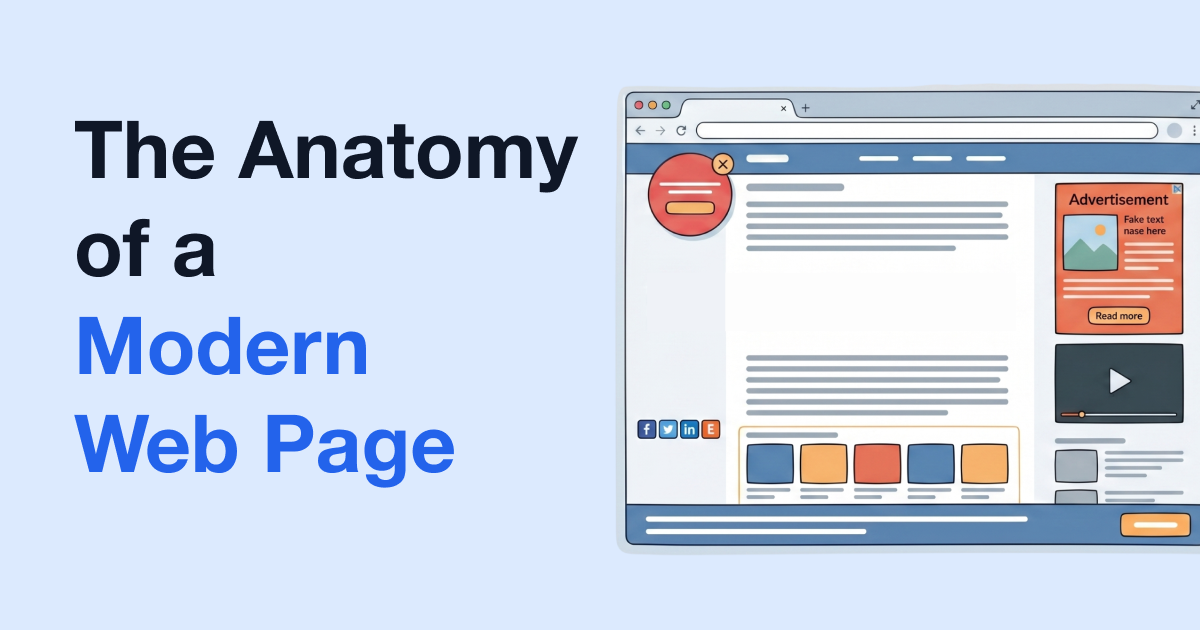
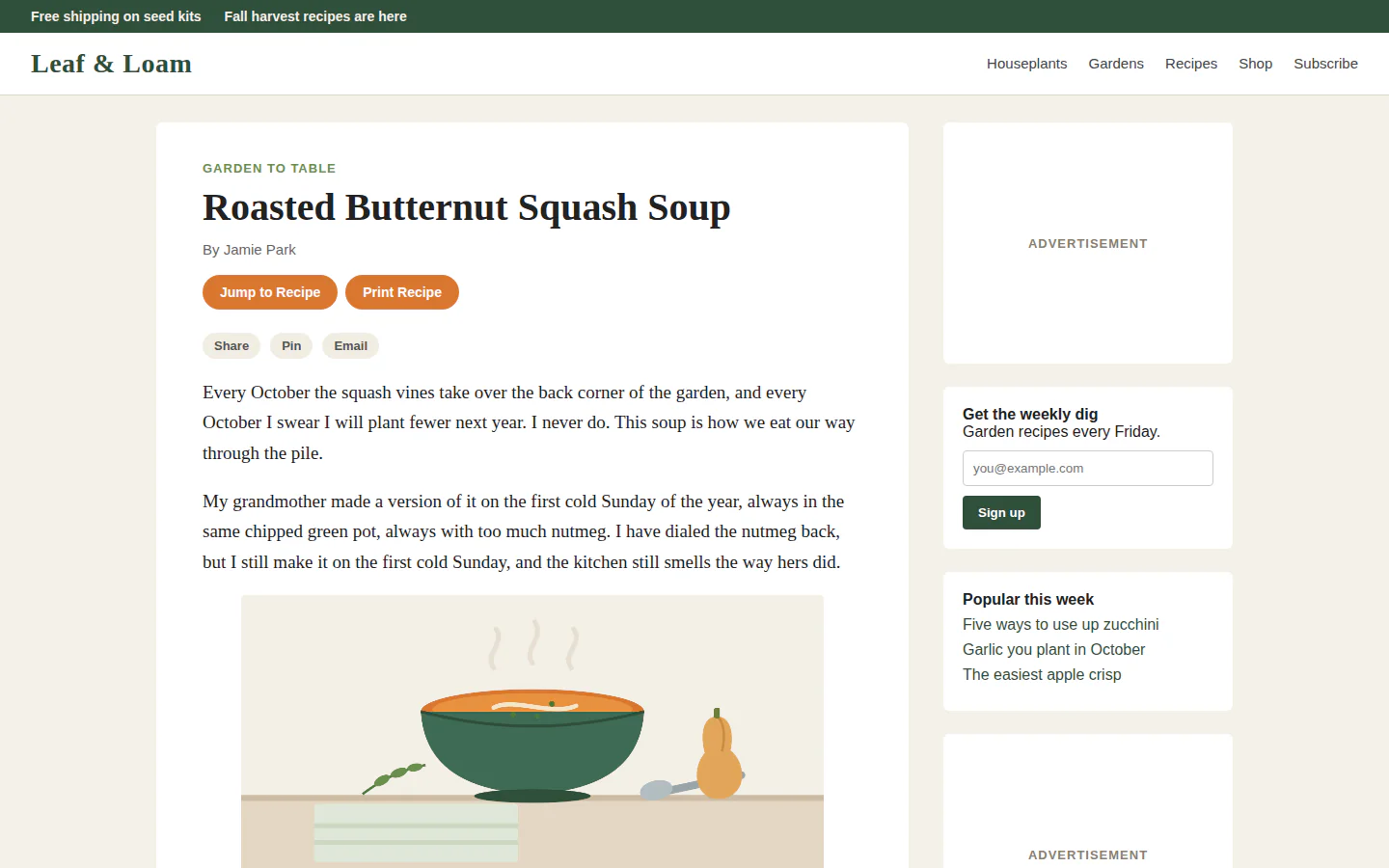
You hit Print to keep one article and the printer hands you four pages: ads, the site's menu, a newsletter box and a cookie banner, with the article squeezed in between. So what's the best way to print a web page? It depends on the page. Sometimes the browser's own Print button is all you need, and sometimes it wastes a lot of paper and ink. Here's what each way actually gets you, so you can pick.
Why a web page prints with all that stuff
When you press Ctrl+P (Command+P on a Mac), your browser lays out the page for paper as the site built it. A site can mark parts of its page as "don't print", and a few sites do it well: they print as a clean article. Most don't, so the ads, menus, sidebars, sign-up boxes, comments and banners all come along. Pictures that only load as you scroll can also print as empty boxes if you never scrolled down to them.
The browser's Print button
What it's good at:
- It's free and already there. Nothing to install, no site to visit.
- It works on any page, including ones you're signed into, because it prints what's in front of you.
- The print dialog lets you pick which pages to print, change the scale and margins, and turn off background graphics. In Chrome you can also turn off headers and footers under More settings, so the date and the web address don't print along the edges.
What it's bad at:
- It can't leave out the ads, the menu or the comments. If they're on the page, they're on the paper.
- You can't take out one picture or one block you don't want. A page range is as fine as it gets, and the article rarely starts and ends on a page boundary.
- Long pages break wherever the paper ends, sometimes through the middle of a picture.
- Turning off background graphics saves a little ink, but the clutter still prints.
Is Ctrl+P enough to print a web page? For a plain page, or a site with a good print version, yes. If you're after a PDF rather than paper, we compared the options in the best way to save a web page as a PDF.
The Print button with an ad blocker
If you already run an ad blocker, most ads never load, so they don't reach the printout either. That's a real improvement, and it costs you nothing extra.
What it doesn't touch: the menu, the sidebar, the newsletter box and the comments aren't ads, so they all still print. It does nothing about big photos eating your ink. And some sites ask you to switch it off before they'll show the article. If ads are your only complaint, though, this is enough.
Your browser's reader view, then print
Most browsers have a stripped-down view for reading articles:
- Safari has Reader, which shows the article without the site's navigation and other distractions.
- Firefox has Reader View. Mozilla's own Reader View page says it strips away clutter like buttons, ads and background images.
- Edge has Immersive Reader.
- Chrome has Reading mode, which opens in the side panel next to the page.
What it's good at: it's free and built in, and the page comes down to the article. In Safari and Firefox, print while the reader view is showing and you get that clean version on paper.
What it's bad at:
- It only shows up on pages the browser decides are articles. A recipe card, a forum thread or a product page often doesn't qualify.
- It can drop parts of the article, like a table or a figure, and nothing tells you what it left out or lets you put it back.
- You can't pick and choose. You get the browser's version of the article, pictures and all.
PrintFriendly
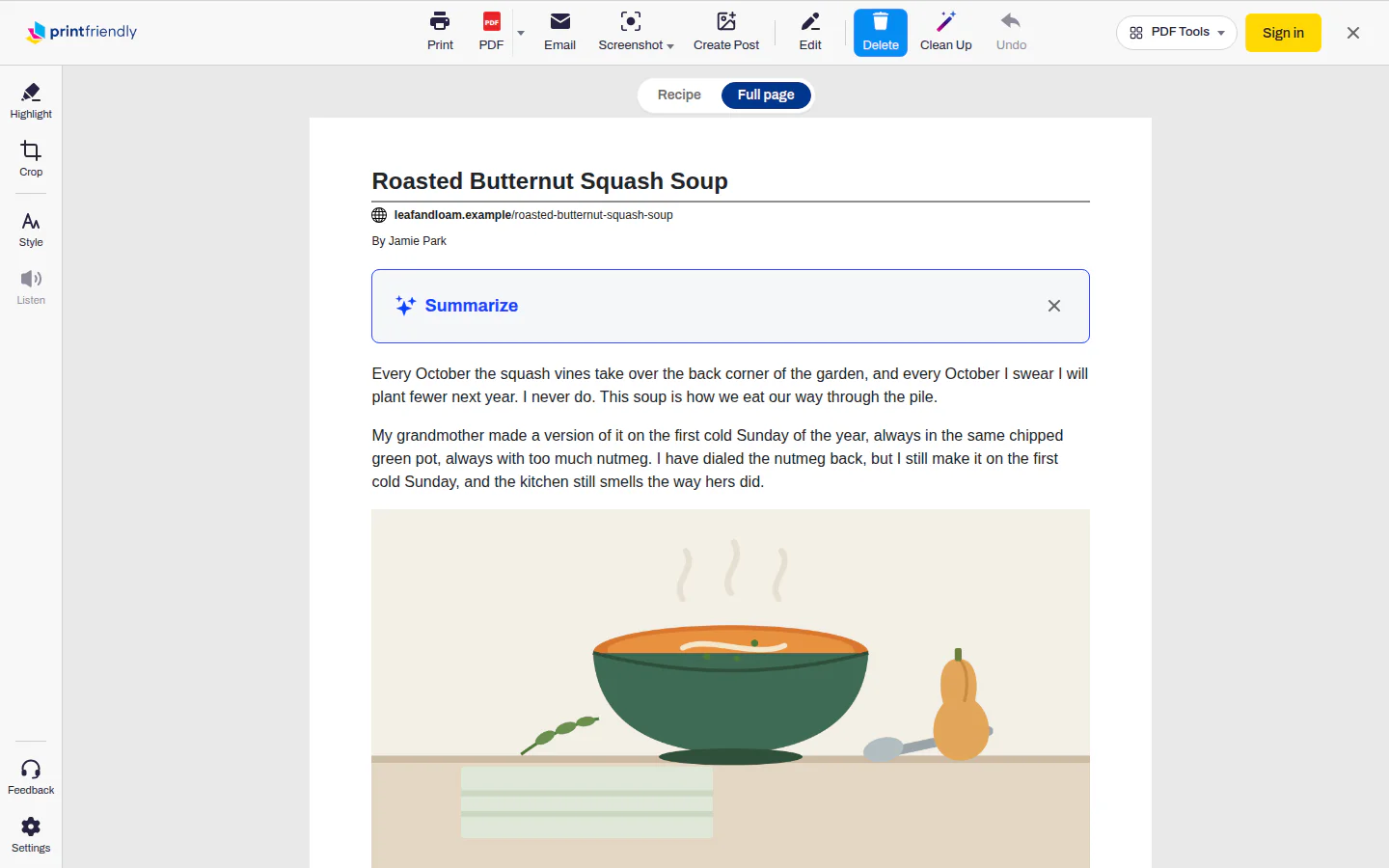
PrintFriendly is the fourth way. Open the page and click the PrintFriendly button in your toolbar, then choose PrintFriendly View, using the extension for Chrome, Edge, Firefox or Safari. No extension? Paste the link into the box on our home page and press Go.
What it's good at:
- The ads, menus and pop-ups are already gone when it opens.
- You choose what prints. Click any block, a paragraph, a picture or a list item, and it's gone. Undo brings it back.
- Under Style, Text size makes the type bigger or smaller, and Image size shrinks every picture to 75%, 50% or 25%, or 0% to drop them all. That's how to print a web page without wasting ink on pictures.
- Clean Up clears the leftovers in one click: sign-up boxes, related links, share buttons. It needs a free account. Our Clean Up post has what it takes out.
- Then Print, PDF or Email.
- The extension works on pages you're signed into, because it works on the page in your browser. The home page box only gets what anyone can see without signing in.
What it's bad at:
- It's one more thing to install, or one more site to visit.
- It doesn't keep the site's look. For a page exactly as it appears on screen, a full-page screenshot is the right tool.
- On a page that's already plain, or one with its own good print version, it's an extra step for nothing.
The steps, with pictures, are in how to print a web page without the ads.
Side by side
| Print button | Print with an ad blocker | Browser reader view | PrintFriendly | |
|---|---|---|---|---|
| What you need | Nothing | An ad blocker | Nothing | The extension, or a link pasted on our home page |
| Ads | Printed | Mostly gone | Gone | Gone |
| Menus, sidebars, sign-up boxes, comments | Printed | Printed | Gone | Gone, with Clean Up for the leftovers |
| Works on | Any page | Any page | Pages it decides are articles | Most pages |
| Choose what prints | Page ranges only | Page ranges only | Page ranges only | Yes, block by block, with Undo |
| Drop pictures to save ink | No | No | No | Yes, all at once or one at a time |
| Pages you're signed into | Yes | Yes | Yes | Extension yes, home page box no |
| Looks like the site | Closest | Close, minus the ads | No | No |
Which to use when
- A plain page, or a site with its own good print version: the Print button. It's enough.
- Ads are the only problem and you already run an ad blocker: the Print button.
- A news article in Safari or Firefox, now and then: the reader view. It's free and already there.
- A recipe, a how-to, a long article with pictures you don't need, or a page the reader view won't open: PrintFriendly, because you can delete the parts you don't want.
- You want to save ink: PrintFriendly with Image size turned down. If the page is already plain, the Print button with background graphics off does the job.
- You need it to look exactly like the site: none of these. Take a full-page screenshot.
- You want a PDF, not paper: our comparison of the two ways to save a web page as a PDF, linked above, covers it.
Frequently Asked Questions
Is there a way to print a web page without ads?
Yes. An ad blocker keeps most ads off the printout, a reader view in Safari or Firefox strips the page down to the article before you print, and PrintFriendly removes the ads, menus and pop-ups and lets you delete anything else.
How do I remove ads before printing?
Open the page in PrintFriendly View, from the extension or by pasting the link on printfriendly.com. The ads are already gone, and you can click any leftover block to delete it before you hit Print.
How do I print an article without ads and pictures?
In PrintFriendly View, open Style and set Image size to 0% to drop every picture, or click the ones you don't want to delete just those. A reader view gets rid of the ads but usually keeps the article's pictures.
Why does my web page print with ads?
Your browser prints the page the way the site built it, and most sites don't tell the browser to leave the ads, menus and sidebars off paper. So everything on screen comes along.
Sources
- Shareable PDF Functionality Overview, Medicaid.gov (US Centers for Medicare & Medicaid Services). Chrome's print dialog lets you turn background graphics and headers and footers on or off under More settings.
- Firefox Reader View for clutter-free web pages - Mozilla Support, Mozilla. Firefox's Reader View strips away buttons, ads and background images from a page.
- Use Reading mode in the Side panel - Google Chrome Help, Google. Chrome's Reading mode shows a simplified version of the page in the side panel.