The best way to save a web page as a PDF
Two obvious ways to keep a page as a PDF, and neither wins every time. Here's what each one is good at, where each falls down, and which to pick.
You want to keep a web page as a PDF, and there are two obvious ways to do it: the Print button your browser already has, or a website where you paste a link and download a PDF. So what's the best way to save a web page as a PDF? It depends on the page, and on what you want the file for. Here's what each one is actually good at, so you can pick.
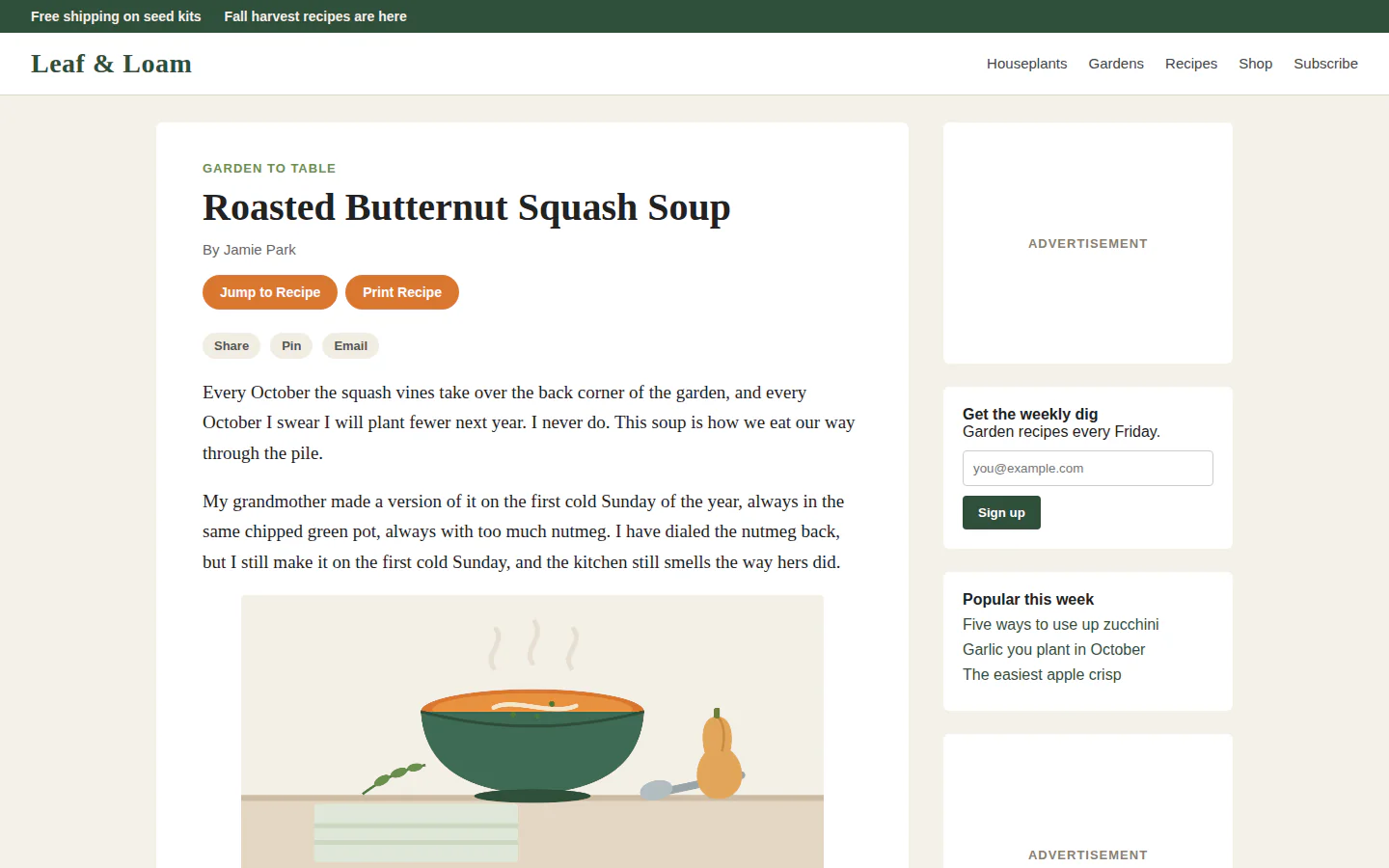
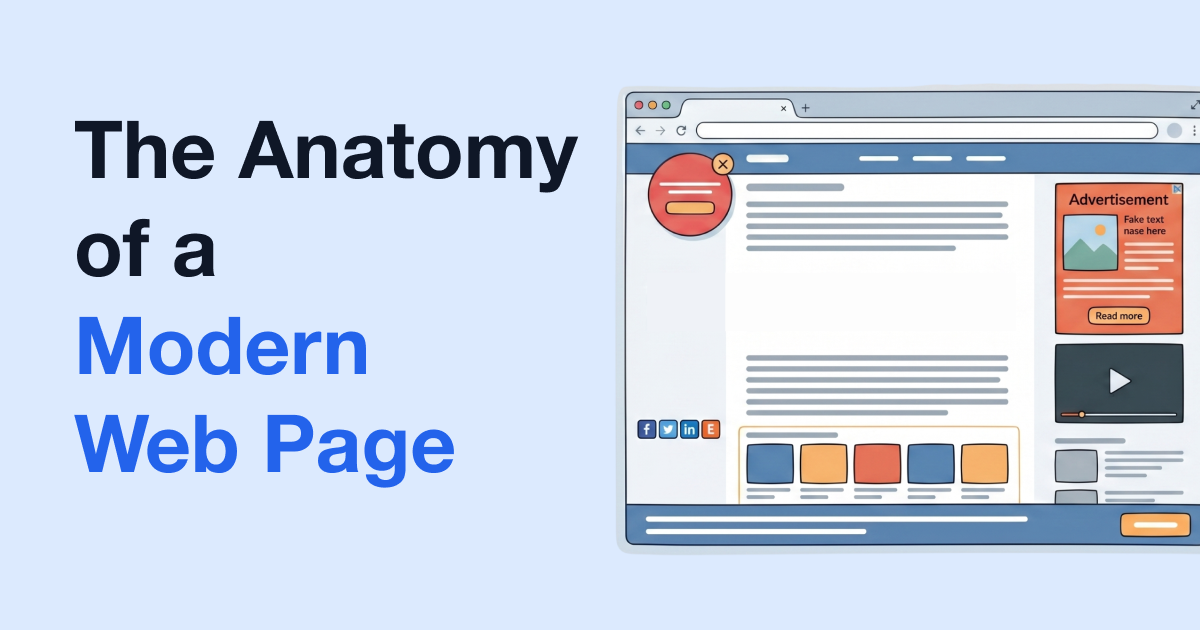
That page is the test. Keep it in mind for both.
Your browser's print to PDF
Every desktop browser can save a page as a PDF from its print dialog. Chrome has its own Save as PDF option, and Edge uses the same wording, picked where you'd normally choose a printer. Firefox calls it Save to PDF. Safari on a Mac has Export as PDF in its File menu. Our guide to saving a webpage as a PDF has the steps for each one.
What it's good at:
- It's free and already there. Nothing to install, no site to visit.
- The page never leaves your computer. Your browser makes the file.
- It works on pages you're signed into, like your bank, your webmail or a course page, because it prints what's in front of you.
- The text stays text, so you can select it and search it later.
- You get settings for paper size, margins, scale, headers and footers, and background graphics.
What it's bad at:
- It saves everything. On that recipe page you'd get the promo bar, the menu, both ads, the newsletter box and the popular posts, plus the empty space around them.
- Long pages break wherever the paper runs out, sometimes straight through a picture or a table, and wide pages can lose their right edge.
- Pictures that only load as you scroll can come out as blank boxes if you never scrolled past them.
- It's laid out for paper, so it won't look like the page did on screen.
And the one that trips everybody up: if the dialog still has a real printer picked, there's no way to save. That's usually the whole answer to "why can't I save this as a PDF in Chrome".
On a phone it's a little different. Chrome on Android saves through Share, then Print. On an iPhone, a full page screenshot in Safari can be saved as a PDF to Files. Both are in the same guide.
An online web page to PDF converter
These are websites with one box: paste a page's address, get a PDF back. It's what people mean by "url to pdf" or "html to pdf online".
What it's good at:
- It works anywhere there's a browser, including a borrowed computer or a work laptop where you can't install anything.
- Some offer controls the print dialog doesn't, like a watermark, a password, or a wait before capturing a slow page.
- Some try to keep the page looking the way it does on screen instead of reflowing it for paper.
- A few will take a whole list of links at once, which helps when you have a batch to keep.
What it's bad at:
- It only sees what anyone can see. The converter opens the page itself, not through your browser, so a page you're signed into comes out as a login screen. A paywalled article, your cart or anything personalised to you won't be the version you were looking at.
- The page's address goes to someone else's server. That matters when the link itself is private, like a shared document link or one with a sign-in token in it. Whatever a converter says about deleting your files, you have no way to check it.
- Most keep the clutter, since they capture the whole page, ads and banners included.
- Quality varies a lot from one site to the next.
So is it safe to use an online PDF converter? For a public page on a site you trust, yes, it's fine. For anything private, don't.
Where PrintFriendly fits
PrintFriendly is a third way, and it borrows a bit from each. Our home page has a Clean up a web page box that takes a link like a converter: paste it on our home page, press Go, then click PDF. The PrintFriendly extension for Chrome (also on Edge, Firefox and Safari) works on the page you're already on, like the print dialog: click its toolbar button, choose PrintFriendly View, then PDF.
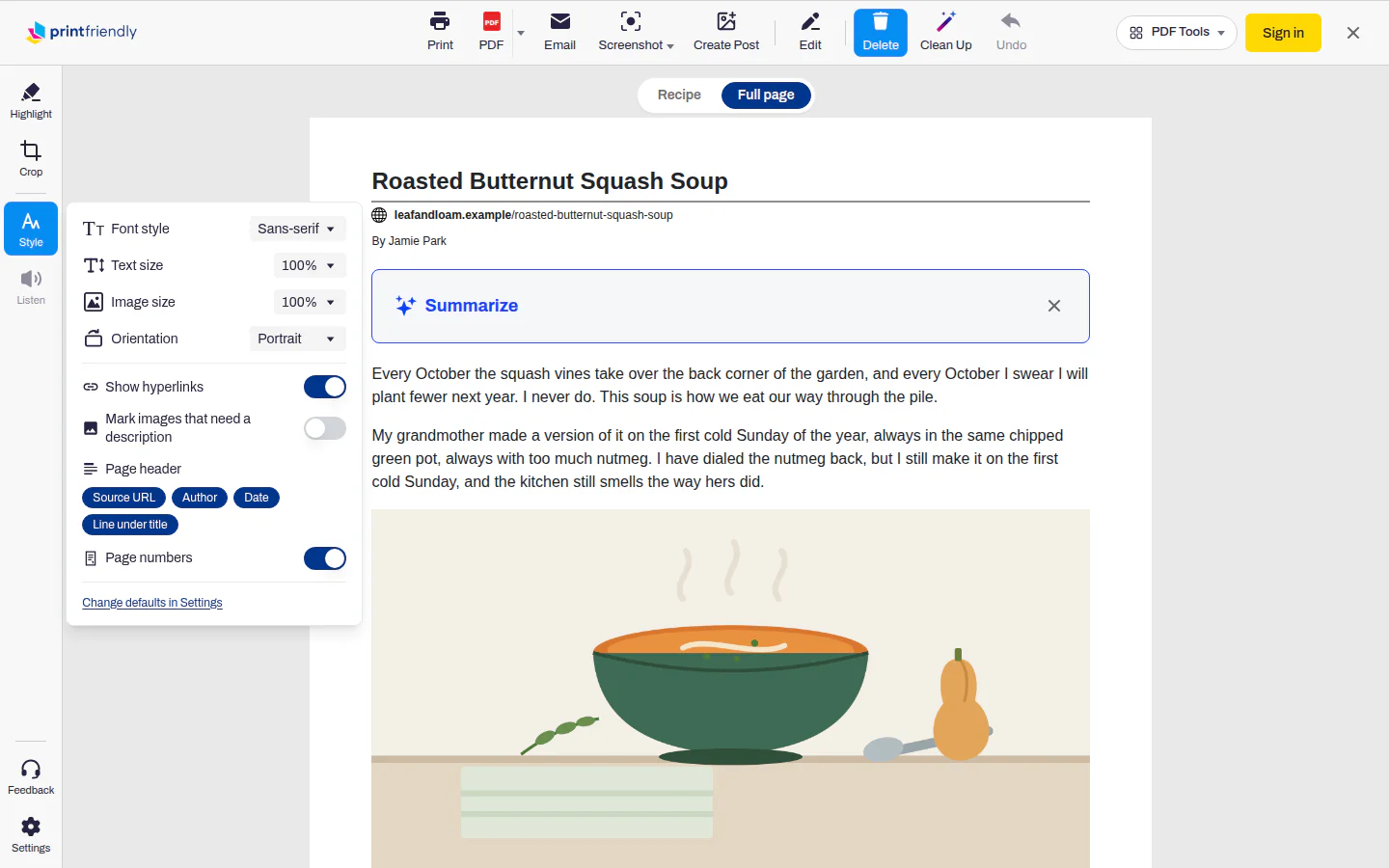
Either way you get the article laid out for paper, with the ads, menus and pop-ups left out. Delete is already on when it opens, so if something slipped through, click it and it's gone (one click removes one block, and Undo brings it back). In the extension, Style has a Page numbers switch and a Show hyperlinks switch that keeps links clickable. Our post on converting a web page to PDF walks through both ways.
The honest limits: the home page box is a converter too, so it can only open public pages. For anything you're signed into, use the extension, since it works on the page in your browser. Either way, PrintFriendly makes the PDF, so the link or the article is sent to us. And PrintFriendly doesn't copy the site's design. That's the point of it, but if you need the page exactly as it looks, a full page screenshot is the right tool, saved as a PDF. The trade-off is that a screenshot is a picture, so you can't select the text.
Side by side
| Browser print to PDF | Online converter | PrintFriendly | |
|---|---|---|---|
| What you need | Nothing, it's built in | A link and a browser | A link, or the extension |
| Pages you're signed into | Yes | No, you get the login page | Extension yes, link box no |
| Ads, menus and banners | Kept | Usually kept | Left out, and you can delete more |
| Looks like the site | No, laid out for paper | Sometimes closer | No, laid out for paper |
| Watermark or password | No | Some | No |
| Where the page goes | Stays on your computer | The link goes to the converter | The link, or the article from the extension, goes to PrintFriendly |
| On a phone | Yes, differently on each | Yes, in the phone's browser | Link box in any phone browser |
Which to use when
- A plain page that's mostly text, and you just want a copy: your browser's print to PDF. It's free and it's enough.
- A page you're signed into: print to PDF or the PrintFriendly extension. A converter can't see the page.
- Anything private: your browser's print to PDF. The page never leaves your computer.
- It has to look exactly like the site: a full page screenshot saved as a PDF, knowing the text won't be selectable. Neither print nor PrintFriendly keeps the design.
- A cluttered article you'll read or print: PrintFriendly, since it leaves out the ads and menus that print to PDF copies.
- You need a watermark, a password or a batch of links: an online converter, for public pages. Or save the page your usual way and add a password afterwards with Password Protect PDF.
- A link someone sent you, on a borrowed computer or your phone: a converter or our home page box, as long as the page is public.
Frequently Asked Questions
Is it safe to use an online PDF converter?
For a public page on a site you trust, it's fine: the converter only sees what anyone can see. Keep anything private off it, because the link goes to someone else's server and you can't check what happens to it there.
Why can't I save a webpage as a PDF in Chrome?
Most of the time the print dialog still has your printer picked. Switch the destination to Save as PDF and the button changes to Save.
How do I save a webpage as a PDF without it getting cut off?
In the print dialog, try Landscape and a smaller scale, and scroll to the bottom of the page first so every picture has loaded. If the page is mostly ads and sidebars, a version laid out for paper, like PrintFriendly View, leaves less to cut off.
Is there a way to save an entire webpage as a PDF?
Depends what entire means to you. For the whole article as a document you can read, print to PDF or use PrintFriendly. For the page exactly as it looks, header to footer, take a full page screenshot and save it as a PDF.
Sources
- How to save a PDF of a web page, the US Consumer Financial Protection Bureau. Chrome's print dialog can save a page as a PDF by choosing Save as PDF as the destination.