Highlight a web page and print it, which way is best
You want the article on paper with the important lines marked. Here's what a highlighter extension, a pasted document and PrintFriendly each get you.

You've got a long article, five lines of it matter, and you want it on paper (or in a PDF) with those five lines marked. The two usual ways to highlight a web page and print it are a web highlighter extension, or pasting the text into Word or Google Docs and highlighting it there. Both work, with one catch that trips people up: highlights made on the web page itself often don't make it onto the paper.
First, which "highlight" do you mean?
A lot of people searching this mean "select just this part so only it prints". You don't need a highlighter for that. Select the passage, open your browser's print dialog, and print the selection. In Chrome and Edge it's Selection only under More settings.
What you get is that passage in the site's own styling, with no marks of any kind. If that's all you wanted, you're done. The rest of this post is about marking lines in color and keeping the color on paper.
Option 1: a web highlighter extension
A web highlighter extension lets you mark text right on the page: select it, pick a color, and it stays marked. That's the real strength here. Most give you several colors, many let you add notes, and the good ones bring your highlights back when you return to the page and keep a library of everything you've marked across sites. If you're researching across twenty tabs over a few weeks, that's hard to beat.
It's less good at the printout:
- The rest of the page prints too. Your marks sit on the original page, so printing it brings along the ads, menus, sidebars and comment boxes around the article.
- The highlights may not print. A highlight is a background color, and browsers usually drop background colors from a printout (more on that below).
- Cost and access vary. Some are free, some keep features for a paid plan, and every one needs access to the pages you read. Check what it asks for before you install it.
Option 2: copy it into a document
Select the article, copy it, paste it into Word, Google Docs or Pages, and use the document's highlighter. This is the most flexible way, because once it's a document you can do anything to it: pick any color, add comments, cut paragraphs, rewrite a sentence, share the file for someone else to edit. Word's highlighting prints, too: Microsoft's page on highlighting in Word suggests a light color if you plan to print in monochrome.
The trouble is getting the page in. Pasted web text tends to drag along links, odd fonts, stray buttons and bits of ads. Paste it as plain text instead and you lose the images, headings and layout. Tables and lists often come out broken. For a long article, the cleanup can take longer than the reading. And the copy is frozen: it won't update if the article does, and unless you paste the address in, it won't say where it came from.
Option 3: PrintFriendly
The PrintFriendly extension sits between the two. Open the article in PrintFriendly View and the ads and menus are already gone. It opens in Delete mode, so you click a paragraph you don't need and it disappears, and Edit lets you type into the article if a word needs fixing. Then click Highlight and drag across the lines that matter, and they turn yellow.
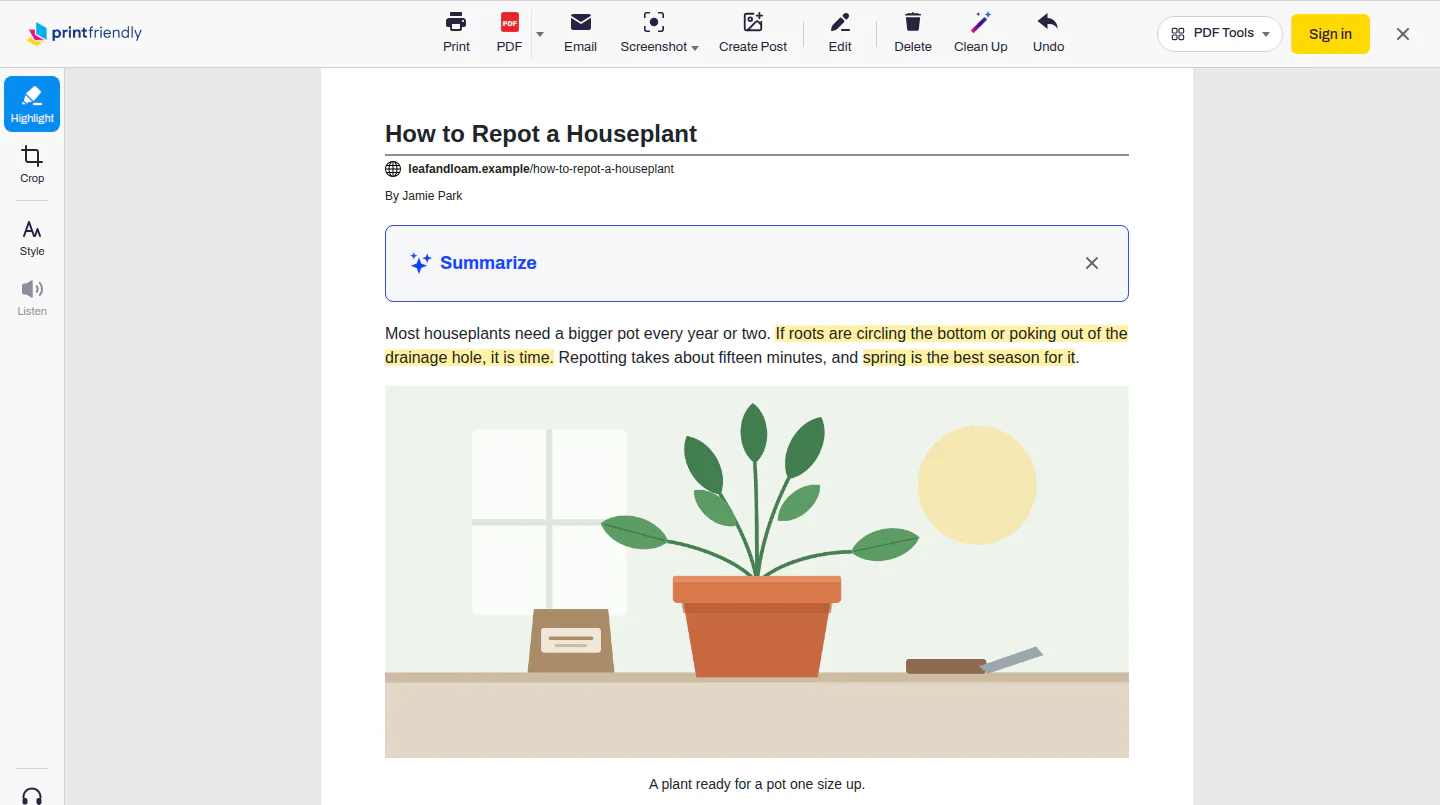
Click PDF and the yellow is in the file. Click Print and it's on the paper in Chrome, Edge and Firefox, without touching any print setting.
The limits are real: there's one color, yellow, and it's built for the page you're about to print or save, not a library of highlights you come back to. If you clear out the clutter first, you end up with something tidy to print, the way a reader extension does. Everything PrintFriendly View can do before you print is on the Help Center's extension features page.
Why highlights disappear when you print
This is the catch from the top. On a web page, a highlight is a background color behind the text. To save ink, browsers usually leave background colors and images out of a printout unless you turn on a setting: Background graphics in Chrome and Edge, Print backgrounds in Firefox. Both are in the print dialog, under the extra settings.
So if you stick with a highlighter extension and your printout comes out plain, that setting is the first thing to check. Turning it on also brings back other background colors and images on the page, so the printout may use more ink than you expect.
Side by side
| Print selection | Highlighter extension | Paste into a document | PrintFriendly | |
|---|---|---|---|---|
| Setup | None | Install an extension | None | Install the extension |
| Colors | No marks | Usually several | Any | Yellow only |
| Notes | No | Often | Comments | Type them in with Edit |
| What else prints | The site's styling around your selection | The whole page: ads, menus, sidebars | Whatever came along in the paste | Only what you left in |
| Highlights on paper | No marks to print | Depends on a print setting | Yes, in Word | Yes in Chrome, Edge and Firefox |
| PDF with the marks | No | Depends on the extension | Save the document as a PDF | Yes, with PDF |
| Change the text | No | No | Yes, freely | Delete parts, or change words with Edit |
| Many pages over time | No | Yes, that's its strength | One file per page | No, one page at a time |
| Cost | Free | Free to paid | Nothing new if you have Word or Docs | Free |
Which to use when
- Print the selection when you want one passage on paper and don't need anything marked.
- A highlighter extension when you're researching across many pages and want colors, notes and highlights that are still there next week. If you print, turn on background printing first.
- A document when you'll rewrite, comment, share it for editing, or want more than one color on paper.
- PrintFriendly when you want this one article on paper or as a PDF, without the clutter, with the key lines in yellow.
Already have the file as a PDF? Skip all of this and add highlights with Edit PDF.
Frequently Asked Questions
How do I highlight something on a web page so it prints?
Mark it with a highlighter that survives printing: paste the text into Word and highlight it there, or use PrintFriendly View's Highlight and click PDF or Print. With a regular highlighter extension, turn on your browser's background printing setting first.
How do I print just the content of a web page?
Select the part you want and print the selection, or open the page in PrintFriendly View, which drops the ads and menus and lets you click away anything else before you print.
Why don't my highlights show up when I print?
A highlight on a web page is a background color, and browsers usually leave background colors out of a printout to save ink. Turn on Background graphics in Chrome or Edge, or Print backgrounds in Firefox, and try again.
Can I highlight a web page without installing an extension?
Yes. Copy the text into Word or Google Docs and highlight it there. It takes longer and the formatting can come out messy, but nothing gets installed.
Sources
- Apply or remove highlighting, Microsoft. Word's Text Highlight Color tool marks text in a choice of colours, and the highlighting prints.