How to save a Substack post as a PDF
Paste the link or use the extension, and a long Substack essay becomes a clean PDF. Footnotes now keep their numbers, so the notes make sense again.
You found a long Substack essay worth keeping, to read offline, mark up, or print for later. So how do you save a Substack post as a PDF without dragging along the subscribe boxes, the share buttons and a comment thread longer than the post? PrintFriendly turns the post into a clean PDF of just the writing. And footnotes now come through with their numbers, so every note still matches its sentence.
The quick way: paste the link
For a post anyone can read, you don't need to install anything.
- Open the post on Substack and copy its address from the address bar.
- Go to the PrintFriendly home page, paste the link into the Clean up a web page box and press Go.
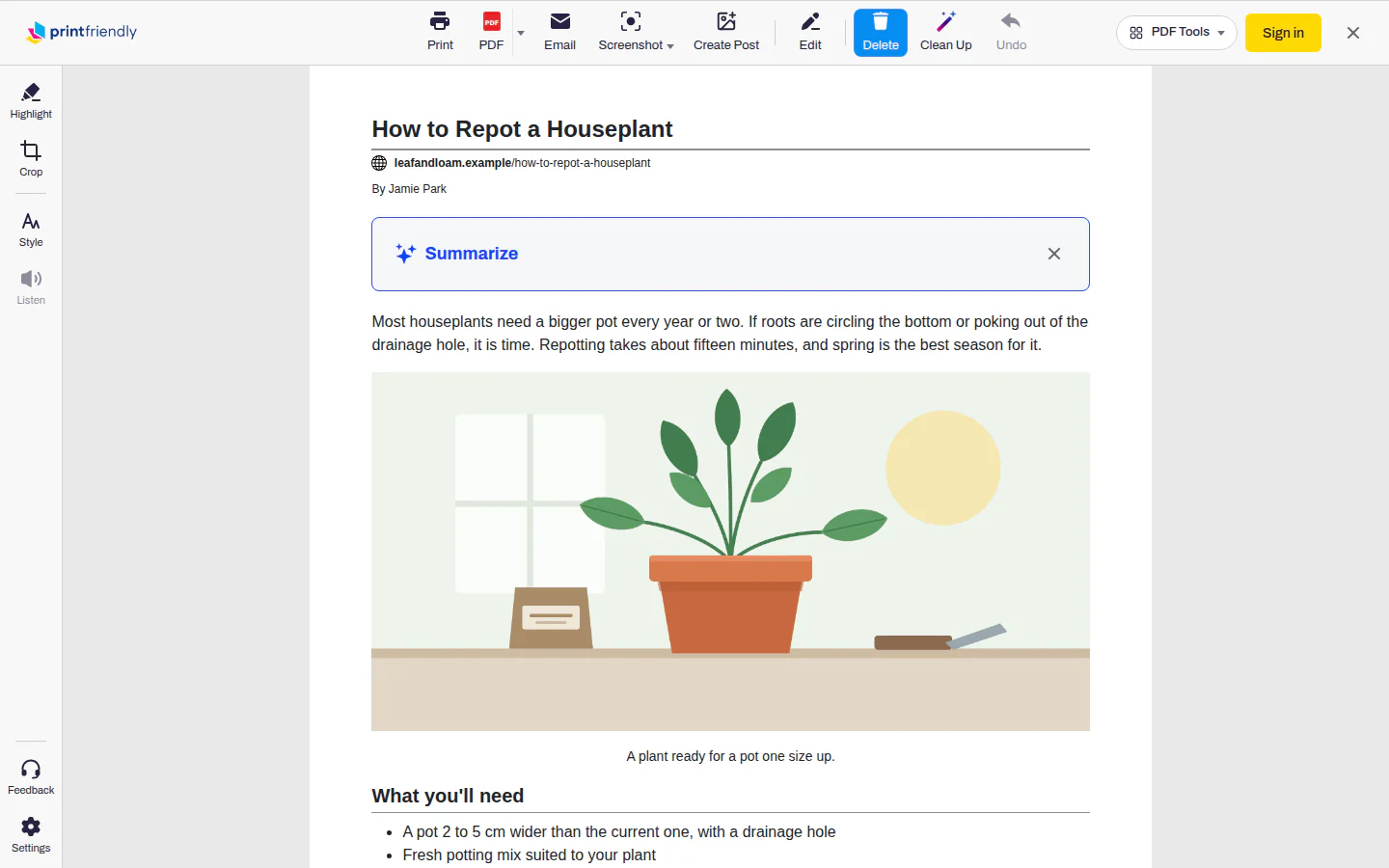
- You get the post on its own: the title, the writing and its pictures, laid out for paper.
- Click PDF, pick Letter or A4, then Generate PDF and Download PDF.
Want paper instead? Press Print in the same toolbar. Downloading the PDF doesn't need an account.
Pasting a link only gets what anyone can read without signing in. For a paid post you subscribe to, use the extension.
Posts you read signed in: use the extension
The PrintFriendly extension works on the page open in your own browser. If you're signed in to Substack and can read the whole post, the extension saves the whole post. It saves what you can already read, nothing more.
- Open the post in your browser.
- Click the PrintFriendly button in the toolbar, then choose PrintFriendly View.
- Click PDF to save it, or Print to print it.
The extension is there for Chrome, Edge, Firefox and Safari.
Footnotes keep their numbers
Lots of Substack writers lean on footnotes. Until now, a printed post could lose the numbers on the notes at the bottom. You'd get a tidy list of notes and no way to tell which one belonged to which sentence. One reader sent us a post with 38 footnotes and not a single number left on them.
That's fixed. Each note now keeps its number, so a little 7 in the text still matches note 7 at the end, the way it does on Substack. It works when you paste a link on printfriendly.com and in the extension.
It isn't only Substack. Any site whose footnotes link back up to the spot in the text gets the same treatment.
Trim it before you save
Some posts still bring leftovers: a sponsor note, a "share this post" line, a picture you don't need. A few clicks clean that up before you save.
- Delete is already on when the post opens. Click a paragraph, image or list item and it's gone. Undo brings back the last thing you removed.
- Clean Up takes out the remaining clutter in one go, like newsletter sign-ups and stray labels, and lets you put back anything it took. It needs a free PrintFriendly account. Our Clean Up post shows how it works.
- Under Style, Text size and Image size change how big the words and pictures print. Smaller pictures mean fewer pages for a long essay.
Every change is to your copy only, never the post on Substack. The extension features page lists the rest of the editing tools.
Other ways, and when they're fine
You don't always need us. Here's when the alternatives do the job.
Your browser's own print. Every desktop browser can save a page as a PDF from its print dialog. Chrome has its own Save as PDF option. It's free and already there. The catch is that it prints the whole page as it is: the header, the subscribe boxes, the comments and the footer. Fine for a short post where you don't mind the extra pages.
Safari's Reader. On Apple devices, Safari's Reader hides ads and navigation menus so you can read just the article, and you can print from there. It's a good quick option when it shows up for a post, though you can't pick out what to remove.
The newsletter email. If the post landed in your inbox, you can print that email to a PDF from your mail app. It only works for newsletters you get by email, and you get the email's layout rather than the post's.
If you're weighing the browser's print against a converter more generally, our guide to the best way to save a web page as a PDF puts them side by side.
On iPhone or Android
The steps barely change on a phone.
- In the Substack app or your phone's browser, open the post and copy its link from the share menu.
- Open printfriendly.com in Safari or Chrome on your phone.
- Paste the link into the box and tap Go.
- Tap PDF, then Generate PDF and Download PDF.
The PDF lands with your browser's other downloads, ready to open, share or save wherever you keep files. On an iPhone, Safari can also save a web page as a PDF itself, though you get the whole page that way.
What a Substack PDF is good for
A PDF reads fine on a plane, takes highlights in any PDF reader, and stays yours if a post later moves behind a paywall or disappears. It also makes a nice printout for a long essay you'd rather read on paper.
Frequently Asked Questions
Can you save a Substack post as a PDF?
Yes. Paste the post's link on printfriendly.com, or open it in the PrintFriendly extension, then save the PDF. The subscribe boxes and comments stay behind, and footnotes keep their numbers.
Can you print something from Substack?
Yes. Do the same thing and press Print instead of PDF. Your browser's own Print works too, but it prints the whole page, clutter included.
How do I save a Substack post as a PDF on my iPhone?
Copy the post's link, open printfriendly.com in Safari, paste it and press Go. Then tap PDF, Generate PDF and Download PDF.
Is there a free way to turn a Substack post into a PDF?
Yes. Pasting a link on printfriendly.com and downloading the PDF doesn't need an account. Your browser's own Save as PDF is free too, it just keeps everything on the page.
Sources
- How to save a PDF of a web page, the US Consumer Financial Protection Bureau. Chrome's print dialog can save a page as a PDF when you choose Save as PDF as the destination.
- Hide ads and distractions in Safari on iPod touch, Apple. Safari's Reader shows an article without ads and navigation.
- Annotate and save a webpage as a PDF in Safari on iPhone, Apple. On iPhone, Safari can save a web page as a PDF.